Game Settings
Game Settings Guide for Tom Clancy\'s Rainbow Six Siege
Properly configuring your settings is crucial for competitive performance in Rainbow Six Siege. This guide covers every settings category—graphics, audio, controls, accessibility, language, network, and gameplay—with detailed recommendations for different hardware tiers and common pitfalls.
Graphics Settings
Graphics directly affect visibility, frame rate, and input lag. Siege is CPU-bound at high frame rates; even low-end GPUs can push 60 FPS if CPU is strong. Aim for 144+ FPS if possible for smoothness.
#### Display & Resolution
- Display Mode: Fullscreen (lowest input lag) > Borderless Windowed (alt-tab easier, slight lag) > Windowed (not recommended).
- Aspect Ratio: 16:9 gives widest FOV; 4:3 stretches targets horizontally (often used by pros for bigger head hitboxes). 16:10 is a middle ground.
- Resolution: Native monitor resolution (e.g., 1920x1080) for clarity; lower resolution (e.g., 1280x720) boosts FPS but reduces sharpness.
- Refresh Rate: Match your monitor\'s max (e.g., 144Hz, 240Hz). Enable in Windows display settings first.
#### Advanced Graphics
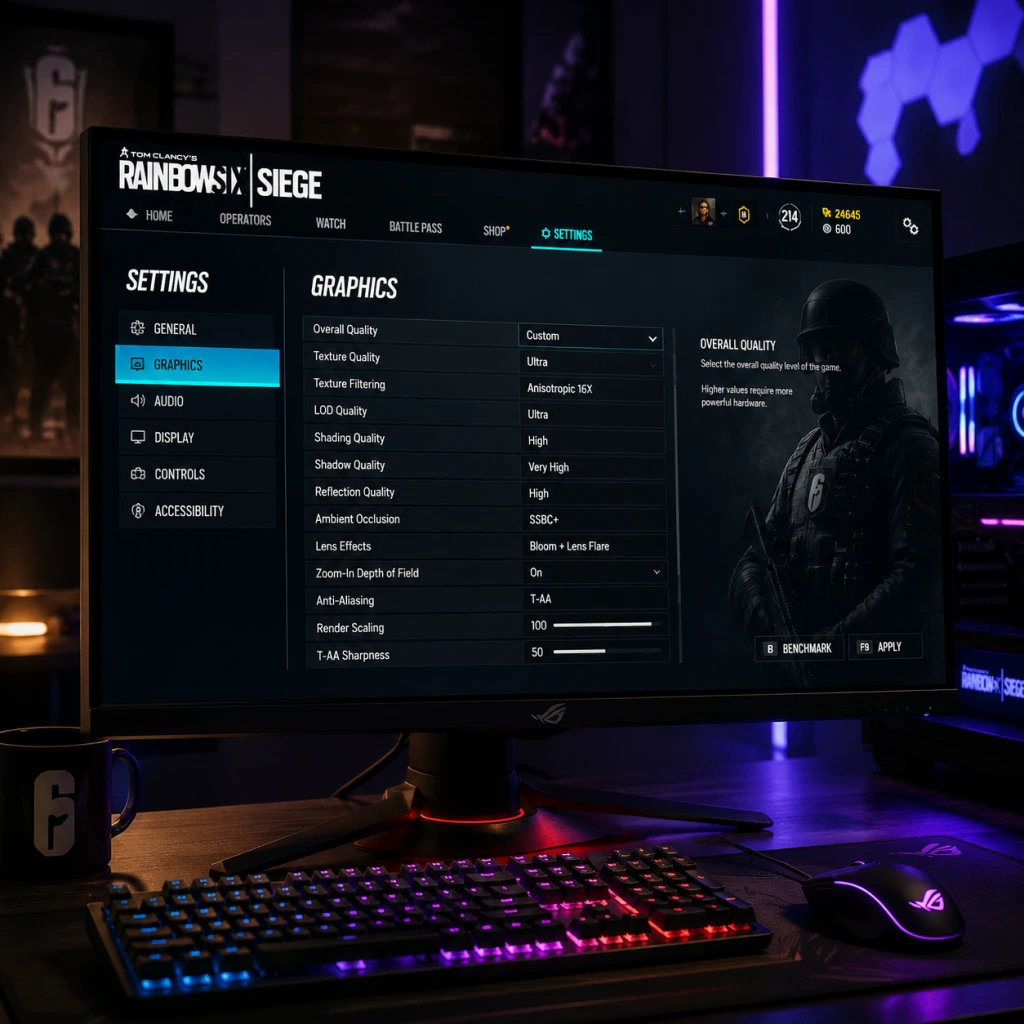
| Setting | Low-End (60 FPS) | Mid-Range (100-144 FPS) | High-End (200+ FPS) | Notes |
|---|---|---|---|---|
| Texture Quality | Low | Medium | High/Ultra | VRAM heavy; if \<4GB VRAM keep Low. |
| Texture Filtering | 1x | 4x | 8x | Minor performance impact; 4x is fine. |
| LOD Quality | Low | Medium | High | Affects detail draw distance; low helps spot enemies. |
| Shading Quality | Low | Low | Medium | Shadows and lighting; low reduces clutter. |
| Shadow Quality | Low | Low | Medium | Higher shadows make enemies easier to see in dark corners. |
| Reflection Quality | Off | Low | Medium | Mirror effects; can distract; low/off for performance. |
| Ambient Occlusion | Off | SSBC | SSBC+ | Adds depth; SSBC is a good balance. |
| Lens Effects | Off | Off | Off | Bloom, flares; purely cosmetic & can obscure targets. |
| Zoom-In Depth of Field | Off | Off | Off | Blurs background when ADS; hinders peripheral vision. |
| Anti-Aliasing | T-AA (Low) | T-AA (Low) | T-AA (High) | T-AA blurs; use T-AA (Low) for clarity. FXAA is less blurry but aliased. |
| Render Scaling | 50-75% | 100% | 100% | Lower = less GPU load but blurry. Only for extremely weak GPUs. |
| T-AA Sharpness | 0.5-0.7 | 0.5 | 0.3 | Fine-tune after choosing T-AA; too sharp = jagged edges. |
- VSync: Off at all costs. It adds input lag. Use G-Sync/FreeSync instead if you have tearing, but ensure frame rate is capped a few FPS below refresh rate.
- Frame Rate Limit: Set to your monitor\'s refresh rate (e.g., 144) or unlimited if temps are okay. Uncapped can cause screen tearing but minimal lag.
- Field of View (FOV): Default 60 is narrow; 90 is the sweet spot for peripheral awareness without fish-eye.
- Aspect Ratio & FOV: 4:3 stretches horizontally, making heads appear wider; many pros use 4:3 with FOV 84-90. 16:9 gives more horizontal view but smaller heads. Experiment in training grounds.
- Master Volume: 100% (adjust OS volume).
- SFX Volume: 100% (footsteps, gunshots, gadgets).
- Dialogue Volume: 80-100% (operator lines, callouts).
- Music Volume: 0-20% (can mask footsteps; many pros lower to 0).
- Voice Chat Volume: 100% (team communication).
- Voice Chat Record Mode: Open Mic (default) or Push-to-Talk (recommended to avoid background noise).
- Voice Chat Recording Volume: 100% (adjust in Discord/Windows afterward).
- Dynamic Range: Night Mode compresses audio, making quiet sounds (footsteps) louder. Hi-Fi preserves range but requires good headphones. TV is balanced. Most competitive players use Night Mode.
- Sound Mode: 3D Audio (HRTF) — use this. Disable any “Surround Sound” in headset software; Siege\'s HRTF works best with stereo headphones.
Audio Settings
Sound cues are vital for information. Siege uses HRTF (Head-Related Transfer Function) for 3D audio; no need for surround virtualizers.
Misconfiguration Alert: If you use Windows Sonic or Dolby Atmos, disable them in Windows spatial sound. They conflict with Siege\'s own HRTF and reduce directional accuracy.
Controls Settings
Customize your controls for speed and comfort. Default layout is decent but can be improved.
#### Key Bindings (Keyboard & Mouse)
| Action | Default | Recommended | Reason |
|---|---|---|---|
| Lean Left/Right | Q / E | Q / E (or mouse side buttons) | Keep default for quick peeks; rebinding to side buttons frees keyboard hand. |
| Prone | Z | Ctrl (hold) or C (toggle) | Easier to go prone quickly. |
| Crouch | Ctrl | C (hold) | Hold-to-crouch lets you uncrouch faster; toggle can cause mis-timing. |
| Walk | Left Shift | Left Shift (hold) | Default fine; some swap to Caps Lock. |
| Gadget 1 & 2 | Mouse 4/5 | Mouse 4/5 (or G/H) | Keep on mouse for fast use. |
| Push to Talk | B | V (thumb) | Closer to movement keys. |
| Primary Gadget | 3 | Scroll wheel down | Quicker than reaching for 3. |
| Secondary Gadget | 4 | Scroll wheel up | Same logic. |
| Drone/Camera | Mouse button (extra) | Q or E (alternate) | Avoid moving hand off movement keys. |
- DPI: 400 or 800 DPI (most common among pros). Higher DPI makes fine adjustments harder.
- In-Game Sensitivity:
- Aim Down Sights (ADS) Sensitivity: Set to Relative (not Absolute) so muscle memory transfers across magnifications.
- Mouse Acceleration: Off in Windows (Enhance Pointer Precision) and in-game (none).
- Raw Input: On (bypasses Windows mouse smoothing).
- Stick Layout: Default (Left stick move, right stick look). Many use L2/R2 for ADS/Shoot.
- Stick Deadzone: 5-10 (lower for responsiveness; too low causes drift).
- Trigger Deadzone: 0-5 (minimal).
- Vibration: Off — it causes input delay and distracting feedback.
- Controller Sensitivity: Start at 20-30 vertical, 30-40 horizontal, ADS 25-35. Adjust upward as you get comfortable.
- Colorblind Mode: Protanopia, Deuteranopia, Tritanopia — changes team colors (blue/orange instead of red/green). Helps distinguish friend from foe. Enable in Settings > Accessibility.
- Subtitles: On for all audio (story missions, dialogue).
- Camera Shake: Off — reduces disorientation from explosions.
- Controller Button Layout: Can remap all buttons for physical limitations.
- Narrator (PC): Not built-in, but Ubisoft Connect overlay can be used with third-party screen readers.
- High Contrast Mode: Not a setting, but T-AA Sharpness at 0.5 and Digital Vibrance in GPU driver (NVIDIA 50-70% / AMD Saturation) can enhance visibility.
- Game Text: Supports many languages (English, French, German, Spanish, etc.). Choose in Settings > General > Language.
- Voice Chat Language: Not a separate setting; voice is always the spoken language of players.
- Subtitle Language: Independent of text language.
- Audio Language: Separate option — choose English for consistency with callouts, or native language for immersion.
- In-Game Voice Lines: Operators speak their native language by default; you can change to English only via Voice Over Language setting (English).
- Data Center Selection: Automatic (picks best ping). You can manually select a specific data center in Settings > Network > Data Center (useful if connecting to a region with high ping or to play with friends).
- Network Connectivity: Choose LAN if on a wired connection, Wi-Fi if on wireless (the game adjusts some settings). Wired is strongly recommended.
- Bandwidth: Not configurable in-game, but ensure your router QoS prioritizes game traffic.
- Port Forwarding: Not required, but enabling UPnP reduces NAT issues. For strict NAT, forward ports: UDP 3074, UDP 6015, TCP 3074.
- Disable Nagle\'s Algorithm: Reduces packet delay. Run in CMD as admin: `netsh interface tcp set global autotuninglevel=disabled` (or use custom scripts).
- Disable Windows Game Mode: Sometimes interferes with network priority. Turn off in Windows Settings > Gaming > Game Mode.
- Close Background Bandwidth Hogs: Steam downloads, streaming, etc.
- Always Show: Operator health, ammo count, compass — enable all. Compass helps callout directions (e.g., “Red stairs”).
- Hit Indicator: On — shows when you damage an enemy (X icon).
- Kill Feed: On — essential to know who died and how.
- Drone / Camera HUD: On — shows battery life and spectating when dead.
- Observation Tool HUD: On — shows number of drones left.
- Mini Map: On — but reduce opacity so it doesn\'t block vision.
- Scoreboard: H toggle — keep default.
- Matchmaking Type: Standard (ranked/unranked) or Quick Match. Choose based on playstyle.
- Map Preference: Uncheck maps you dislike (only affects casual queues; not available for Ranked).
- Game Mode: Bomb (primary competitive mode), Secure Area, Hostage. Uncheck non-preferred modes to increase chances of your favorite.
- Kill Cam: On (learn from your death) — but in Ranked, only team killcams are shown.
- Replay Mode: After match, you can review full game — enable auto-recording if you want to review.
- Spectator HUD: When dead, you can toggle overhead view (F7) or free camera (F8).
- Gadget Placement Preview: On — shows trajectory before throwing (e.g., Valkyrie cam, C4).
- Drone Boost: On — double tap shift to sprint drone for a short time.
- Auto Match Up: Off — prevents accidentally joining a new round after timeout.
- Prefer to Skip Map Ban Phase: Only relevant in Ranked; set to Yes to skip if you don\'t care about bans (saves time).
- Resolution: 720p or 900p
- All graphics: Low/Off
- T-AA Low, Render Scaling 75%
- Field of View: 75 (lower FOV = higher FPS)
- Shadows: Low
- Aim for 60-90 FPS
- Resolution: 1080p
- Textures: Medium, Filtering: 4x, Shadows: Medium
- LOD: Medium, Shading: Low
- T-AA Low, Sharpness 0.5
- FOV: 90
- Aim for 100-144 FPS
- Resolution: 1440p or 1080p at 240Hz
- Textures: High, Filtering: 8x, Shadows: High
- LOD: High, Shading: Medium
- Ambient Occlusion: SSBC
- T-AA High, Sharpness 0.3
- FOV: 90
- Aim for 144+ FPS (144Hz) or 200+ FPS (240Hz)
- Resolution: 1440p or 4K on high refresh
- Textures: Ultra, Filtering: 16x
- Everything High/Ultra except Lens Effects/Depth of Field Off
- T-AA High, Sharpness 0.2
- FOV: 90
- Aim for max refresh rate (240/360)
- [ ] Launch a Terrorist Hunt (Training Grounds) solo.
- [ ] Adjust mouse sensitivity until you can do a comfortable 180° turn with one swipe.
- [ ] Test audio: walk on different surfaces (wood, metal, carpet) and ensure directional sound is clear.
- [ ] Check FPS counter (Ctrl+Shift+F) — aim for stable frames above your monitor refresh rate.
- [ ] Play a Quick Match to test controls under pressure.
- [ ] If using controller, adjust deadzones to avoid drift.
- [ ] Verify VSync is off and G-Sync/FreeSync is on if available.
- [ ] Set voice chat push-to-talk if you have background noise.
- Horizontal/Vertical: 5-15 (adjust to your comfort; lower = more precise).
- ADS (Aim Down Sights): 30-50 (relative to hipfire; 50 is 1:1 for 1x sights).
- Scope Sensitivity (1.0x): 50-60 for older scopes; ACOG (2.5x) often set to 30-40.
Misconfiguration Point: Mouse Smoothing (in-game setting) should be Off — it adds input lag. Also ensure your Windows pointer speed is 6/11 (default) and Enhanced Pointer Precision disabled.
#### Controller Settings (Console / PC w/ Controller)
Accessibility Settings
Siege includes several options to accommodate different needs.
Special Attention: If you have difficulty seeing enemies through smoke, set Shading Quality to Low — it reduces volumetric smoke density. Also, turn Lens Effects Off to remove glare.
Language Settings
Tip: Keep game audio language as English to understand enemy callouts (e.g., “Hostage secured!”) and operator abilities.
Network Settings
Network configuration impacts ping, packet loss, and connection quality. Siege uses Ubisoft servers and a client-server model.
#### In-Game Network
#### PC-Specific Network Optimizations
Misconfiguration: Data Center Auto may route you through a distant server if your ISP routes poorly. Manually select a data center (e.g., `eus2` for US East) after checking pings in-game (press Ctrl+Shift+F to see FPS and ping).
Gameplay Settings
These settings affect matchmaking, HUD, and game behavior.
#### HUD Options
#### Matchmaking Preferences
#### Spectator & Camera
#### Gameplay Tweaks
Optimal Settings by Hardware Level
#### Low-End (GTX 1050 / RX 560, 8GB RAM, i5-6400)
#### Mid-Range (GTX 1060 / RX 580, 16GB RAM, i7-8700)
#### High-End (RTX 2070 Super / RX 5700 XT, 16GB RAM, Ryzen 5 3600)
#### Ultra (RTX 3080 / RX 6800 XT, 32GB RAM, Ryzen 7 5800X)
Settings That Are Easy to Misconfigure (Summary)
1. VSync: Must be Off — adds 10-20ms input lag.
2. Mouse Smoothing/Accleration: Both Off — destroys muscle memory.
3. Dynamic Range: Use Night Mode for footstep audio, not Hi-Fi.
4. Aspect Ratio: 4:3 stretches enemies, but reduces horizontal FOV. Many pros use 4:3 with FOV 84-87.
5. ADS Sensitivity: Set to Relative (not Absolute) for consistency across scopes.
6. Data Center: Auto might give bad ping; manually select a good one.
7. Frame Limit: Set to max monitor refresh rate or unlimited (if you can handle tearing). Never enable VSync.
8. Colorblind Mode: Even if not colorblind, enabling a mode (Deuteranopia) changes team colors from pale blue to vibrant orange — easier to see enemies against backgrounds.
9. Controller Vibration: Off — reduces input delay and helps with aim precision.
Final Checklist After First Setup
Remember: Siege is a game of milliseconds. Every setting that reduces input lag or improves visual clarity gives you an edge. Start with the recommendations above, then fine-tune to your personal preference in the Shooting Range.