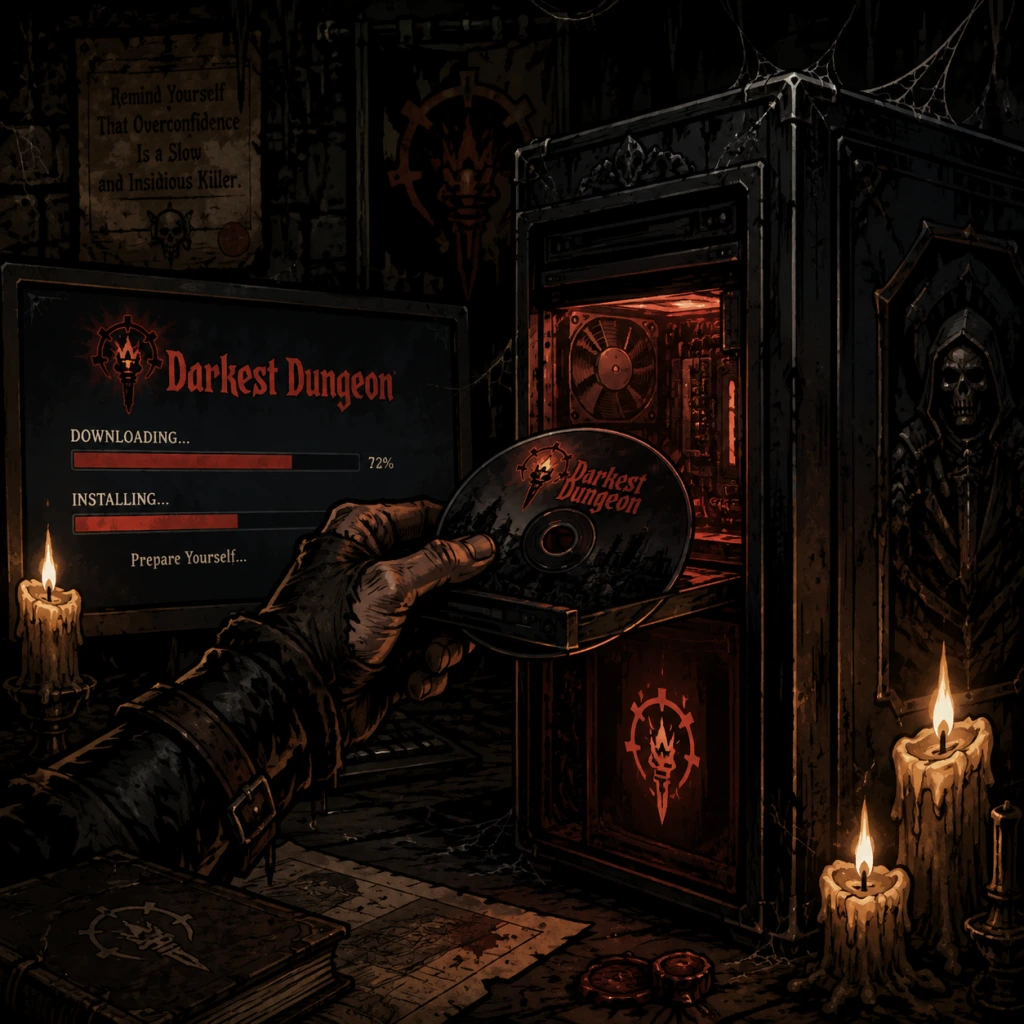
Download & Installation
Download & Installation Guide for Darkest Dungeon
This guide covers legitimate methods to obtain and install Darkest Dungeon on all supported platforms. Darkest Dungeon is a gothic roguelike turn-based RPG developed by Red Hook Studios. It supports PC (Windows/macOS/Linux via Steam, Epic Games Store, GOG), PlayStation 4 & 5, Xbox One & Series X|S, Nintendo Switch, and mobile (iOS & Android).
Platform-Specific Sources
- PC: Steam, Epic Games Store, GOG.com (DRM-free) – all official.
- PlayStation: PlayStation Store (PS4 & PS5).
- Xbox: Microsoft Store (Xbox One, Series X|S).
- Nintendo Switch: Nintendo eShop.
- Mobile: Apple App Store (iOS) and Google Play Store (Android).
- Storage: ~3.5 GB on PS4, ~4 GB on PS5 (due to enhanced version).
- Note: PS5 version is backward compatible but may require separate purchase if not bundled.
- Storage: ~3 GB.
- Save sync: Requires Xbox Live (free tier is fine).
- Storage: ~1.8 GB.
- Note: Mobile version includes DLC as IAP.
- Note: Google Play Games login for cloud saves (optional).
- OS: Windows 7/8/10 (64-bit), macOS 10.12+, SteamOS/Linux (64-bit)
- CPU: Intel Core 2 Duo / AMD Athlon 64 X2 (2.0 GHz)
- RAM: 4 GB
- GPU: DirectX 10 compatible with 512 MB VRAM (NVIDIA GeForce 8800 GT / ATI Radeon HD 3850)
- Storage: 2.5 GB free space
- DirectX: Version 10
- Sound: DirectX compatible
- OS: Windows 10 (64-bit), macOS 10.14+, Ubuntu 18.04+ (64-bit)
- CPU: Intel Core i3 / AMD Ryzen 3 (2.5 GHz or better)
- RAM: 8 GB
- GPU: DirectX 11 compatible with 1 GB VRAM (NVIDIA GeForce GTX 460 / AMD Radeon HD 6850)
- Storage: 3 GB free space (to allow DLC and save updates)
> Note: Avoid third-party key resellers or “cracks”. Only official stores guarantee updates, DLC compatibility, and support.
---
PC – Steam
1. Install the Steam client from [store.steampowered.com](https://store.steampowered.com) – create an account if needed.
2. Log into Steam.
3. Click on the Store tab and search for “Darkest Dungeon”.
4. Select the game. You can buy the base game or a bundle (e.g., with all DLCs).
5. Add to cart, complete purchase.
6. Go to your Library and find Darkest Dungeon in the list.
7. Click Install. Choose a directory (default `C:\Program Files (x86)\Steam\steamapps\common`).
8. Wait for download (approx. 2.5 GB base game). Steam will handle installation automatically.
9. After completion, click Play.
PC – Epic Games Store
1. Install Epic Games Launcher from [epicgames.com](https://www.epicgames.com) – create an Epic account.
2. Log in, go to Store.
3. Search “Darkest Dungeon” – may be free/paid depending on promotions.
4. Purchase or claim (if free). Click Get or Buy.
5. In your Library, find Darkest Dungeon, click Install.
6. Choose install location – requires at least 2.5 GB free space.
7. Launcher downloads and verifies. Click Launch to play.
PC – GOG.com (DRM-Free)
1. Visit [gog.com](https://www.gog.com) and create an account.
2. Purchase Darkest Dungeon (base or Complete Collection).
3. Download the GOG Galaxy client (optional but recommended for updates) or direct offline installer.
4. If using Galaxy: add to library, click Install.
5. If using offline installer: download the executable setup file(s). Run `setup_darkest_dungeon_...exe`.
6. Follow installer prompts – choose installation folder.
7. No online activation required; run from desktop shortcut.
PlayStation 4 & 5
1. Ensure console is connected to internet and you have a PlayStation Network account.
2. On PS4/PS5 home screen, go to PlayStation Store.
3. Search “Darkest Dungeon”.
4. Purchase the game (or download if you own it via PS Plus or previous purchase).
5. Click Download. The system will install automatically.
6. Once installed, the game appears on the home screen. Launch to play.
Xbox One & Series X|S
1. Sign in to Microsoft account on your Xbox.
2. Open Microsoft Store from the dashboard.
3. Search for “Darkest Dungeon”.
4. Buy or claim (if in Game Pass – note: the game left Game Pass in 2021 but may return; check current status).
5. Select Install – download begins automatically.
6. Game appears in My games & apps after installation.
7. Launch from there.
Nintendo Switch
1. Connect Switch to internet and have a Nintendo Account.
2. Go to Nintendo eShop from home menu.
3. Search “Darkest Dungeon”.
4. Purchase/download – ensure enough free space (approx. 2.8 GB).
5. If storage is low, consider a microSD card.
6. After download auto-installs, game icon appears on home menu.
7. Launch to play. DLCs (e.g., The Color of Madness, The Shieldbreaker) are separate purchases.
Mobile – iOS
1. Open App Store on iPhone/iPad.
2. Search “Darkest Dungeon”.
3. Tap Get (paid app – $4.99 frequently, may vary). Requires iOS 11.0 or later.
4. Tap Install – requires Apple ID password or Face/Touch ID.
5. After download, tap the app icon to play.
Mobile – Android
1. Open Google Play Store.
2. Search “Darkest Dungeon”.
3. Tap Install (paid app – typically $4.99). Requires Android 5.0+ (at least 2 GB RAM recommended).
4. Accept permissions – ensure enough storage (~2 GB).
5. After download, tap Open.
---
System Requirements (PC)
Minimum
Recommended
> Note: Mobile requirements vary – iOS 11+ and Android 5+ with 2 GB RAM recommended.
---
First Launch Setup
1. Language Selection: On PC consoles, choose language on first boot. Mobile versions default to system language.
2. Display Settings (PC): Go to Options > Video. Set resolution (native recommended), fullscreen/windowed, Vsync on/off.
3. Audio: Adjust volume sliders for SFX, music, narrator.
4. Controls (PC/Console): Review controller/keyboard mapping. You can rebind keys in Options.
5. DLC Activation: If you own DLC, they will prompt to enable them on a new save (or current). Choose wisely – some DLC add mechanics that may complicate first playthrough.
6. Save Slot: The game creates an automatic save. You can manually save via the options menu (not mid-combat).
7. Cloud Saves (PC): Ensure Steam/Epic/GOG cloud sync is active to backup progress.
8. Mobile: After first launch, the game may download additional resources (DLC packs). Grant storage permissions if asked.
9. Tutorial: The game begins with a tutorial mission. It is recommended to play through it.
---
Common Installation Errors & Fixes
| Error | Platform | Cause | Solution |
|---|---|---|---|
| “Missing MSVCP140.dll” | PC (Windows) | Missing Visual C++ Redistributable | Install latest VC++ Redist from Microsoft: [x64 and x86](https://aka.ms/vs/17/release/vc_redist.x64.exe). |
| “Steam Disk Write Error” | PC (Steam) | Antivirus or insufficient permissions | Temporarily disable antivirus, run Steam as Admin, or change download directory. |
| “Insufficient storage” | Console/Mobile | Not enough free space | Delete unused games/apps or insert microSD (Switch/Android). |
| Corrupted download | Any | Internet interruption | Restart the download; on PC verify game files (Steam: right-click > Properties > Local Files > Verify integrity of game files). Epic: gear icon > Verify. GOG: Galaxy > Manage > Verify/Repair. |
| Controller not working | PC | Driver issue | Use Steam Input: right-click game > Properties > Controller > Enable Steam Input. Update driver. |
| Black screen on launch | PC | Graphics driver or conflicting overlay | Update GPU drivers. Disable overlays (Discord, GeForce Experience). Try windowed mode (add `-windowed` to launch options in Steam). |
| Audio crackling | PC | Sample rate mismatch | Set audio output to 48 kHz in Windows Sound settings. |
| “MSVCR120.dll missing” | PC | Missing DirectX runtime | Install DirectX End-User Runtime Web Installer from Microsoft. |
| Unable to install on newer Windows 11 | PC (Steam) | Compatibility | Run installer in Windows 8 compatibility mode if needed. |
| Game won’t open after DLC purchase | Mobile (iOS/Android) | IAP pending | Restart device, ensure purchase completed; reinstall if necessary. |
---
Post-Installation Verification
After installation, perform these checks to confirm the game is working correctly:
-
1. Launch the game – it should open to the title screen with the narrator saying “Darkest Dungeon”.
2. Check version number (usually in main menu or settings) – should match latest update (currently 2.6+ for base game; DLCs have separate patches).
3. Play through the first few minutes – confirm controls work, audio plays, and no graphical glitches.
4. Test DLC content (if purchased) – from the main menu, look for “The Crimson Court” or “The Color of Madness” options in the “New Game” or “DLC” submenu.
5. Verify cloud saves (on PC) – after playing, exit the game and check online (e.g., Steam Cloud status on game page) that data synced.
6. Check achievements – launch the game once with online connection to unlock any starting achievements (e.g., “Coming on Strong”).
If any step fails, refer to the common errors table above or contact Red Hook Support via their official website.
---
Additional Tips
- Mods (PC): Darkest Dungeon supports Steam Workshop. Install mods through Steam > Library > Darkest Dungeon > Workshop. For GOG version, manual installation into `mods` folder works.
- Save File Locations (PC):
- Transfer saves across platforms: Not officially supported except between same-ecosystem (e.g., Xbox One to Xbox Series). Cloud saves on Steam/Epic are tied to your account.
- Performance tweaks (PC): Lower shadow quality, disable anti-aliasing, use borderless window if fullscreen causes stuttering.
- Windows: `%USERPROFILE%\Documents\Darkest Dungeon`
- macOS: `~/Library/Application Support/com.redhook.darkestDungeon`
- Linux: `~/.local/share/darkestdungeon`
---
This guide covers all official channels. Ensure you always download from the legitimate sources listed to avoid malware or incompatibility issues. Enjoy tormenting your heroes in the Darkest Dungeon!