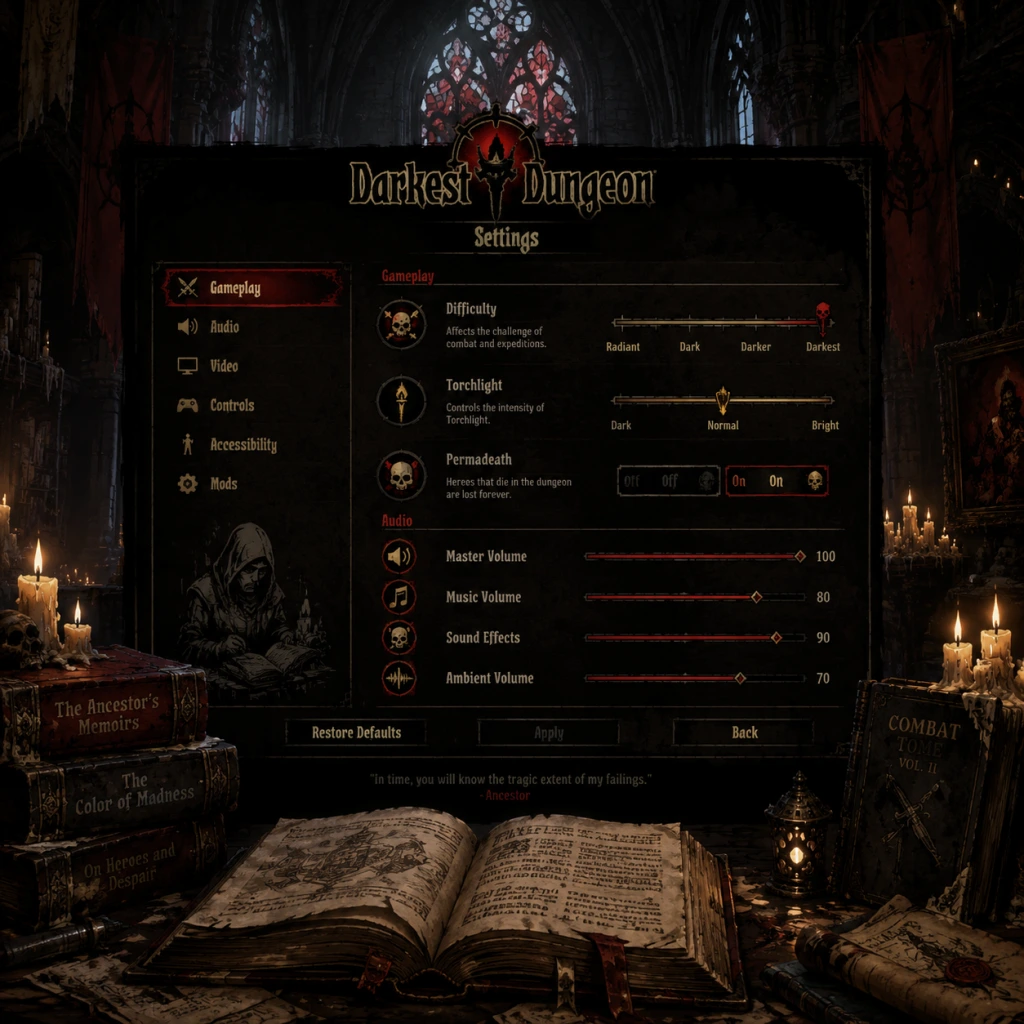
Game Settings
Comprehensive Game Settings Guide for Darkest Dungeon
This guide covers all available settings in Darkest Dungeon and provides recommendations for balancing performance and visual quality across different hardware levels. We also highlight settings that are frequently misconfigured or require special attention during initial setup.
Graphics Settings
Darkest Dungeon uses a 2D hand-drawn art style, so graphics settings primarily affect anti-aliasing, lighting effects, and ambient occlusion rather than raw polygon counts. The game is not demanding, but adjustments can still impact performance on lower-end hardware.
| Setting | Options | Description | Recommendation |
|---|---|---|---|
| Resolution | List of supported resolutions | Native display resolution. | Always set to your monitor's native resolution (e.g., 1920x1080) for sharpness. |
| Display Mode | Windowed, Borderless, Fullscreen | Fullscreen offers best performance; Borderless helps alt-tabbing. | Borderless if you multitask, else Fullscreen. |
| VSync | On / Off | Synchronizes frame rate with monitor refresh rate. | Off if you experience input lag; On to eliminate screen tearing (rare in 2D games). |
| Graphics Quality | Low, Medium, High | Controls overall shader quality, lighting, and particle effects. | Low for 4GB RAM or integrated GPUs; Medium for mid-range; High for modern systems. |
| Anti-aliasing | Off, 2x, 4x | Smooths jagged edges on sprites and UI. | 2x provides good balance; 4x has negligible performance impact on most hardware. |
| Ambient Occlusion | On / Off | Adds subtle shading to creases and corners. | Off on low-end; On otherwise (minimal impact). |
| Depth of Field | On / Off | Blurs background elements (used in menus and some scenes). | Off for clarity; On for atmospheric effect. |
| Shadow Detail | Off, Low, High | Controls shadow resolution and rendering distance. | Off or Low for low-end; High for modern systems. |
| Lighting Quality | Low, Medium, High | Affects dynamic lighting from torches and abilities. | Medium is often sufficient; High adds slight glow effects. |
| Frame Rate Limit | 30, 60, 120, Unlimited | Caps FPS. | 60 FPS is smooth and stable; 30 for very low-end; Unlimited if you have a high-refresh monitor and can tolerate variance. |
#### Recommended Graphics Presets by Hardware Level
- Low-End (Integrated GPU, 4GB RAM): Resolution 1280x720, Display Mode Fullscreen, Graphics Quality Low, Anti-aliasing Off, Ambient Occlusion Off, Depth of Field Off, Shadow Detail Off, Lighting Quality Low, VSync Off, Frame Rate Limit 30.
- Mid-Range (GTX 1050 / RX 560, 8GB RAM): Resolution 1920x1080, Borderless, Graphics Quality Medium, Anti-aliasing 2x, Ambient Occlusion On, Depth of Field Off, Shadow Detail Low, Lighting Quality Medium, VSync Off, Frame Rate Limit 60.
- High-End (GTX 1660+ / RX 570+, 16GB RAM): Resolution 3840x2160 (if supported), Borderless, Graphics Quality High, Anti-aliasing 4x, Ambient Occlusion On, Depth of Field On, Shadow Detail High, Lighting Quality High, VSync On, Frame Rate Limit 60 or higher.
Audio Settings
Simple volume sliders for Master, Music, SFX, and Ambient. No advanced audio options like HRTF or surround sound profiles.
| Setting | Description | Recommendation |
|---|---|---|
| Master Volume | Global volume (0–100) | Start at 70, adjust from there. |
| Music Volume | Background music volume | Keep at 80–100 to maintain atmosphere. |
| SFX Volume | Sound effects: combat, footsteps, UI clicks | 100; critical for hearing enemy actions and stress notifications. |
| Ambient Volume | Environment sounds (rain, wind, dungeon echoes) | 60–80; adds immersion without drowning out cues. |
| Voice Volume | Narrator/character voiceovers (in DLC or intros) | 100 to hear crucial story cues. |
Controls Settings
Both keyboard/mouse and controller are supported. You can rebind nearly all actions.
#### Keyboard & Mouse
- Movement: Default is left-click to move (point-and-click). Right-click to interact/descend. No WASD movement – this is a deliberate design.
- Action Keys: Defaults – `Q` (select hero), `W` (select next), `E` (use skill), `R` (use item). Rebinding is recommended if you prefer different fingers.
- Torch: `T` to use a torch (increases light). High priority key; ensure it's easy to reach.
- Camp/Retreat: `C` to camp, `R` to retreat (with modifier). Be careful not to rebind these to accidental keys.
- Zoom: Mouse scroll wheel. No rebind available.
- UI Toggles: `Tab` to show party interface, `Space` to pause (single player only), `Esc` to pause menu.
- Support: Xbox One/Series, PS4/5, Switch Pro, and generic controllers.
- Enable: Go to Controls → Enable Controller Support. Then rebind as desired.
- Default Scheme: Left stick moves cursor, right stick scrolls, A to confirm, B to cancel, X to use selected item/skill, Y to toggle torch. Triggers cycle through heroes.
- Vibration: Can be enabled/disabled under Controls → Controller Vibration. Helps with immersion (e.g., when a hero reaches Death's Door).
#### Controller
Special Attention: The default keybinding for `Use Item` is `R` – many new players accidentally use a camping item in battle. Rebinding items to a less accessible key (e.g., `F`) can prevent misclicks. Also, if you use a controller, remember to set `Controller Vibration` to On for tactile feedback on stress/death events.
Accessibility Settings
Darkest Dungeon offers several options to improve readability and reduce visual strain.
| Setting | Options | Description | Recommendation |
|---|---|---|---|
| Colorblind Mode | Off, Deuteranopia, Protanopia, Tritanopia | Changes color palette for health bars, stress, and affliction icons. | Essential if you have color vision deficiency; try each to find best contrast. |
| Screen Shake | Off, Reduced, Normal | Screen shakes on critical hits, stress, or death. | Set to Reduced or Off if you are prone to motion sickness or find it distracting. |
| Combat Speed | Normal, Fast, Instant | Speed of attack animations. | Normal for first playthrough; Fast for veterans (Instant skips animations but may confuse). |
| Text Size | Normal, Large | Increases font size for tooltips and menus. | Large if playing on a small screen or at high resolution. |
| Show Tooltips | On / Off | Shows explanation when hovering over UI elements. | Keep ON until you are very familiar with all mechanics. |
| Auto-Save Frequency | After every room, After every battle, After every important event | Controls how often the game saves. | "After every room" is safest; the other options risk losing progress if the game crashes. |
| Skip Intro Videos | On / Off | Skips the Red Hook logo and cinematic on launch. | On to speed up boot time, especially after multiple deaths. |
| Highlight Afflicted Heroes | On / Off | Adds a pulsing glow around heroes with high stress. | ON – helps you notice them quickly in combat. |
Language Settings
Language affects all in-game text, UI, and tooltips. Voiceover remains in English regardless.
- Supported Languages: English, French, German, Italian, Spanish (Spain), Portuguese (Brazil), Russian, Polish, Korean, Japanese, Simplified Chinese, Traditional Chinese.
- Change in-Game: Settings → Language → Select your preference. Requires restart to apply fully.
- Change via Steam: Right-click Darkest Dungeon → Properties → Language → Choose language. This redownloads any required files.
- Cloud Saves: Ensure cloud saves are enabled in your platform (Steam, Epic Games Store, GOG Galaxy) to backup your progress across devices. This is particularly important because save files are overwritten on new game start – you can lose hours of progress if you accidentally start a new campaign without backing up.
- Steam Workshop: Mod support is available. To install mods, subscribe on the Workshop – no in-game network settings needed.
Note: Changing language does not affect gameplay mechanics or balance. If you play with friends, ensure everyone has the same language for consistency in guide references.
Network Settings
Darkest Dungeon is a purely single-player experience with no online multiplayer or co-op. Therefore, there are no network settings within the game. However, consider:
Gameplay Settings
These settings directly affect the difficulty, automation, and UI behavior. Adjust them before starting a new campaign (most cannot be changed mid-campaign).
| Setting | Options | Description | Recommendation |
|---|---|---|---|
| Game Difficulty | Radiant, Darkest, Stygian | Determines quest length, penalties, and time limits. | Darkest for first playthrough (default). Stygian adds a 91-week time limit and increased difficulty – only for veterans. Radiant reduces grind and quest size. |
| Permadeath | On (locked) | Heroes die permanently. | Cannot be turned off. Embrace it as a core mechanic. |
| Auto-Sort Inventory | On / Off | Automatically arranges items in the inventory grid. | ON – saves time, especially after battles. |
| Auto-Equip Trinkets | On / Off | Grants trinkets to heroes when entering a dungeon automatically. | OFF – you want to manually select trinkets to fit your party composition. Auto-equip often gives suboptimal choices. |
| Show Health Bars | On / Off | Display HP numbers above heroes. | ON – essential for tactical decisions. |
| Show Stress Icons | On / Off | Shows stress level (heart icon) above heroes. | ON – stress management is crucial. |
| Show Quirks | On / Off | Displays each hero's quirks under their portrait. | ON – you need to know positive/negative quirks for team synergy. |
| Show Camping Skills | On / Off | Shows camping skill list during camp setup. | ON – you need to plan buffs and stress reduction. |
| Show Death's Door | On / Off | Displays a skull icon when hero is at Death's Door. | ON – visual reminder to heal or retreat immediately. |
| Hide Boss Health Bars | On / Off | Shows or hides boss HP. | OFF – knowing boss HP helps you manage final phase abilities. |
| Battle Speed | Normal, Fast, Instant | Affects animation speed during combat. | Advanced: Set to Fast after you understand attack patterns; Normal for new players. |
- Game Difficulty is the most misconfigured setting. Many new players accidentally choose Stygian thinking it's the 'intended' experience, but it requires a deep understanding of mechanics and time management. Stick to Darkest for your first campaign.
- Auto-Equip Trinkets defaults to ON – turn it OFF immediately. The game will equip trinkets that may have negative effects or not synergize with your strategy.
- Hide Boss Health Bars – keep this OFF. Hiding boss HP is an optional challenge; for learning, you need the visual feedback.
- Battle Speed – if you set it to Instant, you will not see the order of actions or reaction animations, making it harder to learn enemy patterns. Use Fast only after 10+ hours.
Summary of Easy-to-Misconfigure Settings
1. Game Difficulty – Don't select Stygian early.
2. Auto-Equip Trinkets – Turn OFF to avoid bad auto-selections.
3. Battle Speed – Keep on Normal or Fast; avoid Instant until expert.
4. VSync – Turn OFF if you notice input lag.
5. Screen Shake – Set to Reduced or Off if you feel motion sickness.
6. Controller Vibration – Enable for immersion, but disable if it causes battery drain on wireless controllers.
By carefully tuning these settings to your hardware and personal preferences, you can ensure a stable, immersive, and fair experience in the darkest of dungeons.