Game Settings
Game Settings
Overview
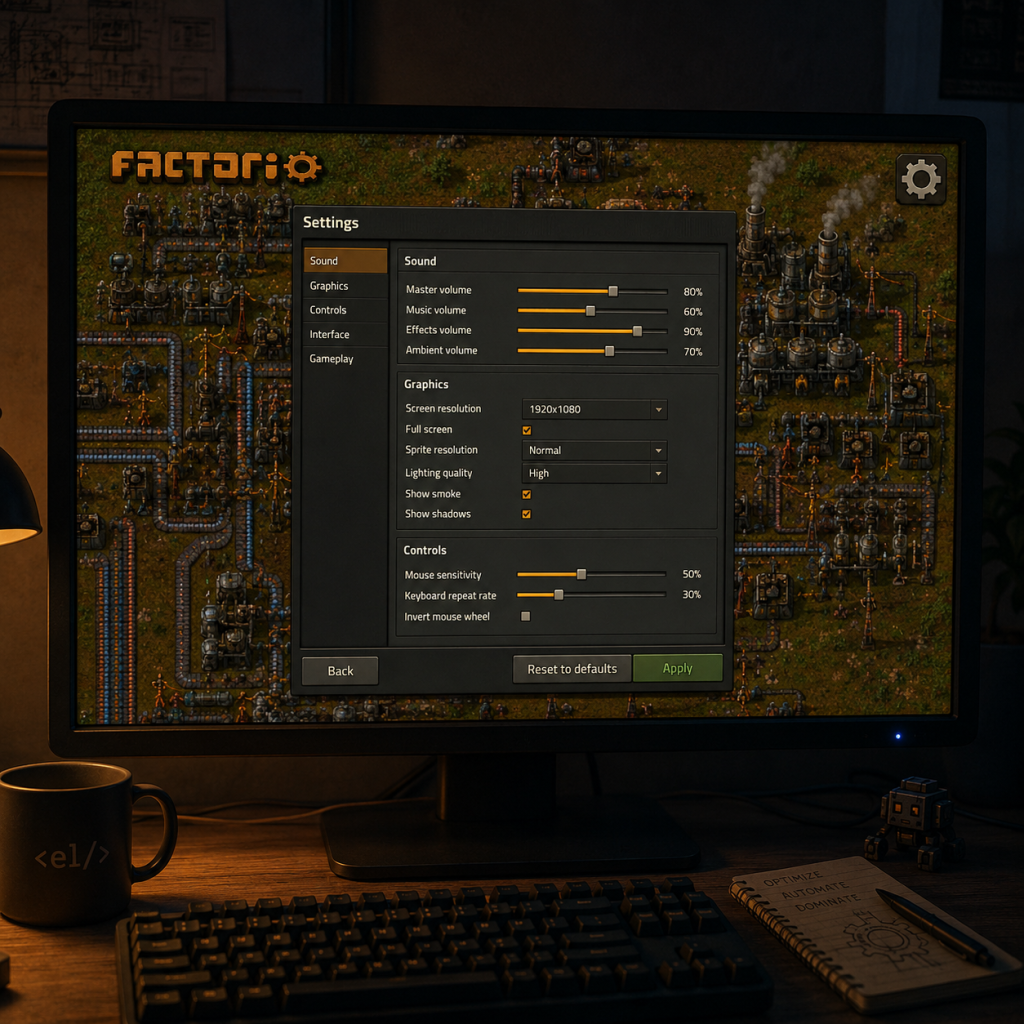
Factorio offers a comprehensive settings menu that allows you to tailor the game to your hardware, preferences, and playstyle. Proper configuration can significantly improve performance, especially on lower-end machines, while also enhancing the quality of life for accessibility and multiplayer. This guide covers all major categories: Graphics, Audio, Controls, Accessibility, Language, Network, and Gameplay. It also provides recommended settings for different hardware levels and highlights settings that are easy to misconfigure.
---
Graphics Settings
Factorio’s graphics settings primarily affect visual fidelity and VRAM usage. The game is CPU‑bound (driven by the simulation update rate, UPS), so reducing graphical load can free up resources for smoother factory operation.
| Setting | Options | Description | Recommendation |
|---|---|---|---|
| Fullscreen | Windowed, Fullscreen, Borderless | Windowed mode may reduce input lag. Borderless is good for alt‑tabbing. | Use Fullscreen for best performance. Borderless if you frequently switch windows. |
| Resolution | List of supported resolutions | Higher resolutions require more GPU power. | Match your monitor’s native resolution. On low‑end, use 1280×720 or 1366×768. |
| VSync | On/Off | Synchronizes frames with monitor refresh. Can introduce input lag. | Off for lower input lag; enable only if you experience screen tearing. |
| Sprite Resolution | High, Normal, Low | Controls the texture quality of sprites. High uses more VRAM. | Low on low‑end/VRAM‑limited systems. Normal is a good balance. High only if you have 2+ GB VRAM. |
| Texture Compression | High, Normal, Low, Off | Compresses textures to save VRAM. Lower quality = less VRAM usage. | Low for 1 GB VRAM or less. Normal for most systems. Off only if you have abundant VRAM (4 GB+). |
| Light Quality | High, Normal, Low | Determines the quality of dynamic lights. Low casts less demanding shadows. | Low for performance. Normal is a good compromise. High only on high‑end systems. |
| Smooth Lighting | On/Off | Enables smoother light gradients. Off reduces GPU load. | Off for performance. On if you don’t notice a drop. |
| Smoke and Clouds | On/Off | Adds animated smoke and cloud particles. Off improves UPS. | Off on low‑end; on for immersion if you have spare CPU cycles. |
| Animated Water | On/Off | Animates water surfaces. Off can give a large performance boost on slow CPUs. | Off on low‑end; on only if you have a strong CPU. |
| Pollution Graphics | On/Off | Shows colored pollution overlay and particles. Off reduces GPU load. | On for gameplay feedback; turn off only if you need extra FPS. |
| Inventory Icons | High, Normal, Low | Quality of item icons in inventories. Low saves VRAM. | Normal by default; Low on very low‑end systems. |
| Graphics Quality Sub‑presets | Very Low, Low, Medium, High, Very High, Ultra | Overrides many individual settings. | Use Medium for most systems; Low or Very Low for low‑end; High/Ultra only for powerful GPUs (e.g., GTX 1060+). |
---
Audio Settings
Audio settings are mostly personal preference but can affect clarity during gameplay.
| Setting | Description | Recommendation |
|---|---|---|
| Master Volume | Overall game volume | Adjust to comfortable level. |
| SFX Volume | Sound effects (machines, combat, alerts) | Keep at 100% for important audio cues. |
| Music Volume | Background music | Reduce or mute if you prefer your own playlist. |
| Ambience Volume | Environmental sounds (wind, water, etc.) | Leave at 50% or reduce – can be repetitive. |
| Play Sound on Error | Plays a sound when a building is missing inputs/outputs | On – helps with troubleshooting. |
| Use Alt View Toggle Sound | Sound when toggling alt mode (recipe icons) | On – provides clear feedback. |
Controls Settings
Factorio allows extensive key rebinding. Some settings are commonly overlooked.
| Key / Setting | Default | Notes |
|---|---|---|
| Move | WASD | – |
| Pick items | Left click | – |
| Open inventory | E | – |
| Craft | Q (empty hand) or click | – |
| Rotate | R | Hold to rotate multiple times. |
| Alt Mode | Alt | Toggles detailed info on buildings (recipes, items inside). Keep this bound – it’s essential. |
| Quickbar slots | 1–0 / Shift+1–0 | Assign items for quick access. |
| Copy/Paste Settings | Shift+Right click / Shift+Left click | Extremely useful for blueprinting. |
| Undo | Ctrl+Z | – |
| Map Zoom | Mouse wheel | – |
| Turbo Speed (Debug) | ` (backtick) | Opens debug menu (not for normal play). |
| Toggle Personal Roboport | P | Enables/disables your construction bots. |
| Screenshot Mode | F12 | Hides UI for clean screenshots. |
---
Accessibility Settings
Factorio provides several settings to improve visibility and readability.
| Setting | Description | Recommendation |
|---|---|---|
| UI Scale | Scales the entire interface (min 50%, max 200%) | 100% is default. Increase to 125% or 150% if you have a high‑DPI monitor or difficulty reading small text. |
| Message Font Size | Size of chat/log messages | Increase if you often miss alerts. |
| Rich Text | Allows colored and stylized text in chat/blueprints | On – helpful for organizing notes. |
| Color Blind Mode | Changes icon colors to be distinguishable (e.g., circuit network colors) | On if you have color vision deficiency. |
| Show Detailed Entity Info | Always shows info (items per second, etc.) | On – provides essential data. |
| Automatic Tooltips | Shows tooltip when hovering over an entity | On – reduces confusion. |
| Minimap | Size / Position | Increase size if you rely heavily on the minimap. |
| FPS/UPS Display | Shows frames per second and updates per second | Enable (via Debug menu) to monitor performance. Press F4 or ` (backtick) then activate "show-fps". |
Language Settings
| Setting | Description | Recommendation |
|---|---|---|
| Game Language | Changes UI, tooltips, and hints. Does not affect mod‐added content. | Select your preferred language. Factorio supports many languages (English, German, French, Japanese, Chinese, Russian, etc.). |
| Font | Substitutes the game font for another installed on your system | Only needed if you have display issues with default fonts. Leave as default. |
Network Settings (Multiplayer)
These settings affect online and LAN gameplay. Incorrect values can cause desyncs or lag.
| Setting | Default | Description | Recommendation |
|---|---|---|---|
| Maximum Upload Speed (kbps) | 10000 | Bandwidth limit for sending commands to other players. | Start with 10000. If you experience lag, lower to 5000. For slow connections (DSL), try 2000. |
| Latency Smoothing (tick) | 3 | How many ticks of input delay to smooth out network jitter. Higher = smoother but more input lag. | Keep at 3 for most connections. Increase to 5–8 if you see frequent stutters. Decrease to 1 only on very low latency LAN. |
| Server Save Frequency | 5 minutes | Auto‑saves for dedicated servers. | Adjust based on your risk tolerance. Too frequent can cause stutter. |
| Steam Networking | Enabled | Uses Steam relays for NAT traversal. | Leave on for public games; turn off for direct LAN connections. |
| Show Network Icons | On | Displays ping and latency on the HUD. | Keep on – helpful to diagnose lag. |
---
Gameplay Settings
These affect automation behavior and quality of life.
| Setting | Default | Description | Recommendation |
|---|---|---|---|
| Autosave Interval | 5 minutes | How often the game autosaves. | Keep at 5 minutes for safety. Increase to 10–15 minutes if saves stutter on slow disks. |
| Show Pollution on Map | On | Displays red pollution cloud on the map. | Off slightly improves performance (less map redraw). Turn off only if you don’t need pollution feedback. |
| Expand Resource Patches | On | Merges ore patches that are close together. | On – makes mining easier. |
| Enemy Settings (in Map Generator) | Default | Controls biter bases, evolution rate, expansion. | For new players, reduce Starting Area Size to small (easier early game) and disable Enemy Expansion. |
| Map Editor Mode | Off | Allows free editing and testing. | Only enable for creative play. |
| Automatic Trash Filter | On (when using logistic slots) | Automatically pushes items from your inventory to the trash slots when you have too many. | On – reduces manual sorting. |
| Always Show Quickbar | On | Keeps quickbar visible even when inventory is open. | On – improves workflow. |
| Mining Drill Breakdown | On | Shows when drills run out of resources. | On – prevents surprise shortages. |
---
Optimized Settings by Hardware Level
#### Low‑End Systems (e.g., Intel HD Graphics, 4 GB RAM, dual‑core CPU)
- Graphics Quality Preset: Very Low or Low
- Resolution: 1366×768 or 1280×720
- Sprite Resolution: Low
- Texture Compression: Low
- Light Quality: Low
- Smooth Lighting: Off
- Smoke and Clouds: Off
- Animated Water: Off
- Pollution Graphics: Off (only if FPS is still low)
- Update Speed (UPS): Limit FPS to 30 via launch option `--max-fps 30` if needed
- Autosave Interval: Increase to 10 minutes to reduce save stutter
- Graphics Quality Preset: Medium or High
- Resolution: 1920×1080
- Sprite Resolution: Normal
- Texture Compression: Normal
- Light Quality: Normal
- Smooth Lighting: On
- Smoke and Clouds: On
- Animated Water: On (turn off if UPS drops below 55)
- Pollution Graphics: On
- Autosave Interval: 5 minutes
- Graphics Quality Preset: Ultra or Very High
- Resolution: 2560×1440 or higher
- Sprite Resolution: High
- Texture Compression: Off (or High)
- Light Quality: High
- Smooth Lighting: On
- Smoke and Clouds: On
- Animated Water: On
- Pollution Graphics: On
- Autosave Interval: 3 minutes (no stutter on fast SSDs)
- First Launch: After installation, the game will ask for language and graphics preset. Choose the preset appropriate for your hardware. You can fine‑tune later.
- Alt Mode: Permanently enable Alt Mode by pressing Alt (the key). This reveals what every building is making – vital for factory management. If you accidentally turn it off, press Alt again.
- Quickbar Customization: Drag items from your inventory to the quickbar (top of screen). You can mirror this for both the toolbar and the main bar. This saves constant menu opening.
- Debug Info: Press F4 (or backtick) to open the debug menu. Enable show‑fps and show‑ups to monitor performance. If UPS drops below 60, reduce graphical settings or simplify your factory.
- Multiplayer Setup: Before hosting, ensure your router forwards port 34197 (UDP) for direct connections, or use Steam/Nat punch‑through. Check Max Upload Speed and Latency Smoothing before inviting players.
- Mod Settings: After installing mods, each mod may add its own settings in the mod settings menu. Check there for per‑mod toggles.
- Map Generator Settings: Spend time here. A common mistake is setting Water too high or Cliffs too frequent, making early expansion frustrating. Adjust Starting Area Size (larger = safer), Iron/Copper/Coal/Stone/Water frequency and richness, and Enemy bases. Presets are available for different difficulty levels.
- Saving Settings: All settings (including keybinds) are stored in `%AppData%/Factorio/config/` (Windows) or `~/.factorio/config/` (Linux/macOS). You can back up this folder to preserve your setup.
#### Mid‑Range Systems (e.g., GTX 1050/RX 560, 8 GB RAM, quad‑core CPU)
#### High‑End Systems (e.g., RTX 2060 Super+, 16+ GB RAM, 6+ core CPU)
---
Easy to Misconfigure Settings
1. Maximum Upload Speed (Network) – Setting too low can cause desyncs when you connect multiple players or place many entities. Too high may flood your connection. Use a speed test and set to ~80% of your upload.
2. Autosave Interval – Setting to 1 minute can cause frequent stuttering on old HDDs; setting to 30 minutes risks losing progress. 5 minutes is safe.
3. Enemy Expansion (Map Generator) – New players often leave this on and get overwhelmed. Disable it on your first playthrough.
4. Rich Text and Color Blind Modes – These are easily overlooked but can dramatically improve readability for users with vision issues.
5. VSync – Many leave it off and notice screen tearing; enable only if you see tearing. Off reduces input lag.
6. Texture Compression – Setting to Off on low‑VRAM systems will cause heavy stuttering or crashes.
---
Special Attention Points During Setup
---
By carefully tuning these settings to your hardware and playstyle, you can enjoy Factorio with smooth performance and minimal frustration. Remember to revisit settings if you add heavy mods (like AngelBob’s or Krastorio 2) as they may require additional optimizations.