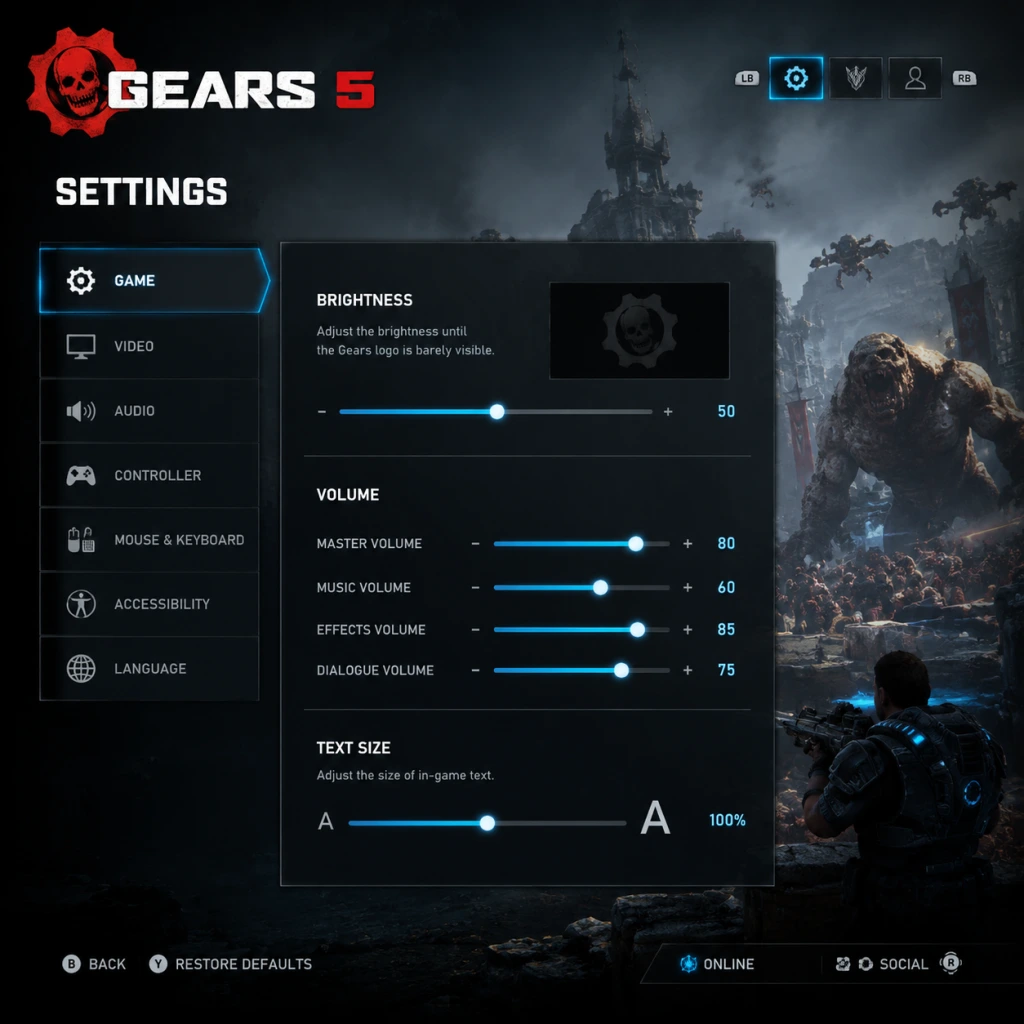
Game Settings
Overview
Gears 5 offers a comprehensive suite of settings across Graphics, Audio, Controls, Accessibility, Language, Network, and Gameplay. This guide details each category, provides optimal recommendations for different hardware tiers (Low-End, Mid-Range, High-End, Ultra), and highlights easily misconfigured options that can tank performance or hinder gameplay. Settings are accessible from the Main Menu → Options or the Pause Menu during gameplay.
---
Graphics Settings
Display & Performance Targets
- Resolution: Set to native monitor resolution. Lowering improves performance on weak GPUs.
- Window Mode: Fullscreen is recommended for best performance. Borderless Windowed can cause input lag and reduced framerate. Avoid Windowed unless troubleshooting.
- VSync: Off for lowest input lag. On if screen tearing is visible. Prefer in-game limiter or driver-level frame cap over VSync.
- Frame Rate Limit: Set to match monitor refresh rate (e.g., 60, 120, 144). For weak hardware, 30 or 40 FPS can provide smoothness. Unlimited may cause tearing/stutter.
- HDR: Enable only if your display supports HDR. Calibrate in Windows HDR settings first.
- Field of View (FOV): Default 80 is safe. Increase to 90-100 for better peripheral vision but reduces performance slightly. Too high (110+) can distort.
Quality Presets & Individual Options
| Setting | Low-End (GTX 1050 / RX 560) | Mid-Range (GTX 1660 / RX 580) | High-End (RTX 2070 / RX 6700) | Ultra (RTX 3080 / RX 6800 XT) | Notes |
|---|---|---|---|---|---|
| Overall Quality | Low | Medium | High | Ultra | Start with preset, then tweak below. |
| Resolution Scale | 100% (or 90% if struggling) | 100% | 100% | 100% | Lower (<100) blurs image but boosts FPS. |
| Anti-Aliasing | Low (FXAA) | Medium (TAA) | High (TAA) | High (TAA) or Ultra | TAA is performance-friendly; FXAA cheaper but blurry. |
| Texture Quality | Low (0.5GB VRAM) | High (1.5GB VRAM) | Ultra (3GB+ VRAM) | Epic (6GB+ VRAM) | Lower if VRAM is limited to avoid stutter. |
| Shadow Quality | Low | Medium | High | Ultra | Medium is good balance; High/Ultra marginal gains. |
| Post Processing | Low | Medium | High | Ultra | Includes bloom, lens flare – subtle impact. |
| Ambient Occlusion | Off | Low (SSAO) | High (HBAO+) | Ultra (HBAO+) | Off gives ~10% FPS boost. |
| Reflections | Low (SSR) | Medium | High | Ultra | Screen Space Reflections – medium for performance. |
| Volumetric Fog | Low | Medium | High | Ultra | Heavy on GPU; Medium looks almost same as High. |
| Particle Quality | Low | Medium | High | Ultra | Low reduces explosion effects. |
| Texture Filtering | 2x | 4x | 8x | 16x | Performance impact minimal. |
| Terrain Quality | Low | Medium | High | Ultra | Low flattens ground detail. |
| Async Compute | Off (NVIDIA) or On (AMD) | Off/On | Off/On | Off/On | Misconfig: On AMD cards, enable; on NVIDIA, disable unless troubleshooting. Causes crashes on some NVIDIA drivers. |
| Motion Blur | Off | Off | Off | Off | Personal preference; off gives clarity during movement. |
| Bloom | Off | On | On | On | Subtle – off improves visibility. |
| Camera Sway | Off | Off | Off | Off | Off removes weapon bob; helps with motion sickness. |
| Lens Flare | Off | On | On | On | Off reduces eye strain. |
| Film Grain | Off | Off | Off | Off | Unnecessary visual noise. |
| Chromatic Aberration | Off | Off | Off | Off | Off improves clarity. |
Special Attention Points
- Async Compute: Automatically set based on GPU vendor; manual override can cause instability. Only change if you experience crashes.
- Resolution Scale: Setting below 100% may look blurry. Use only as last resort.
- VSync & Frame Rate Limit: Combining both can cause double buffering issues. Use one or the other.
- Window Mode: Borderless Windowed often forces VSync and reduces performance. Always choose Fullscreen for competitive play.
- FOV: Increasing beyond 100 can cause fish-eye effect and reduce aim accuracy due to distortion. Adjust slowly.
- Master Volume: Adjust to comfortable level. 80-100% recommended.
- Music Volume: Lower to 50% if music masks footsteps/gunfire.
- SFX Volume: Keep at 100% for critical sound cues.
- Voice Volume: 100% for dialogue, but can lower if too loud.
- Dynamic Range: Headphones (for spatial audio) or Home Theater (surround systems). TV may compress dynamic range. Misconfigure: Using 'TV' with headphones can flatten sound and reduce positional cues.
- Spatial Audio: Windows Sonic (Xbox/Windows) or Dolby Atmos (if licensed). Off for standard stereo. Enable for better directional hearing.
- Subtitles: Toggle on/off. Recommended On for story clarity.
- Subtitles Size: Small/Medium/Large – large helps readability.
- Voice Chat Volume: Adjust separately for multiplayer.
- Sound Output: Auto-detect is usually fine, but manually set to correct number of channels if surround is buggy.
- Sensitivity: Default 10. Adjust based on DPI and mouse pad. Start at 5-8, increase gradually. For precise aim, lower sensitivity recommended.
- Vertical Sensitivity Multiplier: 1.0 (equal horizontal/vertical). Some prefer 0.8-0.9 for easier vertical control.
- ADS Sensitivity Multiplier: 0.5-1.0. Lower helps fine aim; higher for flicking.
- Invert Mouse Y: Off (unless used to flight sims).
- Mouse Filtering: Off (no smoothing). On reduces lag but adds latency.
- Mouse Raw Input: On (bypasses OS acceleration). Critical for consistency.
- Key Bindings: Customizable. Popular changes:
- Controller Type: Classic (default) or Tournament. Tournament swaps weapon and action buttons for faster slide-melee. Misconfig: Many players forget to rebind and wonder why actions differ.
- Sensitivity & Dead Zones:
- Aim Assist: High (campaign), Low or Off (multiplayer competitive). On PC with controller, keep Low to avoid overly sticky aim.
- Toggle vs Hold:
- Vibration: Off for better aim control and reduced noise. Misconfig: Vibration can interfere with aim micro-adjustments.
- Active Reload Vibration: Off (since vibration can be distracting; use visual cue instead).
- Controller Layout: Customizable. Common alternative: Tactical swaps melee and crouch (crouch on R3). Useful for sliding and cover.
- Subtitles: On with speaker names for hearing impaired.
- Large Subtitles: Enable for better readability.
- Colorblind Mode: Deuteranopia, Protanopia, or Tritanopia. Alters health bars, weapon HUD, and team colors. Misconfig: If you don't have colorblindness, leave Off; enabled incorrectly can make HUD confusing.
- High Contrast Text: On improves readability.
- Screen Magnifier: Not available in-game. Use system tools (Windows Magnifier, Xbox Narrator).
- Narrator: System-level, not in-game.
- Controller Remapping: Full customization available under Controls. Rebind any action for physical disabilities.
- Input Delay Reduction: Set VSync Off, cap FPS, use Game Mode on Windows.
- Text Language: Choose from available (English, French, German, Spanish, etc.). Changes menu text.
- Audio Language: Separate from text. Can set English voices with Japanese subtitles, etc. Misconfig: Players often think changing 'Language' affects both; check each dropdown.
- Voice Over: Choose your preferred dubbing. Some regions have multiple dubs.
- Subtitle Language: Defaults to audio language. Adjust if different.
- Note: Changing language in-game may require restart. Also affects multiplayer communication (if using region-specific chat).
- Network Status: Shows connection type (NAT Open, Moderate, Strict). Open recommended for seamless matchmaking. If Strict, forward ports (TCP 3074, UDP 3074-3076).
- Region: Choose Auto or manual (e.g., US West, Europe). Misconfig: Setting to wrong region increases ping. Select one closest to you.
- Crossplay: Enabled allows play with Xbox and PC players. Disabled restricts to same platform. Useful if you want console-only or PC-only lobbies.
- Input-Based Matchmaking: Off (matches based on input type? Actually misnamed; it matches controller with controller, KB/M with KB/M). Enable for fair play if using controller on PC. Misconfig: If your party has mixed inputs, disable to find game.
- Telemetry: On helps devs but sends data. Off for privacy.
- Bandwidth: No specific setting; ensure stable internet (wired > Wi-Fi). Use QoS if streaming.
- In-Game Voice Chat: Push-to-Talk (PC) or Open Mic (console). Open mic can cause feedback; use PTT on PC.
- HUD: On or Minimal. Minimal hides ammo/health for immersion. Off severely hinders gameplay.
- Damage Numbers: On for feedback; Off for screen clarity.
- Camera Shake: Off to reduce nausea and improve aim.
- Screen Shake: Off similarly.
- Objective Marker: Keep On to locate mission goals.
- Weapon Holster: On (weapon lowers when not aiming) for clear view; Off for constant readiness.
- Auto Pickup: On (automatically collect ammo/weapons near items). Off requires manual pickup.
- Auto Center Camera: Off (prevents camera from snapping behind after roadie run). Misconfig: Setting to On can cause disorientation when changing directions.
- Mantling: Automatic (default) or Manual (must press space). Manual prevents accidental climbs.
- Sprint Cancel: Off (sprint stops when you stop pushing). On allows cancel with other actions more precisely. On recommended for competitive.
- Tactical Compass: On shows objective markers on compass; Off removes.
- Minimap: On (campaign) for navigation; Off for immersion.
- Health Regen: Not toggleable; it's fixed.
- Difficulty Settings: Separate from Options; chosen at campaign start. Affects enemy damage, aggression, and ammo. Not a settings menu item but worth noting: choose for desired challenge.
- Performance (60 FPS on Low-End PC): Overall Quality Low, Resolution 1080p, Async Compute Off (NVIDIA), VSync Off, FOV 80, Motion Blur Off, Camera Sway Off, Vibration Off, Audio: Headphones, Subtitles On.
- Balanced (60-100 FPS Mid-Range): Overall Quality Medium, Resolution 1080p/1440p, Async Compute Auto, VSync Off, FOV 85, TAA, Shadows Medium, Reflections Medium.
- Quality (60 FPS High-End): Overall Quality High/Ultra, Resolution 1440p/4K, Async Compute Off (NVIDIA) or On (AMD), VSync On (if tearing), FOV 90, all post-processing enabled except Motion Blur/Film Grain.
- Competitive Multiplayer (Any Hardware): Lower settings for max FPS and clarity. Disable Motion Blur, Camera Sway, Lens Flare, Bloom. Set FOV 90-100. Use Low Shadows, Low Volumetric Fog, and disable Ambient Occlusion.
---
Audio Settings
---
Controls Settings
Keyboard & Mouse (PC)
- Crouch: Set to C or Left Ctrl (default is C).
- Roadie Run: Left Shift (default). Consider Toggle Run if finger fatigue.
- Reload: R (default).
- Weapon Swapping: 1-4 or Mouse Wheel. Wheel can be imprecise; prefer number keys.
- Melee: V or Mouse Button 4/5.
- Action (Interact/Execute): E or F (default E).
- Ping: Middle Mouse or ` (tilde) for communication.
Controller (Xbox/PlayStation)
- Horizontal Sensitivity: 30-50 (lower for precision, higher for quick turns).
- Vertical Sensitivity: 20-40 (lower than horizontal for stability).
- Dead Zone (Inner/Outer): Default 10% is safe. Lower to 5% if stick drift occurs. Misconfig: Setting too low causes aim wobble; too high reduces fine aim.
- Crouch: Toggle (tap to crouch/stand) vs Hold (hold to crouch). Toggle preferred for movement.
- Roadie Run: Toggle (tap shift once) vs Hold. Toggle reduces finger strain.
- Aim (ADS): Hold for faster reaction; Toggle for comfort.
---
Accessibility Settings
---
Language Settings
---
Network Settings
---
Gameplay Settings
---
Special Attention Points During Setup
1. Async Compute on NVIDIA GPUs: Disable this setting if you experience crashes or poor performance. It is safe on AMD.
2. Window Mode & VSync: Always use Fullscreen with VSync Off and frame cap for lowest input lag. Borderless Windowed can add up to 30ms latency.
3. Active Reload Vibration: Turn off to avoid unnecessary rumble that can throw off your aim during tense moments.
4. Camera Sway & Screen Shake: Disable both if you suffer from motion sickness or want clearer vision when moving.
5. Controller Dead Zone: Too low leads to drift; too high reduces fine aim. Test with 5-10% inner dead zone and adjust.
6. Crossplay & Input-Based Matchmaking: If you are a controller player on PC, enable Input-Based to avoid KB/M opponents. Similarly, disable if you have mixed-input party.
7. Resolution Scale: Only lower as a last resort – it makes the game blurry. Prefer reducing quality presets first.
8. HDR Calibration: If HDR looks washed out, ensure Windows HDR is on and do in-game calibration. Disable if colors appear off.
---