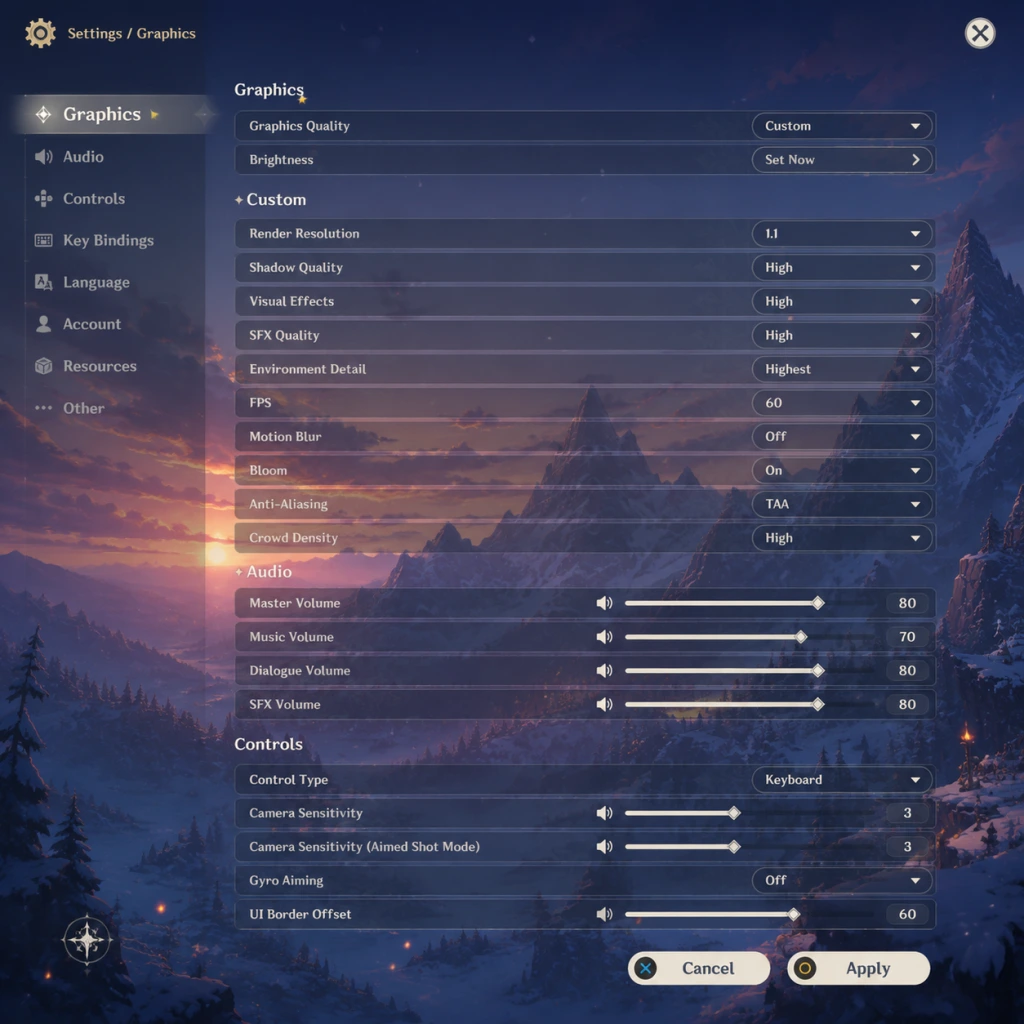
Game Settings
Overview
Genshin Impact provides a wide range of settings to tailor the experience to your platform and preferences. Proper configuration can significantly improve performance, visual clarity, and comfort. This guide covers every setting category, gives hardware-specific recommendations, and flags common pitfalls.
---
Graphics Settings
Main Options
- Graphics Quality: Preset (Lowest, Low, Medium, High, Highest) – adjusts many sub-settings at once. Custom is recommended for fine-tuning.
- Render Resolution: Controls internal resolution scaling. 1.0 = native. Lower values improve performance but reduce sharpness. 0.8 is a good balance for mid-range PCs.
- VSync: On/Off. On prevents screen tearing but can introduce input lag. Off gives lower latency. Recommended to Off if monitor supports G-Sync/FreeSync.
- FPS Limit: 30 / 60 / (120 on some devices). 60 is standard; 120 is only available on PC/PS5 with high-refresh monitors.
- Shadow Quality: Very Low to Highest. Shadows are costly. Low/Medium for performance, High for visual depth.
- Anti-Aliasing: SMAA (low cost), TAA (smoother but softer), FXAA (light). TAA recommended for quality; SMAA for clarity on lower resolutions.
- Volumetric Fog: On/Off. Turning Off improves FPS significantly in areas like Dragonspine.
- Motion Blur: On/Off. Off is recommended for clearer motion.
- Bloom: On/Off. Subtle effect; turning Off can help visibility.
- Reflections: Simple, Environment, or Screen Space. Screen Space is best but costly. Environment is a good middle ground.
- Grass Density: Low, Medium, High. High grass in Liyue plains can drop FPS. Set to Medium if performance fluctuates.
- Texture Quality: Low to Highest. Primarily affects VRAM. High textures are recommended for modern GPUs; Low for older or 2GB VRAM cards.
- Visual Effects: Low to Highest. Controls particle effects during combat. Medium is a good balance.
- Subsurface Scattering: On/Off. Affects skin and leaf translucency. Minimal performance impact, turn On.
- Dynamic Character Hair: On/Off. Slight performance cost; turn Off if FPS drops in crowded scenes.
- Level of Detail (LOD): Low to High. Controls draw distance of objects. High gives more pop-in but costs performance.
Hardware-Specific Recommendations
| Hardware Tier | Recommended Preset / Key Tweaks | Target FPS |
|---|---|---|
| Low-End (Intel UHD, Vega 8, 8GB RAM) | Lowest preset, Resolution Scale 0.8, Shadows Very Low, Volumetric Fog Off, Grass Low, Motion Blur Off, Visual Effects Low | 30 stable |
| Mid-Range (GTX 1650, RX 570, 16GB RAM) | Medium preset, Shadows Medium, Volumetric Fog Off, Grass Medium, TAA, Reflections Environment, Visual Effects Medium | 60 stable |
| High-End (RTX 3060, RX 6600, 16GB+ RAM) | High preset, Shadows High, Volumetric Fog On, Grass High, TAA, Reflections Screen Space, Visual Effects High | 60 / 120 |
| Ultra (RTX 4070+, RX 7800 XT, 32GB RAM) | Highest preset, 1.2x Resolution Scale (if GPU headroom), All maxed | 60/120 stable |
Special Attention Points
- VSync & Frame Limiter: If you experience stutter, turn VSync Off and cap FPS to your monitor's refresh rate via in-game limiter. For 144Hz monitors, try 120 FPS limit if 60 feels sluggish.
- Anti-Aliasing: TAA can cause blurriness on 1080p. Consider SMAA for sharper image at cost of slight jaggies.
- Volume Fog: Especially impactful in Dragonspine and underground areas. Turn Off for competitive advantage in domains.
- Resolution Scaling: Values above 1.0 (e.g., 1.2) improve clarity but severely impact performance. Only for high-end systems.
- Master Volume: 0-100. Set to comfortable level.
- BGM Volume: Background music.
- SFX Volume: Sound effects (combat, UI, environment).
- Dialogue Volume: Voice volume during cutscenes & quests.
- Sound Output: Auto, Speaker, Headphones. Affects spatial audio mixing.
- Subtitles: On/Off. On recommended for non-native language.
- Mic: Only relevant for co-op chat (PC). Ensure correct device selected.
- On mobile, set Master to 80% to avoid distortion on phone speakers.
- Use Headphones mode for better 3D audio positioning in exploration.
- If voice lines are low during cutscenes, increase Dialogue Volume to 70-80%.
- Key Bindings: Fully customizable for movement, combat, interactions, menus. Default Q/E for skill/burst, 1-4 for party. Many players rebind:
- Controller Support: Native support for Xbox, PlayStation, and Switch Pro controllers. Use wired or Bluetooth.
- Mouse Sensitivity: 1-100. Recommended 30-50 for aiming puzzles; 60-70 for combat.
- Invert Y-Axis: On/Off. Off by default.
- Camera Auto-Rotate: On/Off. Off gives more control.
- Aim Sensitivity: Separate from camera; set lower (20-40) for bow characters.
- Custom Layout: Drag & resize buttons. Recommended: move jump and interact buttons closer to thumb zone.
- Camera Sensitivity: 1-10. Set 5-6 for smooth turning.
- Gyroscope: Use for aiming (bow characters). Enable gyro aim with separate sensitivity.
- Fixed Joystick: On/Off. On locks movement joystick position; some prefer Off for flick gestures.
- Controller Sensitivity: Adjust camera and aim speeds.
- Trigger Deadzone: For PS5 adaptive triggers. Set to 10% if triggers feel mushy.
- Vibration Intensity: 0-100. Reduce to 30% to preserve battery.
- Sprint/Crouch Toggle: On PC, default LShift is sprint, LCtrl for walk. Many players rebind sprint to left CTRL to avoid pinky strain.
- Interaction Key: Default F is used for everything (pick up, talk, open). Change to E or a mouse side button to avoid accidental menu opens.
- Mobile: Always enable Gyroscope for bow aiming – it’s a game changer for mobile players. Set gyro sensitivity to 30% of camera sensitivity.
- Voice Language: Available in English, Chinese (CN & JP), Korean, Japanese, and more (depending on region). Can be changed in-game at any time.
- Text Language: Separate from voice. Choose from many languages. Affects UI, quest text, and menus.
- Audio Language: Same as Voice.
- Pick voice language you enjoy (Japanese voice acting is popular for anime immersion).
- Text language can be set to English even if voice is Japanese for better understanding of item names.
- Important: Changing voice language may require a small download (~300-500 MB per language pack).
- Manual DNS: Only for mobile; not recommended unless troubleshooting.
- Proxy / VPN: Not officially supported but can be used; ensure it’s set at OS level.
- Region Selection: On initial login, choose server (America, Europe, Asia, etc.). Cannot change later without starting over. Choose based on your geography for lowest ping.
- Bandwidth Saver: On mobile, options to reduce streaming texture quality.
- Server Region is permanent. You cannot transfer save data between regions. Choose wisely.
- If you experience lag spikes, check your connection; playing on Wi-Fi vs Ethernet can yield 20ms difference.
- For co-op, ensure NAT type is open (PC/console). Mobile typically has no NAT issues.
- Subtitle Size: Small, Medium, Large. Large recommended for readability.
- Colorblind Mode: None, Protanopia, Deuteranopia, Tritanopia. Adjusts UI elements (e.g., elemental reaction indicators).
- Camera Shake: On/Off. Off recommended for motion sickness.
- Audio Feedback: Can’t be disabled entirely, but SFX volume can be reduced.
- Colorblind Mode only affects a few UI icons; does not change world puzzles. Still helpful.
- No text-to-speech or screen reader support.
- If you have difficulty with fast button inputs, use a controller with programmable paddles (e.g., Xbox Elite).
- Auto-Equip Artifacts: On/Off. Off strongly recommended – auto-equip often chooses poor sets.
- Auto-Equip Weapons: Same – turn Off.
- Auto-Play (Cutscenes): On/Off. On skips dialogue automatically. Off lets you click through.
- Skip Cutscene Confirmation: Enable to skip unskippable cuts ones (like domain entry).
- Lock On / Aim Assist: For bow/melee. On helps targeting, but can interfere with manual aim. Set to On initially, turn Off if annoyed.
- Controller Camera Invert: Separate from generic invert.
- Co-op Mode: Invite permission (Anyone, Friends, Off). Set to Friends to avoid random join requests.
- Auto-Equip is a trap – always manually equip artifacts/weapons. It will overwrite your well-balanced sets.
- Lock On can cause unwanted camera pulls in chaotic fights. Many experienced players turn it Off.
- Skip Cutscene Confirmation: Enable after first playthrough to speed up domain runs.
---
Audio Settings
Options
Tips
---
Controls Settings
PC Controls
- Skill: Mouse Button 4 (thumb)
- Burst: Mouse Button 5
- Sprint: Left Ctrl (pinky) or Shift.
Mobile Controls
PlayStation Controls
Special Attention Points
---
Language Settings
Options
Tips
---
Network Settings
Options
Special Attention Points
---
Accessibility Settings
Options (Limited)
Special Attention Points
---
Gameplay Settings
Options
Special Attention Points
---
Quick Reference Table: Easy to Misconfigure Settings
| Setting | Default | Recommended Change | Reason |
|---|---|---|---|
| Voice Language | Region-based | Japanese or preferred | Immersion & performance consistency |
| Server Region | Automatic | Based on location | Permanent; choose closest |
| Auto-Equip Artifacts | On | Off | Prevents stat ruin |
| Anti-Aliasing | TAA | SMAA (1080p) / TAA (1440p+) | Avoid blur |
| Volumetric Fog | On | Off (low-end) | Large FPS gain |
| Camera Shake | On | Off | Reduces motion sickness |
| Aim Sensitivity | 50 | 20-30 (bow char) | Better accuracy |
| Lock On | On | Off (advanced players) | More control |
Final Checklist Before Playing
1. Choose your server region wisely – no take-backs.
2. Set voice language to your preference (JP recommended for anime fans).
3. Disable Auto-Equip Artifacts & Weapons.
4. Tune graphics to your hardware using the table above.
5. If on mobile, enable gyroscope for bow aiming and adjust custom layout.
6. Set subtitles On and size Large.
7. Turn Off motion blur and camera shake for clarity.
8. For PC, rebind Q/E to easier keys (mouse buttons if possible).
9. Test FPS in Liyue Harbor (a demanding area) – if below 30, lower render resolution or grass density.
10. Save your configuration – the game remembers settings per device.
---
Troubleshooting Common Issues
- Low FPS despite good hardware: Check if Windows Game Mode or overlays (Discord, Nvidia GeForce Experience) are interfering; disable them. Also ensure GPU is in high-performance power mode.
- Audio crackling: Reduce Master Volume to 70-80% and turn off 3D audio enhancements.
- Controller not working: On PC, plug in before launching the game. Switch Pro controllers need Steam Input to be disabled.
- Invisible texture glitches: Set Texture Quality to Medium or restart the game.
- Cannot change language: Voice language change requires downloading the pack; text change is instant.
With these settings, you can maximize both performance and visual quality while avoiding common pitfalls. Tweak as needed for your personal preference and hardware.