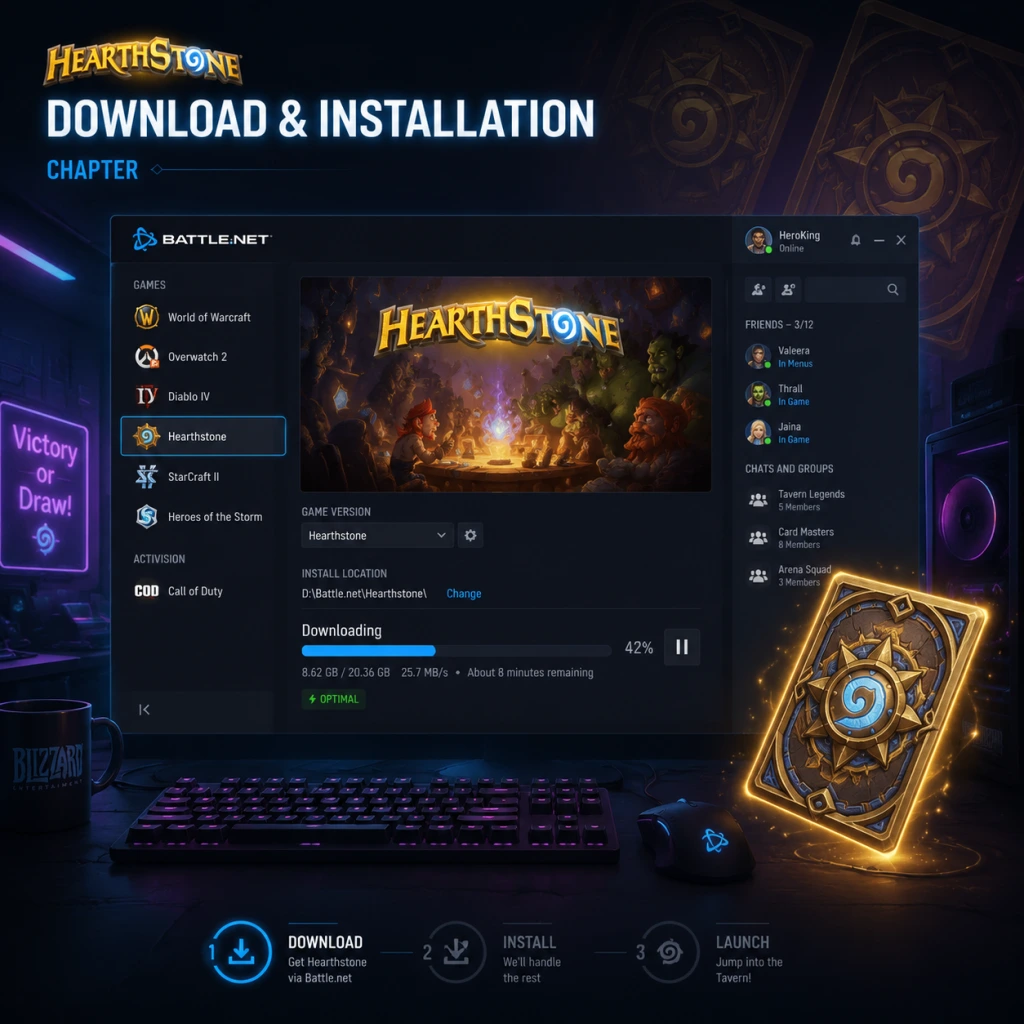
Download & Installation
Overview
Hearthstone is a digital collectible card game developed and published by Blizzard Entertainment. It is not available on Steam, Epic Games Store, PlayStation, Xbox, or Nintendo Switch. The game is officially distributed exclusively through:
- Battle.net (Windows and macOS)
- Apple App Store (iOS / iPadOS)
- Google Play Store (Android)
- Website: [https://battle.net/download](https://battle.net/download)
- Launcher: You must download and install the Battle.net desktop app first. Hearthstone is then downloaded and managed within the launcher.
This guide covers downloading and installing Hearthstone on all supported platforms, including system requirements, account setup, common errors, and post-installation verification.
---
Platform-Specific Instructions
1. PC (Windows / macOS) via Battle.net
#### Official Download Source
#### Step-by-Step Installation
1. Download the Battle.net Setup File
- Go to [https://battle.net/download](https://battle.net/download).
- Click the Download for Windows (or macOS) button. The file is named `Battle.net-Setup.exe` (Windows) or `Battle.net-Setup.dmg` (macOS).
2. Install the Battle.net Launcher
- Windows: Run the `.exe` file. If a User Account Control prompt appears, click Yes. Follow the on-screen installer – accept the license agreement, choose a destination folder (default is usually fine), and complete the installation.
- macOS: Open the `.dmg` file. Drag the Battle.net icon into the `Applications` folder. Then launch Battle.net from the Applications folder or Launchpad.
3. Log In or Create a Battle.net Account
- After installation, the Battle.net launcher will open. If you already have an account, enter your email and password and click Log In.
- If you are new, click Create a Free Account and follow the registration process. You will need an email address and to set a password.
4. Download and Install Hearthstone
- Once logged in, you will see the Battle.net home screen.
- Click the Hearthstone tab in the launcher (on the left side or the game list). If you don't see it, click All Games and then Hearthstone.
- Click the blue Install button. The launcher will begin downloading Hearthstone. You can monitor progress in the Installations section (click the gear icon top-left -> "Installations").
- After the download completes, the Play button will appear. Click it to start the game.
#### System Requirements
| Component | Minimum | Recommended |
|---|---|---|
| OS (Windows) | Windows 7 (64-bit) | Windows 10 (64-bit) |
| OS (macOS) | macOS 10.13 (High Sierra) | macOS 10.15 (Catalina) or later |
| Processor | Intel Core 2 Duo 2.0 GHz or equivalent | Intel Core i5 or better |
| Memory | 4 GB RAM | 8 GB RAM |
| Graphics | Integrated GPU with 256 MB VRAM | Dedicated GPU with 1 GB VRAM (e.g., NVIDIA GeForce GTX 460, AMD Radeon HD 5670) |
| Storage | 4 GB free space (game + launcher) | 6 GB free space |
| Internet | Broadband connection (DSL or faster) | Broadband connection (DSL or faster) |
#### Storage Space
- The Hearthstone game client itself requires approximately 4 GB of space.
- The Battle.net launcher adds about 1 GB. Total needed: ~5 GB.
- Temporary space during installation may require an additional 2 GB.
- A Battle.net account is mandatory to play Hearthstone on any platform.
- The account is free. No paid subscription is required to play the game, though optional in-game purchases exist.
- Error: "Battle.net agent crashed" or "Unable to start installation"
- Error: "Download stalled" or "Stuck at 0%"
- Error: "Not enough disk space"
- Error: "The file or directory is corrupted and unreadable"
- Error: "GPU not supported"
- Launch the game and verify that the main menu screen loads smoothly.
- Check the Settings menu (gear icon) -> Video to confirm resolution and framerate are acceptable.
- Ensure sound works: play a card or navigate menus.
- If you encounter any crashes, run the Scan and Repair tool from the Battle.net launcher (gear icon -> Scan and Repair).
- Apple App Store: Search for "Hearthstone" or go directly to [https://apps.apple.com/app/hearthstone/id625257520](https://apps.apple.com/app/hearthstone/id625257520)
- Supported Devices: iPhone 6s or newer, iPad 5th generation or newer, iPad Air 2 or newer, iPad Mini 4 or newer, iPod Touch 7th gen.
- OS Version: Requires iOS 13.0 or later (as of 2025).
- Storage: Approximately 4 GB free space.
- A Battle.net account is required. You can log in on the first launch.
- If you already have a Battle.net account, use the same account to share progress across platforms.
- Error: "Cannot connect to App Store"
- Error: "Installation Pending"
- Error: "Insufficient Storage"
- Error: App crashes on launch
- Launch the app and verify you can navigate menus.
- Play a game (Practice mode) to test performance.
- Ensure notifications are enabled for Hearthstone if desired (Settings -> Hearthstone -> Notifications).
- Google Play Store: Search for "Hearthstone" or go to [https://play.google.com/store/apps/details?id=com.blizzard.wtcg.hearthstone](https://play.google.com/store/apps/details?id=com.blizzard.wtcg.hearthstone)
- Samsung Galaxy Store also offers the official app, but the Play Store version is recommended for timely updates.
- OS Version: Android 8.0 (Oreo) or later (as of 2025).
- RAM: Minimum 2 GB (recommended 4 GB+).
- Processor: 64-bit ARM processor (e.g., Snapdragon 835, Exynos 8895, Kirin 970 or better).
- Storage: Minimum 4 GB free space (game + cache).
- Stable internet connection (Wi-Fi recommended for initial download).
- A Battle.net account is required. Log in on first launch or create one.
- Cross-progression works across all platforms using the same account.
- Error: "Incompatible with your device"
- Error: "Download failed"
- Error: "App not installed"
- Error: Game hangs at "Loading" screen after login
- Launch the game and wait for the main menu to load.
- Tap the Settings gear icon -> Audio and Graphics to verify options are available.
- Try playing a game against the Innkeeper (Practice mode) to check responsiveness.
- Cross-Platform Play: Hearthstone supports full cross-play and cross-progression between PC, iOS, and Android. Your collection, rank, and achievements are synced via your Battle.net account.
- No Console Versions: As of 2025, Hearthstone is not available on PlayStation, Xbox, or Nintendo Switch. Any claims otherwise are false.
- Authentication: Always use the official Blizzard website or app stores. Do not download from third-party sites to avoid malware.
- Updates: The game receives frequent patches. Keep your client updated via the respective launcher or app store.
#### Account Requirements
#### First Launch Setup
1. After clicking Play, the Hearthstone client will open.
2. If you are not already logged in (you should be via Battle.net), you may be prompted to log in again – but typically you are automatically signed in.
3. The game will download additional assets (patches, card art, etc.) – this is normal and may take a few minutes.
4. You will be greeted with the Introduction Questline (a tutorial). You can play through it or skip it (though playing it rewards free packs).
5. After the tutorial, you enter the main menu where you can access the Shop, Collection, Modes, etc.
#### Common Installation Errors & Fixes
- Fix: Close all Battle.net processes via Task Manager (Windows) or Activity Monitor (macOS). Restart the launcher as administrator (right-click -> Run as Administrator on Windows).
- Method: On macOS, delete `~/Library/Application Support/Battle.net` and reinstall.
- Fix: Pause and resume the download. If that fails, restart the Battle.net launcher.
- Method: Check your antivirus/firewall – add Battle.net as an exception. Temporarily disable VPN if in use.
- Fix: Free up at least 8 GB of space (system drive). Clear temporary files using Disk Cleanup (Windows) or remove large files.
- Method: Move other games/apps to another drive.
- Fix: Run the Battle.net installer as administrator again. Use the Scan and Repair feature: in the launcher, click the gear icon next to the Hearthstone Play button -> Scan and Repair.
- Fix: Update your graphics drivers to the latest version from the manufacturer's website.
- If the error persists, your GPU may be too old (e.g., Intel GMA 950). Consider upgrading or using a device with a supported GPU.
#### Post-Install Verification
---
2. iOS (iPhone / iPad)
#### Official Download Source
#### Step-by-Step Installation
1. Open the App Store on your iOS device.
2. Tap the Search tab and type "Hearthstone".
3. Locate the official app by Blizzard Entertainment, Inc. (look for the icon with a blue H).
4. Tap Get (or the cloud icon if you have previously downloaded).
5. Authenticate with Face ID, Touch ID, or your Apple ID password.
6. The app will download and install automatically. Progress is shown on the home screen.
7. Once installed, tap Open to launch.
#### System Requirements (iOS)
#### Account Requirements
#### First Launch Setup
1. After tapping Open, the game will download additional assets (usually ~1 GB of data). This may take a few minutes over Wi-Fi.
2. You will be prompted to Log In with Battle.net or Create Account.
3. After logging in, you will go through the same introduction questline as on PC (or skip it).
4. The game will sync your collection and progress from other platforms.
#### Common Installation Errors & Fixes
- Fix: Check your internet connection, sign out and back into your Apple ID, or restart your device.
- Fix: Go to your home screen – the app icon might show "Waiting..." – tap and hold the icon, then tap Resume. If not, restart the device and try again.
- Fix: Delete unused apps, photos, or videos. Check storage in Settings -> General -> iPhone Storage.
- Fix: Ensure iOS is updated. If still crashing, delete the app and re-download. If persists, contact Blizzard support.
#### Post-Install Verification
---
3. Android
#### Official Download Source
#### Step-by-Step Installation
1. Open the Google Play Store app on your Android device.
2. Tap the search bar and type "Hearthstone".
3. Find the official app by Blizzard Entertainment, Inc. (developer name).
4. Tap Install.
5. Accept the permissions request (storage, network, etc.). Note: Hearthstone requires access to photos/media/files for screenshot sharing – you can deny this, but the game may not allow screenshots.
6. The download and installation will proceed automatically. Size is about 3.5 GB (plus additional data on first launch).
7. After installation, tap Open.
#### System Requirements (Android)
Note: Many budget or older devices may not run Hearthstone smoothly. Check Blizzard's official supported device list on their website.
#### Account Requirements
#### First Launch Setup
1. After opening, Hearthstone will download initial data (additional ~1–2 GB). This happens automatically.
2. You will be asked to Log In with your Battle.net account. If you do not have one, tap Create a Free Account.
3. Complete the tutorial questline (optional but recommended).
4. The game will download card art and other assets in the background.
#### Common Installation Errors & Fixes
- Fix: This means your device does not meet requirements. You cannot bypass this. Consider using an alternative device or play on PC.
- Fix: Ensure you have sufficient storage. Clear the Google Play Store cache: Settings -> Apps -> Google Play Store -> Storage -> Clear Cache. Then retry.
- Fix: Enable installation from unknown sources if downloading from elsewhere (not recommended). For official Play Store, try restarting your device and installing again.
- Fix: Close the app completely, then reopen. If persists, clear the app data (Settings -> Apps -> Hearthstone -> Storage -> Clear Data) – note this deletes local preferences but not your account progress.
#### Post-Install Verification
---
Additional Notes
---
Troubleshooting – General
| Issue | Solution |
|---|---|
| Game crashes on startup (all platforms) | Update your OS/drivers, disable overlays (e.g., Discord, Xbox Game Bar), lower graphics settings. |
| Connection errors at login | Check your internet connection. Reset your router. Disable VPN. Ensure Blizzard services are not down (check [https://blizzard.com/support](https://blizzard.com/support)). |
| Missing sound or distorted audio | Check system volume, in-game Volume sliders, and update audio drivers (PC) or restart device (mobile). |
| User Interface is unresponsive | Force close the app and restart. If on PC, try changing the window mode (Fullscreen vs Windowed). |
Post-Installation Verification Checklist
- [ ] Game launches without error messages.
- [ ] Main menu is fully displayed (Shop, Collection, Modes, etc.).
- [ ] Tutorial or Practice game loads and plays without lag.
- [ ] Sound effects and music are audible.
- [ ] Your collection (if returning player) syncs correctly.
- [ ] Game version matches the latest patch (check in Settings -> About).
If all checks pass, you are ready to play Hearthstone! Enjoy.