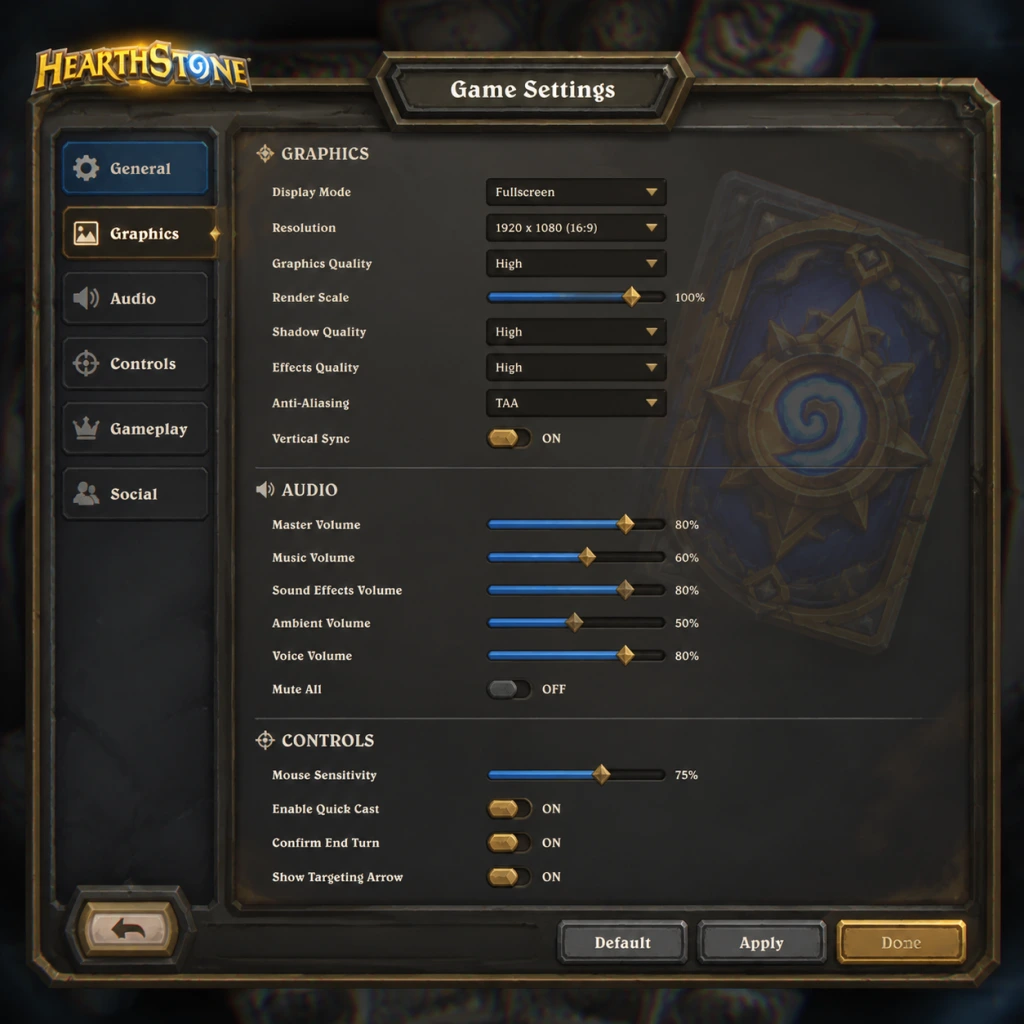
Game Settings
Overview
This section details every configurable setting in Hearthstone, covering graphics, audio, controls, accessibility, language, network, and gameplay options. Optimal recommendations are provided for low-end, mid-range, and high-end hardware, along with notes on commonly misconfigured settings and special setup considerations.
---
Graphics Settings
Hearthstone is a 2D card game with light 3D effects, so it runs well on most systems. However, turning down certain options can improve stability on low-end devices or laptops.
| Setting | Options | Notes |
|---|---|---|
| Resolution | Native (recommended), 1080p, 1440p, etc. | Match your monitor’s native resolution for best clarity. Lower resolutions reduce GPU load but may blur text. |
| Display Mode | Fullscreen, Windowed, Windowed (Fullscreen) | Fullscreen provides best performance. Windowed (Fullscreen) allows quick alt-tabbing. |
| Vsync | On / Off | Enable to prevent screen tearing. Disable if you want uncapped FPS or have a G-Sync/Freesync monitor. |
| Frame Rate Cap | 30, 60, 120, Unlimited | 60 FPS is smooth for card animations. Cap at 30 on very weak hardware to save battery (mobile) or reduce heat. |
| Graphics Quality | Low, Medium, High, Ultra | Affects board detail, particle effects, and portrait animations. Recommended: Low/Medium for integrated GPUs; High/Ultra for dedicated GPUs. |
| Texture Filtering | Bilinear, Trilinear, Anisotropic x2/x4/x8/x16 | Higher values sharpen distant textures. x4 is a good balance. |
| Anti-aliasing | Off, FXAA, MSAA 2x/4x | Smooths jagged edges. MSAA 4x is heavier. FXAA is light but blurs slightly. |
| Shadows | Off, Low, High | Only affect hero portraits and board ornaments. Turn Off to save performance. |
| Particles | Off, Low, High | Affects spell effects, card entrances. Low reduces clutter. |
Hardware Recommendations
- Low-end (Intel UHD Graphics, 4 GB RAM): Resolution 1280x720, Windowed (Fullscreen), Vsync Off, Frame Rate 30, Quality Low, Textures Bilinear, AA Off, Shadows Off, Particles Off.
- Mid-range (GTX 1050 / RX 560, 8 GB RAM): 1920x1080, Fullscreen, Vsync On, Frame Rate 60, Quality High, Aniso x4, AA MSAA 2x, Shadows Low, Particles Low.
- High-end (RTX 2060+, 16 GB RAM): Native resolution, Fullscreen, Vsync Off (with G-Sync), Frame Rate Unlimited, Quality Ultra, Aniso x16, AA MSAA 4x, Shadows High, Particles High.
Note: Hearthstone’s performance on PC is rarely GPU-bound; CPU and RAM speed matter more for loading times and turn transitions.
---
Audio Settings
| Setting | Options | Notes |
|---|---|---|
| Master Volume | 0–100 | Controls overall audio output. |
| Music | 0–100 | Background lobby and board music. |
| Sound Effects | 0–100 | Card plays, attacks, hero powers, emotes. |
| Ambient | 0–100 | Environmental sounds like tavern chatter or board ambience. |
| Voice | 0–100 | Hero voice lines, card quotes, and announcer sounds. |
Misconfiguration risk: Turning off SFX entirely can cause you to miss audible cues (e.g., secret activation, rope burning). Leave SFX at least 40.
---
Controls & Input
Hearthstone uses mouse and keyboard on PC, and touch on mobile/tablet.
Keyboard Shortcuts (PC)
| Key | Action |
|---|---|
| 1–9 | Select corresponding card in hand (1–10) |
| Enter | End turn |
| Space | Play selected card / Concede in some menus |
| Escape | Open menu / Cancel |
| Tab | Cycle through cards in hand |
| F1–F4 | Emote hotkeys (greetings, threaten, etc.) |
| Ctrl + 1–9 | Deck tracker hotkeys (if using HDT) |
Mouse Controls
- Left-click & drag: Play a card or attack target.
- Right-click a card: View card details and possible interactions.
- Right-click the board: Emote wheel.
Controller Support: Hearthstone does not natively support controllers. Third-party mapping tools (e.g., JoyToKey, Steam Input) can be used but are not recommended due to poor UI navigation.
Misconfiguration: On PC, accidentally rebinding mouse buttons via third-party software can break drag-and-drop. Keep defaults unless you have accessibility needs.
---
Accessibility Settings
| Setting | Location | Notes |
|---|---|---|
| Colorblind Mode | Options > Accessibility | Offers Protanopia, Deuteranopia, Tritanopia filters. Also changes card rarity colors (common, rare, etc.) to distinct patterns. |
| High Contrast Mode | Options > Accessibility | Inverts colors on certain UI elements for better readability. |
| Card Text Size | Options > Accessibility | Increases the font size of card text (tooltips and hand). |
| Screen Reader Support | Not built-in | Windows Narrator or third-party OCR tools may work but are not officially supported. |
| Auto-Squelch | Options > Gameplay | Automatically mutes opponent emotes (reduces visual/audio distraction). |
---
Language & Region
| Setting | Options | Notes |
|---|---|---|
| Language | English, French, German, Spanish, Italian, Portuguese, Russian, Polish, Japanese, Korean, Chinese (Simplified & Traditional), Thai, etc. | Selected during Battle.net installation. Changes in-game text and voice lines for some heroes. |
| Region | Americas, Europe, Asia, China | Affects matchmaking, in-game shop currency, and card pool (China server is separate). Can be changed from Battle.net launcher. |
Misconfiguration risk: Setting an unsupported language (e.g., Hindi) will default to English. Changing region does not reset your collection but you will have separate progress for each region.
---
Network Settings
| Setting | Description | Notes |
|---|---|---|
| Streaming Data | Toggle to limit background data usage (mobile) | Disable to save cellular data; game will download assets on demand. |
| Background Downloads | Enable/disable asset downloads while playing | Turn Off to avoid lag during matches (assets download after game). |
| Competitive Mode | Auto-squelch + disable Battle.net overlay | Optional toggle for tournament play to reduce distractions. |
- Use a wired connection or 5 GHz Wi-Fi for stable latency.
- Close bandwidth-heavy applications (streaming, downloads) while playing.
- On mobile, set to low-resolution streaming if data cap is tight.
Misconfiguration: Leaving Background Downloads ON can cause sudden lag spikes when new patches or card assets load mid-game. Turn it OFF.
---
Gameplay Settings
| Setting | Options | Notes |
|---|---|---|
| Auto-Squelch | On / Off | Mutes opponent emotes automatically. Highly recommended to reduce tilt. |
| Auto-Rope | On / Off | When On, the turn timer rope appears earlier as a reminder. Off disables the visual warning (rope still appears). |
| Turn Timer | Standard (75s first turn, 90s+ per turn average) | Cannot be changed. No setting available. |
| Spectator Mode | Allow spectators / Friends only / Off | Adjust in Friends list. |
| Friend Requests | Allowed / Friends of friends / Off | Controls who can add you. |
| Card Back | Cosmetic – no gameplay effect | Change in Collection > Card Backs. |
| Deck Slot Display | Show only class icons / Show deck names | Under Options > Collection. |
| Shortcut for Concede | Escape > Concede (or Alt+F4) | No direct hotkey. Be careful not to concede accidentally. |
---
Optimized Settings for Different Hardware
| Hardware Tier | Graphics Preset | Resolution | Frame Rate | Special Notes |
|---|---|---|---|---|
| Low-end (Intel HD 520, 4 GB RAM) | Low | 1280×720 | 30 FPS | Turn off shadows & particles. Use windowed mode if fullscreen causes crashes. |
| Mid-range (GTX 1050, 8 GB RAM) | High | 1920×1080 | 60 FPS | Enable Vsync. Texture filtering x4. |
| High-end (RTX 2060, 16 GB RAM) | Ultra | 2560×1440 | 120 FPS | Disable Vsync if using G-Sync. Anti-aliasing MSAA 4x. |
- iOS/Android: Use Medium quality, cap at 30 FPS to save battery. Disable background downloads.
- Low-end phones: Set resolution to 75% or use battery saver mode (reduces frame rate to 20).
- Account linking: Ensure your Blizzard account is linked to Battle.net before starting. You cannot transfer progress between regions.
- Initial download size: ~4 GB on PC, ~3 GB on mobile. Use Wi-Fi for first download.
- Dual-account play: You can run two Hearthstone instances on PC (via different Battle.net accounts) but only one at a time in ranked.
- Mobile vs PC settings: Settings are independent per platform. Tweak separately.
- Cloud save: Progress is server-side. No local saves.
- Reevaluation after patches: Major updates may reset some settings (especially Resolution and Graphics Quality). Check after every patch.
---
Settings Easy to Misconfigure
1. Country/Region vs Language – People often set Language to match their region (e.g., English in EU), but that does not affect matchmaking. If you want Chinese card text without Chinese matchmaking, set language to Chinese but keep region Americas.
2. Auto-Squelch – New players may leave it Off; then opponent spam emotes can be distracting. Toggle On immediately.
3. Background Downloads – As noted, leaving this On causes lag. Always turn Off after initial install.
4. Resolution Scaling – On mobile, setting resolution to 100% on a low-end device causes stutter. Scale down to 75% or 50%.
5. Colorblind Mode – Some players think it adds visual effects; it does not. It only recolors elements. If you don’t need it, leave it Off.
6. Vsync – Turning Off Vsync can cause screen tearing on standard monitors. On low-end, it can overload GPU if frame rate is uncapped.
---
Special Attention Points During Setup
---
This concludes the comprehensive settings guide for Hearthstone. Use the recommended presets as starting points and fine-tune based on your personal hardware and preferences.