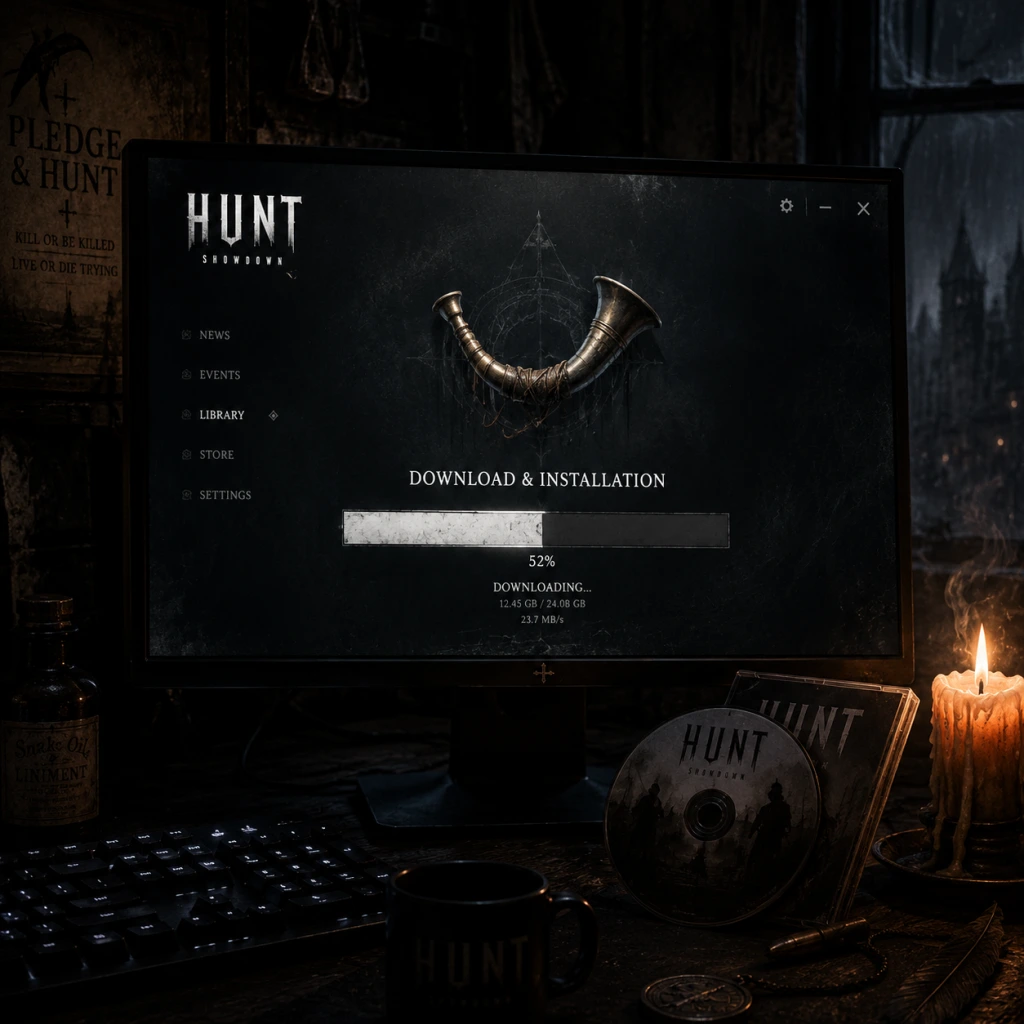
Download & Installation
Download & Installation Guide for Hunt: Showdown
This guide provides comprehensive instructions for downloading and installing Hunt: Showdown on all supported platforms. The game is available on PC (Steam and Epic Games Store), PlayStation 4, PlayStation 5, Xbox One, and Xbox Series X|S. There is no native version for Nintendo Switch or mobile devices.
---
Official Download Sources
| Platform | Store / Source | Notes |
|---|---|---|
| PC (Steam) | [Steam Store](https://store.steampowered.com/app/594650/Hunt_Showdown/) | Direct purchase and download. |
| PC (Epic Games) | [Epic Games Store](https://store.epicgames.com/en-US/p/hunt-showdown) | May occasionally be free or discounted. |
| PlayStation 4 / 5 | PlayStation Store | Purchase via console or web store. |
| Xbox One / Series X\ | S | Microsoft Store |
---
System Requirements (PC)
Minimum Requirements (30fps at Low settings, 1080p)
- OS: Windows 10 64-bit
- CPU: Intel i5-4590 @ 3.3 GHz or AMD FX-8350
- RAM: 8 GB
- GPU: Nvidia GeForce GTX 660 Ti or AMD Radeon R9 270 (2 GB VRAM)
- DirectX: Version 11
- Storage: 40 GB (SSD recommended)
- OS: Windows 10 64-bit
- CPU: Intel i7-6700 @ 3.4 GHz or AMD Ryzen 5 1500X
- RAM: 16 GB
- GPU: Nvidia GeForce GTX 1070 or AMD Radeon RX 590 (8 GB VRAM)
- DirectX: Version 11
- Storage: 40 GB SSD
- Universal: An internet connection is required for authentication and gameplay. No single-player offline mode exists.
- PC (Steam): A Steam account and the Steam client.
- PC (Epic Games): An Epic Games account and the Epic Games Launcher.
- PlayStation: A PlayStation Network (PSN) account and PlayStation Plus subscription (for online multiplayer).
- Xbox: A Xbox Live account and Xbox Game Pass Core or Ultimate subscription (for online multiplayer).
Recommended Requirements (60fps at High settings, 1080p)
> Note: The game uses the CryEngine and benefits significantly from an SSD. HDD may cause texture pop-in and longer loading times.
---
Account Requirements
---
Step-by-Step Installation by Platform
PC (Steam)
1. Install Steam (if not already installed) from [store.steampowered.com](https://store.steampowered.com).
2. Log in to your Steam account.
3. Purchase Hunt: Showdown from the Store page (or redeem a key).
4. Install:
- Go to your Library.
- Find Hunt: Showdown in the list.
- Click Install.
- Choose your installation directory (ensure at least 40 GB free space).
- Wait for download and installation to complete.
5. Launch: Click Play from the Library.
PC (Epic Games Store)
1. Install the Epic Games Launcher from [epicgames.com](https://store.epicgames.com).
2. Log in to your Epic Games account.
3. Purchase Hunt: Showdown from the Store (or claim if free).
4. Install:
- Go to your Library.
- Find Hunt: Showdown.
- Click Install.
- Choose installation location (40 GB free).
- Wait for download.
5. Launch: Click Launch from the Library.
PlayStation (PS4 / PS5)
1. Ensure your console is connected to the internet and you have a PSN account with PlayStation Plus.
2. Navigate to the PlayStation Store.
3. Search for "Hunt: Showdown".
4. Purchase and download:
- Click Add to Cart or Buy.
- Confirm purchase.
- The download will start automatically. You can monitor progress from the Downloads/Notifications menu.
5. Install – The game installs automatically after download. On PS5, you may choose to install the PS5 version if prompted.
6. Launch – Find the game on your home screen or in the Game Library.
Xbox (One / Series X|S)
1. Ensure you have a Xbox profile with an active subscription (Game Pass Core/Ultimate).
2. Go to the Microsoft Store on your console.
3. Search for "Hunt: Showdown".
4. Purchase and download:
- Select the edition you want.
- Follow the purchase prompts.
- The game will begin downloading. You can check queue in My games & apps > Manage > Queue.
5. Install – Automatic after download. For Xbox Series X|S, Smart Delivery will give you the optimized version.
6. Launch – From the Home screen or My games & apps.
---
First Launch Setup
1. Accept the End User License Agreement (EULA).
2. Loading shaders – On first launch, the game will compile shaders. This can take several minutes and may appear frozen. Do not close the application.
3. Configure graphics settings – The game may auto-detect optimal settings. Adjust resolution, quality, and controls from the Options menu.
4. Login – The game will authenticate via the store’s platform (Steam/Epic/PSN/Xbox). No separate in-game account is needed.
5. Tutorial – You can skip the tutorial but it is recommended for new players.
---
Common Installation Errors & Fixes
| Error | Possible Cause | Solution |
|---|---|---|
| Insufficient disk space | Game requires 40 GB. | Free up space or choose a different drive. For PC, move other files to an external drive. |
| Download stuck at 0% / slow | Network issues or store server load. | Pause and resume download. Restart store client/console. Check internet connection. |
| Corrupted files / CRC error | Incomplete download or bad sectors. | PC (Steam): Verify integrity of game files (Library > right-click Hunt > Properties > Local Files > Verify integrity). Epic: Verify files via launcher (Library > click three dots > Manage > Verify). Console: Delete and reinstall the game. |
| Shader compilation crash | Outdated GPU drivers or insufficient VRAM. | Update GPU drivers to the latest version. Lower graphics settings before launching. |
| Antivirus blocking installation | False positive detection. | Temporarily disable real-time scanning during installation. Add the game folder and executable to exclusions. |
| "Failed to create D3D11 device" | Missing DirectX or outdated GPU. | Install/update DirectX End-User Runtimes (from Microsoft). Update GPU drivers. |
| PlayStation/Xbox error CE-34878-0 / 0x80070422 | Corrupted system cache or network issues. | Rebuild database (PS4/PS5 safe mode). For Xbox, restart console, clear cache (hold power button until it powers off). |
| Game fails to launch after installation | Corrupted configuration files or missing dependencies. | PC: Delete the `user` folder in the game’s installation directory (back up if needed). Reinstall Visual C++ Redistributables. |
Post-Installation Verification
- Check game version: From the main menu, look at the bottom-left corner for the version number. Cross-reference with the latest patch notes on the official website.
- Test connectivity: Try to join a random Quick Play or Bounty Hunt match. If you get disconnected or stuck in matchmaking, check server status at [status.huntshowdown.com](https://status.huntshowdown.com).
- Update graphics drivers: For optimal performance, install the latest drivers for your GPU from Nvidia, AMD, or Intel.
- Create/Recover Crytek account: While not mandatory, linking your account via the official website (crytek.com) enables cross-play invites and some cosmetic rewards. This is done after first launch.
- Adjust audio settings: Audio cues are critical in this game. Ensure your speakers/headphones are properly configured and that spatial audio (Windows Sonic, Dolby Atmos) is enabled if supported.
- SSD strongly recommended: The game’s large textures and open world benefit greatly from an SSD. Expect longer load times and asset pop-in on HDD.
- Cross-play: Hunt: Showdown supports cross-play between PC (Steam & Epic) and consoles (PlayStation and Xbox separately). Mobile and Switch are not supported.
- Multi-platform accounts: If you own the game on multiple platforms, you must purchase it separately for each ecosystem – progress and DLC do not carry over.
- Free weekends: Occasionally, the game is free to play for a limited time. During such events, installation is the same; licenses expire after the weekend.
---
Additional Tips
---
For further help, visit the official [Hunt: Showdown Support](https://support.crytek.com) or the community [Discord](https://discord.gg/huntshowdown).