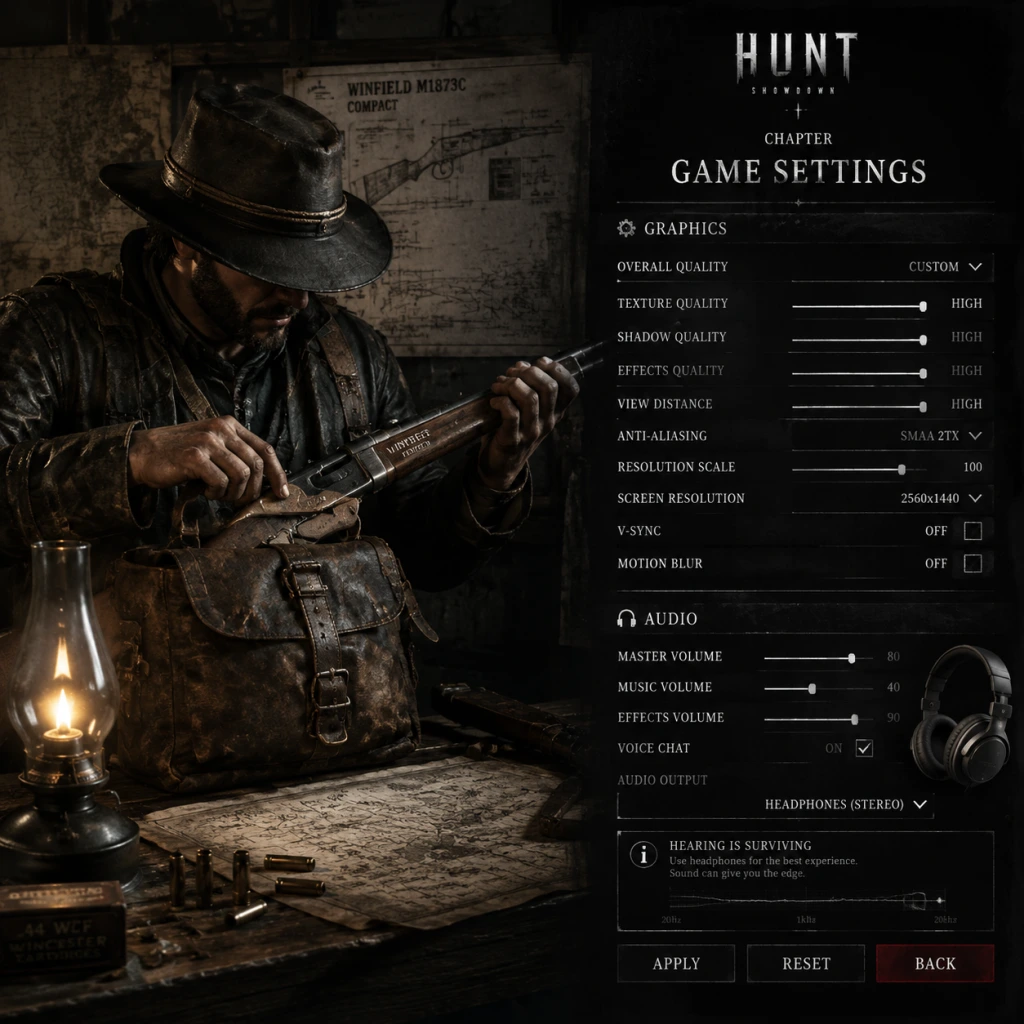
Game Settings
Game Settings Guide for Hunt: Showdown
This guide covers all key settings categories in Hunt: Showdown on PC (Steam/Epic Games Store) and consoles (PlayStation, Xbox). Proper configuration can improve performance, audio clarity, controls responsiveness, and overall gameplay quality. Below you'll find recommended settings for different hardware tiers, along with pitfalls to avoid.
---
1. Graphics Settings
Graphics impact both performance and visibility. Higher settings improve immersion but may reduce FPS and hide enemy silhouettes. Optimize for a balance between smoothness and competitive advantage.
#### Recommended Graphics Presets by Hardware Level
| Hardware Level | Example GPU | Resolution Target | Preset | Key Adjustments |
|---|---|---|---|---|
| Low | GTX 1060 / RX 580 | 1080p 60 FPS | Low | Turn off motion blur, set lighting to Low, use NVIDIA Reflex (if available) |
| Mid | RTX 2060 / RX 5600 XT | 1080p 144 FPS or 1440p 60 FPS | High | Keep object quality High, turn shadows to Medium, texture quality High |
| High | RTX 3070 / RX 6800 | 1440p 144 FPS or 4K 60 FPS | High | Enable VRS (Variable Rate Shading), shadows High, keep anti-aliasing SMAA 1x |
| Ultra | RTX 4080 / RX 7900 XTX | 4K 144 FPS | Ultra | Max everything, enable ray tracing (if available), but beware of performance cost |
- Field of View (FOV): Default 90° is good. Higher FOV (max 110°) gives peripheral vision but reduces target size. Set to 90-100 for most players.
- Motion Blur: Disable – it hurts visibility and offers no competitive advantage.
- Depth of Field: Disable – blurs distant objects, making it harder to spot enemies.
- Object Quality: Keep at High or above – on Low, trees and grass pop-in can reveal enemy positions but also hide them. High is fair.
- Shadow Quality: Medium is recommended – lowest makes enemies invisible in dark spots; highest costs performance.
- Texture Quality: Set as high as your VRAM allows (6GB+ for High/Ultra). Low textures make terrain muddy but can help spotting movement.
- Anti-Aliasing: Use SMAA 1x (or SMAA T2x if you have spare performance). FXAA is blurry; MSAA is expensive.
- Lighting Quality: Low reduces eye adaptation and makes interiors less dark, exposing enemies. Medium is balanced.
- Volumetric Fog: Disable – hurts FPS and adds little visual benefit. If on Low, fog is still present but lighter.
- Vignette: Disable – darkens edges unnecessarily.
- Chromatic Aberration: Disable – reduces visual clarity.
- NVIDIA Reflex: Enable if you have an NVIDIA GPU (reduces input lag).
- Spatial Audio (Headphones): Enable if you own headphones. Use Windows Sonic for Headphones (free) or Dolby Atmos/3D Audio for consoles.
- Audio Output: Headphones (not stereo speakers) – even with speakers, set to Headphones to get better directional cues.
- Master Volume: 80-100% – do not reduce; you need to hear distant sounds.
- Sound Effects Volume: 100% – footsteps and gunshots.
- Music Volume: 0-30% – ambient music can mask enemy noises. Many pro players set it to 0%.
- Voice Chat Volume: Adjust to your preference. Keep at 70-100% for team communication.
- UI Volume: 50-70% – not critical.
- Doppler Effect: Enable – helps determine if a sound source is moving towards or away from you.
- Reverb: Enable – provides spatial cues about environment (e.g., inside vs outside).
- Never use sound compression/equalizers that boost footstep frequencies too much – they may distort gunfire.
- Test your headset with Hunt's built-in audio test (available in Settings > Audio).
- On consoles, ensure your headset is set to “Headphones” and not “TV”.
- ADS (Aim Down Sights): Keep Right Mouse Button. Consider toggle vs hold – toggle reduces finger strain during long fights.
- Sprint: Left Shift (default). Bind to thumb mouse button if easier.
- Crouch: Ctrl (default) or C. Avoid toggle crouch – hold crouch is safer for peeking.
- Vault/Climb: Space (same as jump) but tricky. Some rebind to another key to avoid accidental vaults. Consider separating Jump (Space) and Climb (e.g., V).
- Melee Fast Attack: Default V – keep for quick knife/butt strikes.
- Melee Heavy Attack: Default B – keep.
- Consumable/Dark Sight: Mouse4/5 recommended. Map Dark Sight to a thumb button for quick activation.
- Weapon Switch (1-4): Keep default – essential for fast weapon swapping.
- Map/Objectives: M (default). Rebinding to Tab may conflict with scoreboard.
- DPI: 400-800. Hunt benefits from low sensitivity (cm/360).
- In-game Sensitivity: Start at 0.5 for 400 DPI, adjust until you can do a 180° turn with one full wrist swipe.
- ADS Sensitivity Multiplier: 1.0 (match hipfire). Many players lower it to 0.8-0.9 for fine adjustments.
- Scoped Sensitivity Multiplier: Keep 1.0 or slightly lower (0.9) for stable sniping.
- Raw Input: Enable – bypasses Windows mouse acceleration.
- Mouse Acceleration: Disable – ensure consistent movement.
- Aim Assist: Enable (console) or Disable (PC) – console aim assist is strong; PC players should disable for consistency.
- Stick Deadzone: Lower to 10% or less for quicker response, but increase if you get drift.
- Controller Sensitivity: Start at 3-4 (out of 10).
- Look Smoothing: Disable – adds input lag.
- Trigger Deadzone: Low (10%) for faster actions.
- Colorblind Mode: There are three options (Protanopia, Deuteranopia, Tritanopia). If you have difficulty distinguishing UI elements (team outlines, dark sight glow), enable the appropriate mode. It also changes the color of the bullet damage indicators and bounty icons.
- Subtitles: Enable – shows spoken voice lines from characters and monsters. Helps hearing-impaired players.
- Crosshair Color: Change from white to green/red/blue for better contrast against bright backgrounds.
- Screen Shake: Disable – reduces motion sickness during explosions.
- Show FPS: Enable (in Developer tab via console command `fps 1` or use third-party overlays) – monitor performance.
- Text size cannot be changed – may be an issue for some players.
- Console has no vibration control – toggle in system settings.
- Language Selection: Available at game start (Steam/Epic properties) or in Settings > Language. Options include English, French, German, Spanish, etc. Changing language changes all UI text and voice lines. Be aware that some community servers (e.g., matchmaking) may prioritize language, but it’s not strict.
- Voice Chat Language: Not filterable – you may hear players speaking different languages.
- Text Chat Language: Not filtered – use common sense.
- Server Region: Select the region closest to you: US East, US West, Europe, Asia, Oceania, South America, Russia. Choosing a distant region increases ping (over 150 ms results in noticeable lag). You can change region in the main menu before searching for a match. Cross-region play is possible but not recommended.
- Matchmaking: No fine-tuning. In a party, the host’s region determines server.
- Network Quality: Ensure your internet is stable (wired connection preferred). Open ports: UDP 27015-27030, TCP 27015-27030 (for Steam).
- Bandwidth Limits: Hunt does not have settings, but low bandwidth (<2 Mbps) causes desync. Use Ethernet.
- Packet Loss Check: Run a continual ping to a Hunt server (e.g., `ping 185.130.120.20` for EU) – packet loss >1% is problematic.
- Disable background downloads/streaming.
- Use a VPN only if your ISP throttles game traffic (but it adds latency).
- Set game priority to High in Task Manager.
- Dark Sight Mode: Default to toggle (press once to activate, again to deactivate). Some prefer hold – change in Controls.
- Sprint Behavior: Hold vs Toggle. Hold is better for precise control (stop sprinting instantly). Toggle can cause accidental sprint when you want to crouch.
- Crouch Hold vs Toggle: Hold – you rise immediately when key released, essential for peeking.
- Weapon Inspect: No in-game toggle; not important.
- Auto-Pickup: Enable – automatically pick up items when you walk over them. May cause accidental pickups, but saves time. Disable if you clutter inventory.
- Auto-Equip: Enable – automatically equip picked up weapons/consumables. Can be annoying; consider disabling.
- Minimap / Compass HUD: Always displayed – cannot hide.
- Teammate Outlines: Always visible – no setting to turn off. Color is team-specific (yellow).
- `client_fov` – set to any value (90-110).
- `gpu_...` – advanced graphics (not recommended).
- `sensitivity` – for fine-tuning.
#### Console Graphics Options
Console versions (PS5, Xbox Series X/S) offer limited graphics settings: typically just FOV, motion blur, and brightness. Use the same FOV (90-100) and disable motion blur. Performance mode (120 FPS target on Series X/PS5) is recommended over Quality mode.
---
2. Audio Settings
Audio is critical in Hunt: Showdown – footsteps, gunfire direction, and compound sounds define gameplay.
#### Recommended Audio Settings
#### Audio Pits and Tips
---
3. Controls Settings
Customizing controls improves speed and accuracy. Hunt has a learning curve; presets help but fine-tuning is key.
#### Key Rebinds for PC
#### Mouse Settings
#### Controller Settings (PC & Console)
---
4. Accessibility Settings
Hunt: Showdown offers limited accessibility features. Below are options to improve comfort.
#### Additional Notes
---
5. Language Settings
---
6. Network Settings
Network settings affect latency and matchmaking. Hunt uses dedicated servers.
#### Latency Troubleshooting
---
7. Gameplay Settings
These settings affect how the game behaves and are not in a typical “options” menu but in the in-game HUD or in the configuration files.
#### Configuration File Tweaks (PC Advanced)
For competitive players, file `.cfg` in `%appdata%\Hunt Showdown\user\profiles\default\` allows altering:
Warning: Editing config files may flag anti-cheat if changed incorrectly. Use official UI settings first.
---
8. Easy-to-Misconfigure Settings
| Setting | Common Mistake | Correct Recommendation |
|---|---|---|
| Audio Output Device | Setting to “Speakers” with headphones | Always choose “Headphones” for spatial audio |
| Motion Blur | Leaving on | Disable for clarity |
| Depth of Field | Enabled | Disable |
| FOV | Too low (70) or too high (110) | 90-100 median |
| Mouse Acceleration | Enabled | Disable and enable Raw Input |
| Sprint Toggle | Using toggle (accidental sprint) | Use hold |
| Region Selection | Playing on wrong region (high ping) | Always choose nearest region |
| Texture Quality | Setting too low (reveals enemies but looks bad) | High if VRAM enough |
| Anti-Aliasing | Using FXAA (blurry) | SMAA 1x |
| Volumetric Fog | Enabled | Disable for performance |
| Music Volume | Loud (masks footsteps) | 0-30% |
9. Special Attention Points During Setup
- First Launch: The game will auto-detect your hardware and set a graphics preset. Always review and manually adjust because auto-detect often chooses very low settings even on mid-range PCs.
- Color Calibration: Go to Settings > Display > Brightness. Adjust until the Hunt logo is barely visible on the black background (as per instructions). This ensures correct gamma for day/night cycles.
- Audio Test: Run the audio test under Settings > Audio. You should hear clear directional sounds from all five positions. If not, check your headset configuration.
- Controller vs Keyboard: If playing on PC with a controller, ensure “Controller Input” is set to “Enabled” in Controls – otherwise the game ignores the controller.
- Console Performance Mode: On PS5 and Xbox Series X, you must manually select “Performance” in the console’s game settings or system display settings. Hunt’s graphics menu does not toggle this. On Xbox, enable “FPS Boost” if available.
- Cross-Play Settings: On PC, you can disable cross-play with consoles (Settings > Gameplay > Cross-play). Console players cannot turn it off – they are always matched with other consoles and PC players who choose to enable cross-play.
- File Patching: After major updates, occasionally settings reset. Take a screenshot of your settings after configuration to restore quickly.
---
By following these recommendations, you'll maximize your performance, audio awareness, and control responsiveness in Hunt: Showdown. Remember that settings are personal – experiment within the guidelines to find what suits your playstyle.