Download & Installation
League of Legends Download & Installation Guide
Platform Availability
League of Legends (the original MOBA) is available only on PC (Windows and macOS). It is not on PlayStation, Xbox, Nintendo Switch, or mobile. For mobile, there is a separate title League of Legends: Wild Rift, which is covered in its own guide. Riot Games does not distribute LoL via Steam or Epic Games Store; the only official source is the Riot Client.
Official Download Sources
- Windows & macOS: Download the Riot Client installer from [https://signup.leagueoflegends.com/en-us/signup/redownload](https://signup.leagueoflegends.com/en-us/signup/redownload) (redirects to the latest client).
- Alternative: Direct download from the official League of Legends website: [https://www.leagueoflegends.com/en-us/download/](https://www.leagueoflegends.com/en-us/download/)
- OS: Windows 10 64-bit (latest update)
- CPU: Intel Core i3-530 or AMD A6-3650
- RAM: 2 GB
- GPU: NVIDIA GeForce 9600GT, AMD Radeon HD 6570, or Intel HD 4600 (DirectX 11 compatible)
- Storage: 16 GB free space (HDD)
- Resolution: 1024x768
- OS: Windows 11 64-bit
- CPU: Intel Core i5-3300 or AMD Ryzen 3 1200
- RAM: 4 GB (8 GB recommended for smooth multitasking)
- GPU: NVIDIA GeForce GTX 1050 or AMD Radeon RX 560 (DirectX 11 compatible)
- Storage: 16 GB free space (SSD recommended)
- Resolution: 1920x1080
- OS: macOS 10.15 (Catalina) or later (Intel-based Macs) / macOS 11 (Big Sur) or later (Apple Silicon M1/M2 via Rosetta 2)
- CPU: Intel Core i5-4670 (Apple M1 or better)
- RAM: 4 GB
- GPU: Intel HD Graphics 5000 (M1 integrated GPU)
- Storage: 16 GB free space (SSD recommended)
- Note: macOS version may have slightly lower performance and fewer graphics options.
- Riot Games officially supports Apple Silicon via Rosetta 2. The installer should work automatically. If you encounter issues, ensure Rosetta 2 is installed (run `softwareupdate --install-rosetta` in Terminal).
- Riot Account: You must have a valid Riot Games account. Create one at [https://signup.leagueoflegends.com](https://signup.leagueoflegends.com) (requires email verification).
- Region selection: During account creation, choose your region (e.g., NA, EUW, EUNE, etc.). This determines server, friends list, and store prices. You can change region later (cost: 2600 RP).
- No subscription: The game is free-to-play; no purchase required.
Warning: Do not use third-party sites; they may contain malware or outdated versions.
System Requirements
#### Minimum (Windows)
#### Recommended (Windows)
#### macOS
Step-by-Step Installation
#### Windows
1. Download the installer: Go to [https://www.leagueoflegends.com/en-us/download/](https://www.leagueoflegends.com/en-us/download/) and click Download for Windows. This downloads `LeagueOfLegends_Installer.exe`.
2. Run the installer: Locate the file (usually in `Downloads`), right-click and select Run as administrator to avoid permission issues.
3. Choose installation folder: Accept the default (`C:\\Riot Games\\`) or click Browse to select another drive. Ensure at least 20 GB free (installation + updates).
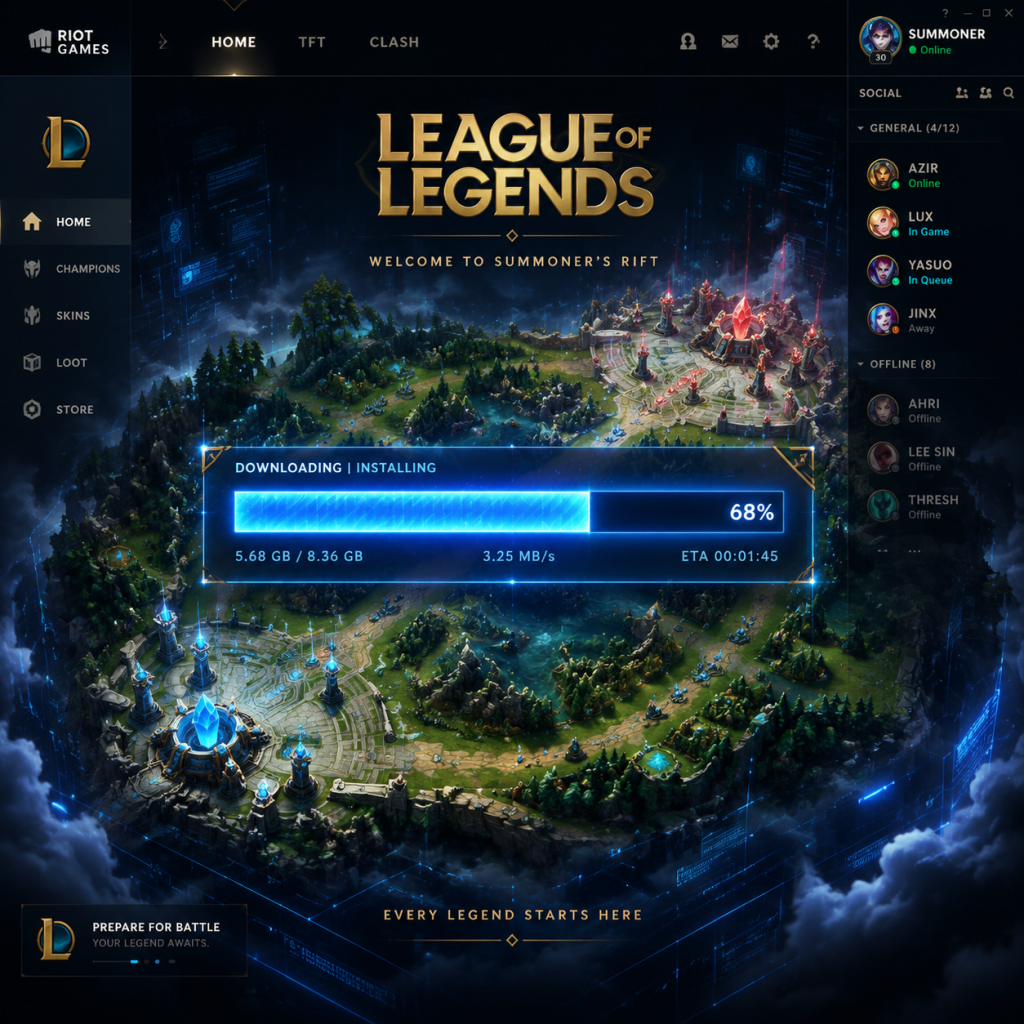
4. Download the client: The installer will download the full Riot Client and League of Legends. This can take 15-30 minutes depending on internet speed.
5. Sign in or create account: Once installed, the Riot Client opens. Click Sign In with your Riot account or Create Account.
6. Game files download: After login, the client will download additional game data (about 10-15 GB). Wait for completion.
7. Launch: Click Play to start the game. The first launch may compile shaders (takes a few minutes).
#### macOS
1. Download the installer: From the same page, click Download for macOS (file: `LeagueofLegends.dmg`).
2. Mount the DMG: Double-click the downloaded `.dmg` file.
3. Install: Drag the League of Legends icon into the Applications folder.
4. Eject the DMG: Right-click the mounted disk and select Eject.
5. Open the game: Go to `Applications/League of Legends` and double-click. If a security warning appears, go to System Preferences > Security & Privacy and click Open Anyway.
6. Riot Client setup: The Riot Client will install and update. You may need to grant permissions (e.g., network access).
7. Login / Create account: Enter your credentials or sign up.
8. Game download: The client downloads game assets; wait until the Play button is active.
#### Note for Apple Silicon (M1/M2/M3)
Account Requirements
First Launch Setup
1. Tutorial: After first login, you may be prompted to play a tutorial. It's strongly recommended for new players.
2. Graphics settings: Press Esc > Video to adjust resolution, quality, window mode.
3. Summoner name: You'll be asked to create a Summoner name (one-time).
4. Language: Default is system language; change in client settings (top right gear icon > Language).
5. Updates: The client may update immediately; allow it to complete before playing.
Common Installation Errors & Fixes
| Error | Cause | Solution |
|---|---|---|
| Error 001 | Corrupted installer or antivirus interference | Run installer as admin; temporarily disable antivirus; re-download installer. |
| Error 002 (Windows) | Missing Visual C++ Redistributables | Install/repair Microsoft Visual C++ 2015-2022 Redistributable from Microsoft. |
| Error 003 (macOS) | Permission issues | Grant full disk access to Riot Client in System Preferences > Security & Privacy > Privacy > Full Disk Access. |
| Stuck at "Applying Settings" | Outdated graphics driver | Update GPU drivers (NVIDIA/AMD/Intel) to latest version. |
| DirectX error | Missing DirectX components | Install DirectX End-User Runtime Web Installer from Microsoft. |
| Infinite loading screen | Corrupted game files | In Riot Client, click profile icon > Settings > Initiate Full Repair. |
| Cannot install on Windows 7 | Not supported | Upgrade to Windows 10/11. LoL no longer supports Windows 7/8/8.1. |
| Low disk space | Insufficient free space | Free up at least 20 GB by uninstalling unused programs or moving to another drive. |
- Open Riot Client, click your profile icon (top right) > Settings > Repair > Initiate Full Repair (or Start Repar on some clients). This checks and replaces corrupted files.
- Install on SSD: Improves loading times significantly (5-10 seconds vs 30-40 on HDD).
- Close background apps: For best performance, close browsers/streaming apps before launching.
- Keep client updated: The Riot Client updates automatically; ensure you have a stable internet connection.
- Backup settings: Your settings are stored in `C:\\Users\\[Username]\\AppData\\Local\\Riot Games\\League of Legends\\Config`. You can copy these for backup.
- Windows: Go to Control Panel > Programs and Features, select Riot Games and uninstall. Alternatively, run the uninstaller from the Riot Client (profile > Settings > Uninstall).
- macOS: Drag the `League of Legends` application from Applications to Trash, and also delete `~/Library/Application Support/League of Legends`.
- [Official Download Page](https://www.leagueoflegends.com/en-us/download/)
- [System Requirements (Official)](https://support-leagueoflegends.riotgames.com/hc/en-us/articles/360047952134-League-of-Legends-System-Requirements)
- [Riot Support for Installation Issues](https://support-leagueoflegends.riotgames.com/)
Post-Installation Verification
1. Check client version: Ensure the Riot Client and League of Legends are updated to the latest patch (displayed on the client’s home screen).
2. Test network: Click the Settings gear > Network > Run Diagnostics to check connection to Riot servers.
3. Check integrity: Run a custom game versus AI (Intro difficulty) to ensure all mechanics work.
4. Storage usage: Right-click the installation folder (`C:\\Riot Games\\League of Legends`) and check size — should be around 10–15 GB (excluding replays and logs).
5. Create a desktop shortcut: From Riot Client (right-click the client shortcut) or from start menu.
Additional Tips
Uninstalling League of Legends
Important Links
---
This guide is accurate as of 2025. Game updates may change requirements; always check official sources for the latest information.