Game Settings
League of Legends Game Settings Guide
Introduction
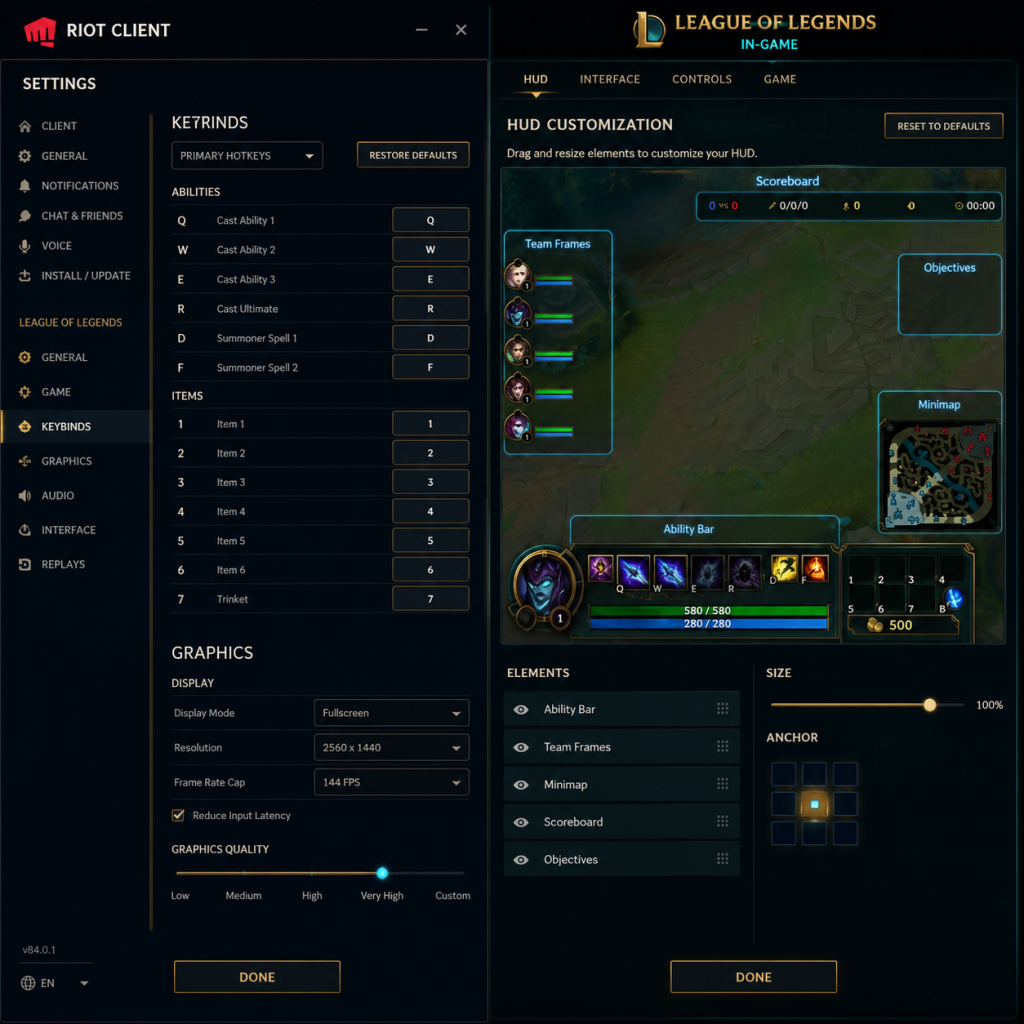
League of Legends settings are split between the Riot Client (launcher) and the in-game settings menu (accessed via the gear icon in the top-right corner of the client or by pressing `Esc` during a match). This guide covers every major category: Graphics, Audio, Controls, Accessibility, Language, Network, and Gameplay, with actionable recommendations for performance and competitive play.
Accessing Settings
- Client Settings: Click your profile icon in the top-right of the Riot Client → Settings. Here you set language, region (if applicable), and some game launch options.
- In-Game Settings: Press `Esc` during a match (or click the gear icon on the home screen of the client). The in-game menu has tabs: Video, Audio, Hotkeys, Interface (Gameplay), and more.
---
Graphics Settings (Video Tab)
#### Key Options
| Setting | Description | Recommendation |
|---|---|---|
| Display Mode | Fullscreen, Borderless Windowed, Windowed | Fullscreen gives best performance and lowest input lag. Borderless is convenient for alt-tabbing but can add slight latency. Windowed not recommended. |
| Resolution | Must match your monitor’s native aspect ratio | Native resolution for clarity. Lower it only if you need a big FPS boost. |
| Wait for Vertical Sync | Synchronizes frame rate with monitor refresh | OFF – V-Sync adds significant input lag. Use a frame cap instead. |
| Target FPS | Caps your frame rate | Set to your monitor’s refresh rate (e.g., 60, 144, 240) or slightly higher. |
| Graphics Presets | Very Low to Very High | Adjust for hardware; see table below. |
| Shadows | Off / Low / Medium / High / Very High | Off or Low for competitive clarity. |
| Character Quality | Controls model detail and textures | Keep at least Medium to see champion animations clearly. |
| Environment Quality | Terrain, towers, jungle detail | Low on low-end; Medium+ for visual preference. |
| Effects Quality | Spell and particle effects | Low reduces visual clutter and makes skillshots easier to see. |
| Lighting | Ambient and dynamic lighting | Off or Low on low-end; Medium+ otherwise. |
| Anti-Aliasing | Smooths edges (MSAA options) | Off for maximum performance; MSAA x2 or x4 on strong GPUs for cleaner edges. |
| Setting Component | Low-End (e.g. Intel HD Graphics) | Mid-Range (e.g. GTX 1650) | High-End (e.g. RTX 3060+) |
|---|---|---|---|
| Graphics Preset | Very Low | Medium | Very High |
| Resolution | Native or 1366x768 | Native | Native |
| Wait for VSync | Off | Off | Off |
| Target FPS | 60 (if stable) | 144 (match monitor) | Unlocked (match monitor) |
| Shadows | Off | Low | High |
| Character Quality | Low | Medium | Very High |
| Environment Quality | Low | Medium | High |
| Effects Quality | Low | Medium | High |
| Lighting | Low | Medium | Very High |
| Anti-Aliasing | Off | MSAA x2 | MSAA x4 |
---
Audio Settings
| Option | Description | Recommendation |
|---|---|---|
| Master Volume | Overall volume | 80–100% depending on preference |
| SFX Volume | Ability sounds, attacks, footsteps | 100% – critical for game awareness |
| Music Volume | Champion select/lobby music | 0% – music distracts from gameplay cues |
| Voiceover Volume | Champion voice lines | Keep at 30–50% for situational awareness |
| Announcer Volume | “First Blood!” etc. | 100% – useful for game state |
| Ping Volume | Alert pings | 100% – important for team communication |
---
Controls (Hotkeys) Settings
This tab is critical and often misconfigured by new players.
#### Default Keybinds (Standard)
- Abilities: Q, W, E, R
- Summoner Spells: D, F
- Trinket: 4 (or 4 default slot)
- Attack Move: A + Left Click (default)
- Stop / Hold Position: S
- Smart Cast (Quick Cast): All abilities on Q,W,E,R (no indicator) – this is the most common competitive setup
- Quick Cast with Indicator: Default is Shift+Q, Shift+W, etc., but many bind indicator to normal keys and enable quick cast in Interface.
#### Smart Cast vs Normal Cast
| Cast Type | Behavior | Best For |
|---|---|---|
| Normal Cast | Press key then click to aim (shows range indicator) | Learning a new champion, skillshot practice |
| Quick Cast | Fires instantly when you press the key (no indicator) | High-speed reaction, combos |
| Quick Cast with Indicator | Shows range while holding key, fires on release | Intermediate – offers both speed and visual feedback |
#### Attack Move Variants
- Attack Move (A+Left Click): Default – attacks nearest target in click direction.
- Attack Move Click (Default Shift+Right Click or unbound): Attacks nearest target to cursor without a left click.
- Player Attack Move Click (new default?): Often bound to a mouse button (e.g., side button) – extremely useful for kiting.
- Camera Lock: Default Space (hold to center). Most players use unlocked camera and hold Space for temporary centering. Locked camera is not recommended for map awareness.
- Self-Cast Modifier: Default Alt+Ability – casts buffs/shields on yourself. Leave as is.
- Champion Specific Hotkeys: There are none in LoL, but you can set per-ability quick cast/indicator in-game via the little arrow next to each ability on the HUD (press Esc to access).
Critical Setting: Under Gameplay tab (Interface), enable “Attack Move on Cursor” – if OFF, attack move will target the nearest enemy to your champion, which is worse. With ON, it targets whatever is closest to your mouse cursor. This is a common source of misclicks.
#### Other Important Settings
Misconfiguration Red Flag: Not binding Attack Move Click to a mouse button. Also, keeping Normal Cast on all keys makes combos slow. Adjust early.
---
Accessibility Settings
| Setting | Description | Recommendation |
|---|---|---|
| Colorblind Mode | Changes color of health bars/minions from green/red to alternative palettes (Deuteranopia, Protanopia, Tritanopia). | ON even if not colorblind – it changes enemy health bars to a clearer orange/red and ally to blue, improving contrast. |
| Cursor Size | Small / Medium / Large | Large – easier to track in teamfights. |
| Minimap Scale | Size of minimap (0–100) | 60–80% – enough to see ganks. |
| Chat Scale | Font size in chat | Default is fine; increase if you have vision issues. |
| Show Timestamps | Displays time in chat | Enable for better shotcalling. |
---
Language Settings
- Client Language: The language can be changed in the Riot Client settings (top-right profile icon → Settings → General → Language). This affects all text (menus, champion names, ability descriptions).
- Voiceover Language: In League of Legends, the voiceover language is tied to the client language. There is no official way to have, e.g., English text with Japanese voices without editing config files (not recommended as it may break with patches).
- Server Default: Some regions (e.g., Korea, China) have a fixed language. If you live in one region but want another language, you must change the client language before launching the game.
- No major pitfalls other than the fact that changing client language will also change the game’s announcer and champion voices – not just text.
- Toggle Ping/FPS Display: Press `Ctrl+F` during a match to show ping (ms) and frames per second (FPS) in the top-right corner.
- Recommended: Keep `Ctrl+F` on during every game to watch for lag spikes.
- Optimizing Connection:
- Server Selection: You cannot choose a specific server in-game; the client uses the region you selected during account creation. If you experience high ping, consider quitting and checking your region (NA, EUW, EUNE, etc.).
---
Network Settings
League of Legends does not expose a network settings tab inside the game. However, you can monitor your connection:
- Use wired Ethernet instead of Wi-Fi.
- Close bandwidth-heavy applications (Streaming, downloads).
- Avoid VPNs unless you need to bypass regional restrictions (they increase latency).
---
Gameplay Settings (Interface Tab)
#### Key Options
| Setting | Description | Recommendation |
|---|---|---|
| Auto-Attack Enabled | Champion automatically attacks nearest enemy when idle | OFF – prevents accidental tower dives and lets you control your character precisely. |
| Attack Move on Cursor | Affects behavior of Attack Move (A+Click) | ON – attacks nearest to mouse cursor, not champion. Critical for kiting. |
| Treat Attack Move as a Target Ability | Available only when Attack Move Click is bound. When ON, you must have a visible target to attack; otherwise you walk. | OFF – allows “attack move” on the ground to attack nearest target even if no unit is clicked. |
| Enable Quick Cast | Toggle all abilities to smart cast | Enable unless you want manual cast. You can set per-ability in hotkeys. |
| Display Summoner Spell Timers | Timer overlay when enemies use summoners | ON – essential for tracking enemy Flash/Teleport cooldowns. |
| Minimap Movement | Click minimap to move camera | Keep default (no change needed). |
| Scroll Sensitivity | Speed of camera scrolling | Adjust to your comfort; middle of the slider is fine. |
| Invert Mouse Controls | Invert Y-axis | OFF – not useful for this game. |
| Camera Lock Toggle | Toggle locked camera with Y (default) | Most players use unlocked camera; toggle only for brief fights. |
| Relative Team Colors | Use blue/orange for minimap instead of blue/red | Personal preference; colorblind mode already changes this. |
1. Auto-Attack OFF is one of the most important settings for intermediate+ players. New players often leave it on and then accidentally attack minions instead of last hitting or walk into enemy towers.
2. Attack Move on Cursor – if you ever wonder why your champion randomly walks toward enemies instead of attacking, it’s because this is OFF. Turn it ON.
3. Quick Cast vs Normal Cast – as mentioned, it’s a common trap. Set early.
---
Conclusion
Optimizing your settings in League of Legends is a personal process, but the above recommendations are grounded in competitive play and performance testing. For the smoothest experience, turn off V-Sync, cap your FPS to your monitor’s refresh rate, use smart cast, and enable Attack Move on Cursor. Adjust graphics according to your hardware using the tier table, and always monitor your ping and FPS with `Ctrl+F`. Revisit your settings after major patches, as some options may reset. Good luck on the Rift!