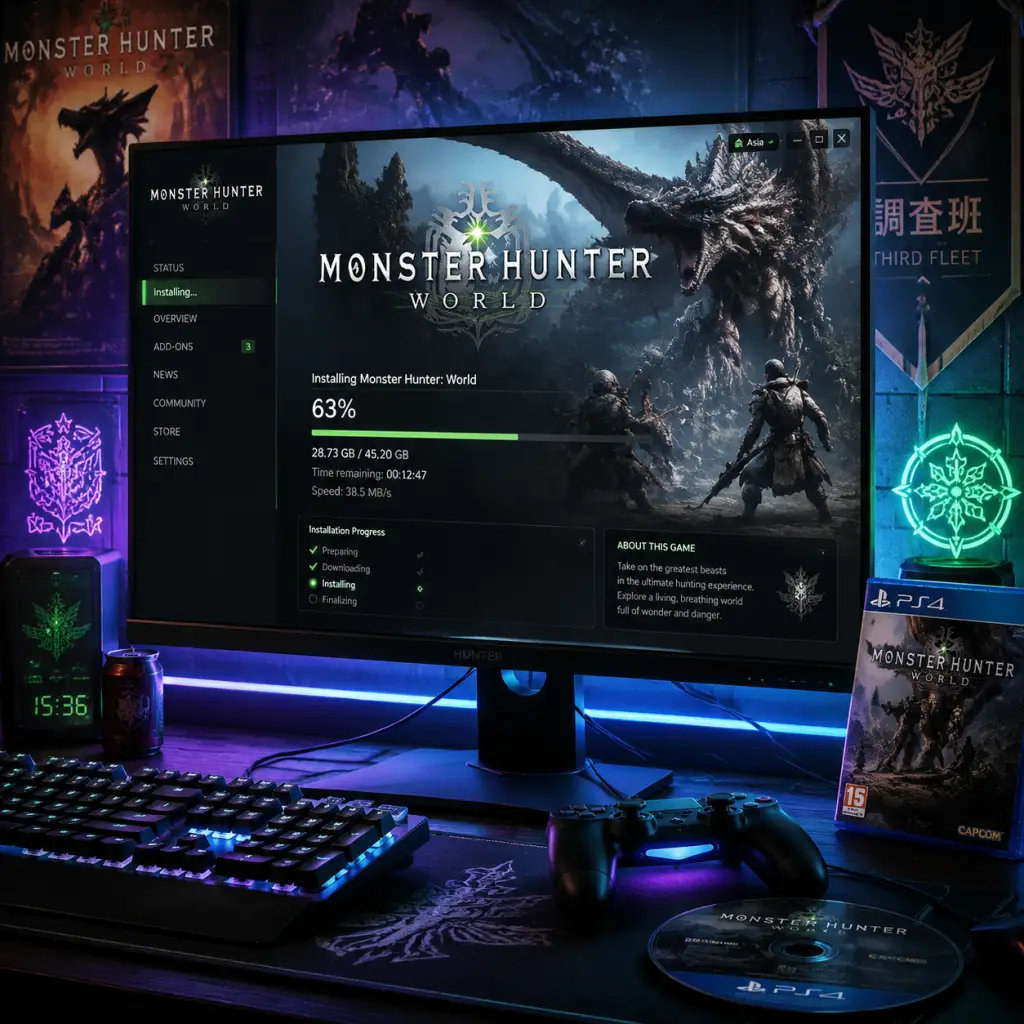
Download & Installation
Download & Installation Guide for Monster Hunter: World
This guide covers the legitimate ways to download and install Monster Hunter: World (including the Iceborne expansion) on all supported platforms. The game is available on PC, PlayStation 4/5, and Xbox One/Series X|S. There is no version for Nintendo Switch or mobile devices.
---
Supported Platforms and Official Sources
| Platform | Official Source(s) | Notes |
|---|---|---|
| PC (Windows) | Steam, Microsoft Store (Xbox Game Pass for PC) | Steam is the primary storefront. The Microsoft Store version is included with Game Pass Ultimate or Game Pass for PC. |
| PlayStation 4 & 5 | PlayStation Store (digital), Retail disc (PS4) | Backward compatible on PS5. Digital version includes both PS4 and PS5 via Smart Delivery (free upgrade to PS5 version, but note that the PS5 version is the same as PS4 Pro with boosted performance; no native PS5 app, but runs via backward compatibility). |
| **Xbox One & Series X\ | S** | Microsoft Store (digital), Retail disc (Xbox One) |
System Requirements (PC)
#### Minimum Requirements (for 1080p @ 30fps, Low settings)
- OS: Windows 7/8/8.1/10 (64-bit)
- CPU: Intel Core i5-4460 or AMD FX-8350
- Memory: 8 GB RAM
- GPU: NVIDIA GeForce GTX 760 or AMD Radeon R7 260X (2GB VRAM)
- DirectX: Version 11
- Storage: 50 GB available space (SSD recommended)
- Additional: Broadband internet connection, controller optional but recommended
- OS: Windows 10 (64-bit)
- CPU: Intel Core i7-3770 or AMD Ryzen 5 1500X
- Memory: 16 GB RAM
- GPU: NVIDIA GeForce GTX 1060 (3GB) or AMD Radeon RX 570 (4GB)
- DirectX: Version 11
- Storage: 50 GB SSD
- Additional: Same as minimum
- Digital version:
- Physical disc (PS4):
- PS5 note: The game runs via backward compatibility. No separate PS5 native app exists, but loading times are improved on PS5’s SSD.
- Digital version:
- Physical disc (Xbox One):
- Series X|S: The game benefits from auto HDR, faster loading, and higher framerates (up to 60fps on Series X).
- Steam: Steam account with purchased license.
- Microsoft (PC / Xbox): Microsoft account (Xbox profile) – required for multiplayer and Game Pass access.
- PlayStation: PlayStation Network account (free, but PlayStation Plus required for online multiplayer).
- Cross-play: Monster Hunter: World does not support cross-play between platforms. Each platform has its own ecosystem.
#### Recommended Requirements (for 1080p @ 60fps, High settings)
Important: The Iceborne expansion does not increase the requirements significantly, but an SSD greatly improves load times.
---
Step-by-Step Installation by Platform
#### PC – Steam
1. Create or log into a Steam account at [store.steampowered.com](https://store.steampowered.com).
2. Purchase and add the game – Search for "Monster Hunter: World" or "Monster Hunter World: Iceborne Master Edition" (which includes base game + expansion). Click "Add to Cart" and complete purchase.
3. Download Steam Client if not already installed – [https://store.steampowered.com/about/](https://store.steampowered.com/about/). Install and launch Steam.
4. Locate the game in your Library – Go to Library > Games and find "Monster Hunter: World".
5. Click "Install" – Choose installation directory (ensure at least 50 GB free). Select whether to install Iceborne (if separate) – typically it’s bundled.
6. Wait for download – Steam will download and automatically install. Time depends on internet speed.
7. Launch – Once installed, click "Play". The game will apply initial settings and may prompt for language selection.
#### PC – Microsoft Store / Xbox Game Pass for PC
1. Open the Xbox app (pre-installed on Windows 10/11) or download from Microsoft Store.
2. Subscribe to Game Pass (Ultimate or PC) or purchase the game outright from Microsoft Store.
3. Search for "Monster Hunter: World" in the Xbox app or Microsoft Store.
4. Click "Install" – Choose drive (avoid Windows system drive if low space). The download size is ~50 GB.
5. Wait for download & install – Progress appears in Xbox app. After completion, click "Play".
6. First launch – The game may require signing into your Xbox Live account and setting up graphics preferences.
#### PlayStation 4/5
1. On PS4/PS5, go to PlayStation Store.
2. Search for "Monster Hunter: World" or the Master Edition (includes Iceborne).
3. Select and purchase (or download if already owned).
4. Click Download – Ensure enough free space (50 GB).
5. After download, the game appears on your home screen. Launch to begin.
1. Insert the disc into the console.
2. If prompted, install the game data (may require the disc to be in the drive to play).
3. Downloads any necessary updates via internet (patch size may be large).
4. Launch from the game icon.
#### Xbox One / Series X|S
1. Open Microsoft Store on your console.
2. Search for "Monster Hunter: World" and purchase/claim.
3. Click Install – Select storage device (internal or external).
4. Download completes – Launch from Home or My Games & Apps.
1. Insert disc – console will begin installation automatically.
2. Download any required updates.
3. Game is playable immediately after installation.
---
Account Requirements
---
First Launch Setup
After installation, the game will start with the following typical initial screens:
1. Language Selection – Choose your preferred language for menus/subtitles (audio is fixed to Japanese/English depending on region; can be changed later in options).
2. Graphics Settings (PC only) – The game will auto-detect or ask you to select a preset (Low/Medium/High/Ultra). Customize resolution, frame rate limit, vsync, etc.
3. Controller Detection – Keyboard & mouse supported but the game is optimized for gamepad. On PC, the game will prompt you to use a controller if detected.
4. Save Data – The game will create a save file (cloud saving enabled on all platforms).
5. Optional DLC/Patch Notes – You may see a news screen about free DLC or events. Dismiss.
6. Profile Creation – Enter a character name and appearance (though this is part of the main game, not at launch).
---
Common Installation Errors and Fixes
| Error | Platform | Cause | Solution |
|---|---|---|---|
| "DirectX 11 not supported" | PC | Outdated GPU drivers or unsupported hardware | Update graphics drivers from NVIDIA/AMD. Ensure your GPU supports DirectX 11 (most do). |
| "Missing DLL" (e.g., MSVCP140.dll) | PC | Missing Visual C++ redistributables | Install the latest Visual C++ Redistributable package from Microsoft (both x86 and x64). |
| "Steam disk write error" | PC (Steam) | Permission issues or corrupt download | Run Steam as Administrator, free disk space, clear download cache (Steam > Settings > Downloads > Clear Cache). |
| Game fails to launch / crash on start | PC | Anti-cheat conflicts (e.g., Denuvo) or outdated drivers | Verify game files in Steam (right-click game > Properties > Local Files > Verify integrity). Disable overlays (Discord, NVIDIA). Update GPU drivers. |
| "Insufficient storage" error | All | Not enough free disk space | Free up space (need at least 50 GB, more for patches). Check your drive’s available space. |
| Microsoft Store download stuck at 0% | PC (MS Store) | Corrupt Windows Store cache | Run `wsreset.exe` (Windows Store Reset). Restart PC. |
| Playstation disc install fails | PS4/PS5 | Disc damage or dirty lens | Clean disc with soft cloth. Try reinstalling in safe mode (rebuild database). |
| Xbox installation stalling | Xbox One/Series | Network issues or system cache | Go to Settings > Network > Advanced > Alternate MAC Address > Clear. Restart console. |
Post-Installation Verification
After successfully installing, verify the following:
- Check for Updates – Launch the game; if a patch is available, it will prompt to download. Always install the latest version to access all content and fixes.
- Verify Game Files (PC) – In Steam, right-click game > Properties > Local Files > Verify integrity of game files. For Microsoft Store, use the Xbox app’s “Repair” option.
- Test Performance – Run the built-in benchmark (available in the title screen on PC under “Options > Graphics > Benchmark”). For consoles, ensure smooth gameplay in the first area.
- DLC Ownership – If you purchased the Iceborne expansion, verify that your version shows as “Master Edition” or that the expansion content is accessible (e.g., new character creation options, Seliana town). On PlayStation/Xbox, check your add-ons in the game’s management menu.
- Multiplayer Test – Join a low-level online session to confirm connectivity. Firewall issues may require allowing the game through Windows Firewall or router port forwarding (ports 27015-27030 for Steam).
- Save Data Backup – Consider manually backing up your save file (for PC, located in `%APPDATA%\SaveData\[Steam ID]\582010` – back this up periodically).
- Storage Management – Install on an SSD for significantly faster loading times (especially for Ancient Forest and Rotten Vale areas).
- High Resolution Texture Pack – Available as free DLC on all platforms (PC ~50 GB extra, PS4 Pro/Xbox One X ~10 GB). Only use if you have 4K display and sufficient VRAM.
- Language Packs – PC allows downloading additional voice languages via Steam’s DLC list (e.g., Japanese voice pack).
- Mods (PC Only) – Monster Hunter: World has an active modding community (via NexusMods). Always back up original files (or use a mod manager) and be aware that mods may cause issues with online play (use at own risk).
---
Additional Tips
---
Summary
Download and installation of Monster Hunter: World is straightforward on all platforms. Ensure you have a stable internet connection, sufficient storage, and the correct account. The game runs well on mid-range hardware and both last-gen and current-gen consoles. Follow the specific steps for your platform above, and if you encounter issues, refer to the common errors table. Happy hunting!