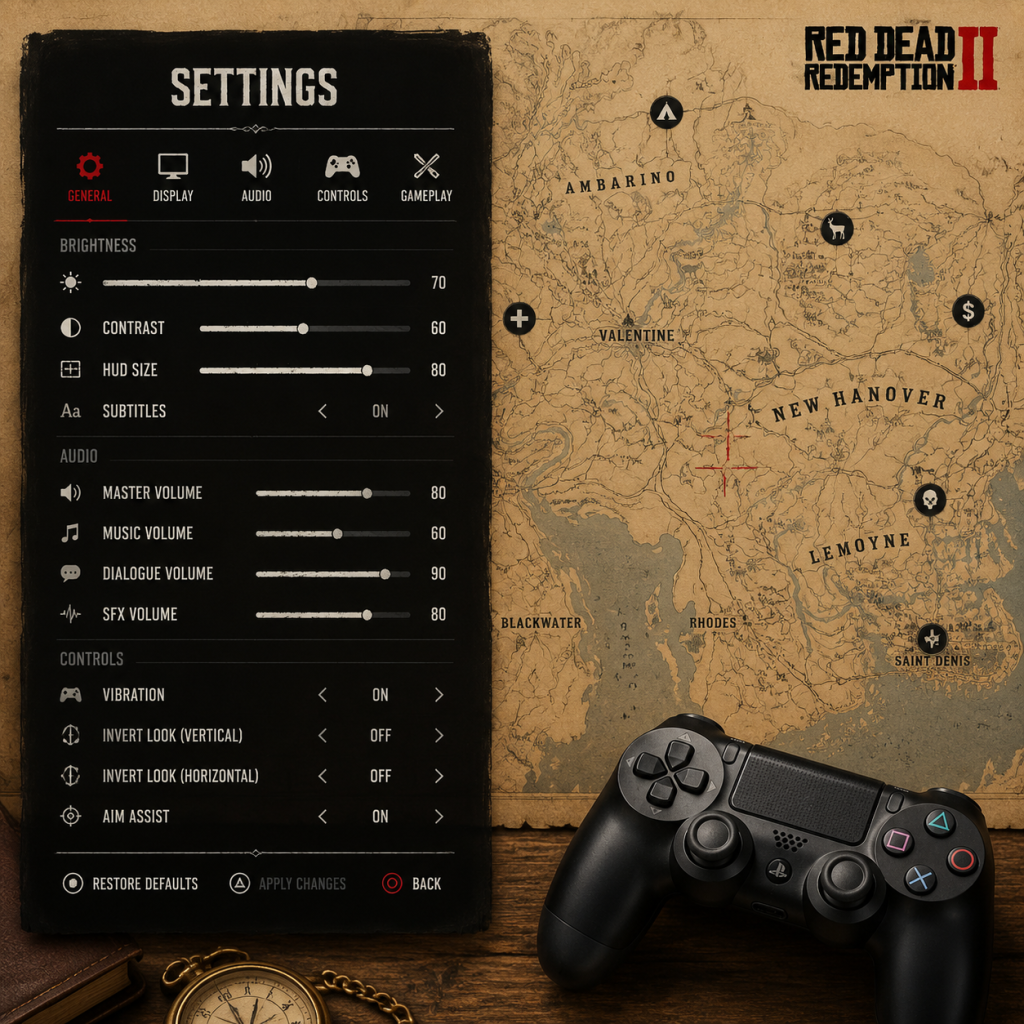
Game Settings
Red Dead Redemption 2 – Comprehensive Game Settings Guide
This guide covers all major settings categories in Red Dead Redemption 2 (RDR2) for PC, PlayStation 4/5, and Xbox One/Series X|S. It includes recommendations for optimal performance and visual quality across different hardware tiers, highlights commonly misconfigured options, and explains special attention points during initial setup.
> Note: Console versions have limited adjustable settings; PC offers the most granular control. This guide focuses heavily on PC settings but also covers console-specific options.
---
1. Graphics Settings (PC)
RDR2’s graphics settings are extensive. The game provides a VRAM Usage Bar at the bottom of the Graphics menu – never exceed your GPU’s VRAM capacity or performance will crater.
#### 1.1 Basic Graphics Settings
| Setting | Description | Recommendation |
|---|---|---|
| Resolution | Native display resolution. | Use monitor native. For performance, lower to 1080p or 900p. |
| Refresh Rate | Must match monitor’s max refresh (e.g., 60Hz, 144Hz). | Set to monitor’s maximum. |
| VSync | Synchronizes frame rate to refresh rate; can cause input lag. | Off if you have G-Sync/FreeSync; otherwise On to prevent tearing. |
| Triple Buffering | Reduces stutter with VSync On. | On when VSync is On; Off if VSync Off. |
| Graphics API | Vulkan (default) or DirectX 12. | Vulkan for most Nvidia GPUs; DX12 for some AMD cards and RTX 20/30 series (better ray tracing support). Test both. |
| Resolution Scale | Renders at a % of resolution then upscales. | 100% for best quality. Lower to 50-75% for massive FPS gain (blurry). |
| Texture Quality | Affects sharpness of surfaces. | Ultra if you have 4+ GB VRAM; High otherwise. |
| Anisotropic Filtering | Sharpens angled textures. | x16 (minimal performance cost). |
| Lighting Quality | Shadows, ambient occlusion, global illumination. | Medium to High; Ultra is heavy. |
| Global Illumination Quality | Affects indirect lighting. | Medium (good balance) or High (performance hit). |
| Shadow Quality | Draw distance and detail of shadows. | Medium or High; Ultra is expensive. |
| Far Shadow Quality | Shadows from distant objects. | Medium (low impact). |
| Screen Space Ambient Occlusion | Adds depth to crevices. | High or Ultra (minor performance cost). |
| Reflection Quality | Reflections on water, glass, etc. | Medium (performance) or High (visuals). |
| Mirror Quality | Mirror reflections. | High (low cost). |
| Water Quality | Water surface detail and reflections. | Medium (good enough). |
| Volumetrics Quality | Fog, clouds, smoke. | Medium (heavy at Ultra). |
| Particle Quality | Dust, sparks, etc. | High (low cost). |
| Tessellation Quality | Adds geometry detail to terrain/objects. | Medium or High; Ultra can cause issues. |
| TAA | Anti-aliasing method. | High (best temporal stability). TAA Sharpening: 1/4 to 1/2 slider for clarity. |
| FXAA | Fast but blurry AA. | Off (TAA is better). |
| MSAA | Multisampling AA – very expensive. | Off (except for screenshots). |
| Motion Blur | Blur during camera movement. | Off (personal preference; helps hide low FPS). |
| Depth of Field | Blur in cutscenes/distance. | Off or On (minimal performance impact). |
These are hidden behind an “Unlock” toggle. Only change these if you have VRAM headroom and understand the impact.
| Setting | Description | Recommendation |
|---|---|---|
| Unlocked | On enables advanced options. | Leave Off until you’ve set basic settings; these can crash or degrade performance. |
| Water Refraction Quality | Underwater refraction. | High (low cost). |
| Water Reflection Quality | Water reflection detail. | Medium. |
| Grass Shadows | Shadows on grass blades. | Medium (can cause flickering at Ultra). |
| Soft Shadows | Shadow edge softness. | High (looks natural). |
| Grass LODs | Level of detail for distant grass. | 1-3 steps below maximum to save performance. |
| Decal Quality | Number of bullet holes, blood splatters. | Ultra (minimal cost). |
| Fur Quality | Animal fur detail. | High (only affects certain animals). |
| Tree Tessellation | Adds geometry to tree trunks. | Off (can cause visual bugs). |
Low-End (GTX 1060 / RX 580 – 8GB VRAM, 1080p, 30-45 FPS)
- Preset: Medium (then adjust)
- Textures: High (VRAM permitting)
- Shadows: Low
- Reflections: Low
- Volumetrics: Low
- TAA: Medium
- Resolution Scale: 85% if needed
- VSync: Off (limit FPS via driver or RivaTuner)
- Preset: High (then tweak)
- Textures: Ultra
- Lighting: High
- Shadows: Medium
- Reflection: Medium
- Volumetrics: Medium
- TAA: High
- Resolution Scale: 100%
- VSync: Off (use G-Sync/FreeSync)
- Preset: Ultra (reduce a few settings to stay within VRAM)
- Textures: Ultra
- Lighting: Ultra
- Shadows: Ultra
- Reflection: High
- Volumetrics: High
- TAA: High + Sharpening 1/2
- Resolution Scale: 100%
- Advanced: Unlock only if VRAM permits; set Grass Shadows to High, Tree Tessellation Off.
- Max everything, 4K, 60-100 FPS
- Use DLSS/FSR Quality if needed for ray tracing (RDR2 does not have RT natively; mods may add it).
Mid-Range (RTX 2060 / RX 5600 XT – 6-8GB VRAM, 1440p, 40-60 FPS)
High-End (RTX 3070 / RX 6800 – 8-16GB VRAM, 4K, 60+ FPS)
Ultra/Beyond (RTX 4080 / RX 7900 XTX)
> Special Attention: The Graphics API can cause crashes or poor performance on certain hardware. If you experience stuttering, switch from Vulkan to DX12 (or vice versa). Also, Triple Buffering + VSync = noticeable input lag; disable both to reduce lag.
---
2. Audio Settings (PC & Console)
| Setting | Description | Recommendation |
|---|---|---|
| Output Configuration | Stereo, Surround, Headphones. | Headphones for spatial awareness in multiplayer; Stereo for TV speakers. |
| Master Volume | Overall game volume. | 70-80% – leaves headroom for explosions. |
| Music Volume | Background score. | 80% – important for atmosphere. |
| SFX Volume | Gunshots, footsteps, animals. | 100% – critical for gameplay awareness. |
| Dialogue Volume | Voiceovers. | 100% – you won't miss story cues. |
| Cinematic Volume | Cutscene audio. | Keep same as Dialogue or slightly lower. |
| Voice Chat (Online) | Input/output volume for player voice. | Adjust to avoid feedback. |
| Proximity Chat (Online) | Enable/disable. | On for immersion; Off for privacy. |
---
3. Controls Settings (PC & Console)
#### 3.1 Controller vs. Keyboard & Mouse
- Controller (Xbox/PS4/PS5): Best for horse riding, combat, and menu navigation. RDR2 was designed with a controller in mind.
- Keyboard & Mouse: Superior precision for aiming; requires rebinding many keys for efficient gameplay.
- Default bindings are atrocious (e.g., `E` for everything). Remap to:
- You can create multiple control schemes in `Settings > Controls > Controls Menu`.
#### 3.2 Key Bindings (PC)
- Interact: `F`
- Run/Sprint: `Shift` (hold)
- Crouch: `Ctrl`
- Cover: `Q`
- Melee: `Mouse5` or `V`
- Dead Eye: `Middle Mouse Button`
- Radial Menu (Weapon Wheel): `Tab` or `Caps Lock` (hold)
#### 3.3 Aim & Look Sensitivity
| Setting | Description | Recommendation |
|---|---|---|
| Look Sensitivity | Mouse/right stick speed. | Start at 50% and adjust. |
| Aim Sensitivity | Speed while aiming down sights. | Slightly lower than look sensitivity for easier tracking. |
| Aim Assist (Controller) | Snaps to targets. | Narrow or Wide as preferred; Off for realism. |
| Dead Zone (Controller) | Minimum stick movement before response. | Lower to ~5% to avoid drift; increase if stick is wonky. |
| Acceleration | Speed increase with sustained movement. | Set to 0 (linear) for most control. |
---
4. Accessibility Settings
| Setting | Description | Recommendation |
|---|---|---|
| Subtitles | Speech text. | On for hearing impaired or noisy environments. |
| Subtitle Background | Dark box behind text. | On for readability. |
| Colorblind Mode | Changes UI colors (Deuteranopia, Protanopia, Tritanopia). | Enable if needed; also affects minimap icons. |
| Text Size | Scale of UI text. | Largest for visibility. |
| Controller Vibration | Haptic feedback. | On (immersion) or Off (if annoying). |
| Quick Time Events | Visual cues for button prompts. | On (default). Can’t be turned off, but awareness helps. |
| Tutorials | Pop-up hints. | On for first playthrough. |
| Auto-Aim (Story Mode) | Locks onto enemies when tapping aim. | Off for challenge; On for easier combat. |
| Lock-On Mode | How tight the auto-aim sticks. | Narrow (less sticky) or Wide (very sticky). |
---
5. Language Settings
- Text Language: Choose your interface language.
- Audio Language: English (default), French, German, Spanish, etc. Note: The game’s lip-sync is only in English; other languages may have mismatched mouth movements.
- Subtitles Language: Overrides audio language for subtitles (e.g., play English audio with Spanish subtitles).
> Special Attention: If you change the audio language, you may need to restart the game for full effect. Also, subtitles are tied to Audio Language unless you manually set them differently.
---
6. Network Settings (Red Dead Online)
| Setting | Description | Recommendation |
|---|---|---|
| Connection Type | Automatic vs. Manual DNS/MTU. | Leave Automatic unless troubleshooting. |
| Enable Voice Chat | Turn on/off voice communication. | Off if you don’t want to hear other players; On for coordination. |
| Proximity Chat | Voice only to nearby players. | On for immersion; Off for privacy. |
| Microphone Mode | Push-to-Talk or Open Mic. | Push-to-Talk to avoid broadcasting background noise. |
| Matchmaking Region | Prefer server location. | Set to your region for lower ping. |
| Spawn Preference | Where you appear when entering Free Roam. | Last Location or Camp. |
---
7. Gameplay Settings
These affect game mechanics and HUD behavior.
| Setting | Description | Recommendation |
|---|---|---|
| Auto-Equip Better Weapons | Automatically switches to stronger weapons when picked up. | Off – you might lose your custom loadout. |
| Weapon Wheel Configuration | Quick select slots. | Manually set 4-8 favorite weapons. |
| Minimap | Show/hide mini-map. | Expanded (default) or Compass (smaller). |
| Mini-Map Rotation | Rotates or stays fixed north. | North Facing (static) or Player Facing (dynamic). |
| HUD Opacity | Transparency of HUD elements. | 60-80% to avoid clutter. |
| Camera Follow Level | How aggressively camera auto-centers behind player. | High (stickier) for controller; Low for mouse. |
| Horse Controls | How horse responds to stick (Relative vs. Camera). | Camera Relative (easier) or Horse Relative (more realistic). |
| Dead Eye Targeting | Manual (players choose target) or Automatic (auto-lock). | Manual for skill; Automatic for ease. |
| Aim Sensitivity Curve | Linear vs. Exponential response. | Linear for muscle memory (PC); Exponential for controller. |
| Run/Toggle | Hold to sprint (default) or toggle. | Tap to Sprint (toggle) – easier on fingers. |
| Crouch Mode | Hold to crouch or toggle. | Toggle (Set) to avoid holding button. |
| Cover Mode | How entering/leaving cover works. | Tap to Enter/Exit or Press to Enter, Hold to Exit. |
---
8. Console-Specific Settings (PS4/PS5, Xbox One/Series)
Consoles offer fewer options, but still important:
- PS5: Go to `Settings > Saved Data and Game/App Settings > Game Presets` to set preferred performance mode.
- Xbox Series X|S: The game runs at 30 FPS in Quality mode and 60 FPS in Performance mode (if supported). Choose Performance for smoother gameplay.
- PS4 Pro / Xbox One X: Similar choice between Resolution and Performance – prefer Performance to avoid dips below 30 FPS.
- HDR Settings: If your TV supports HDR, enable it in `Display > HDR Calibration`. Adjust brightness and paper white to prevent crushed blacks.
---
9. Special Setup Checklist
1. Update GPU drivers – Nvidia Game Ready or AMD Adrenalin.
2. Set Graphics API – Test both Vulkan and DX12; choose the one with fewer stutters.
3. Adjust Resolution Scale – Only if FPS is low; start at 100%.
4. Turn off VSync and Triple Buffering – Unless you are stuck with screen tearing.
5. Unlock Advanced Graphics – Only after tweaking main settings and checking VRAM.
6. Remap controls (PC) – Prioritize weapon wheel, interaction, and sprint.
7. Disable Auto-Equip Better Weapons.
8. Set Audio Output to Headphones if using a headset.
9. Enable Subtitles for readability.
10. Save your settings and restart the game to apply changes fully.
---
By carefully tuning these settings, you can achieve a smooth 60 FPS experience on most modern PCs or enjoy a stable 30 FPS on consoles with high visual fidelity. Pay special attention to the pitfalls highlighted above to avoid frustration during your cowboy adventure.