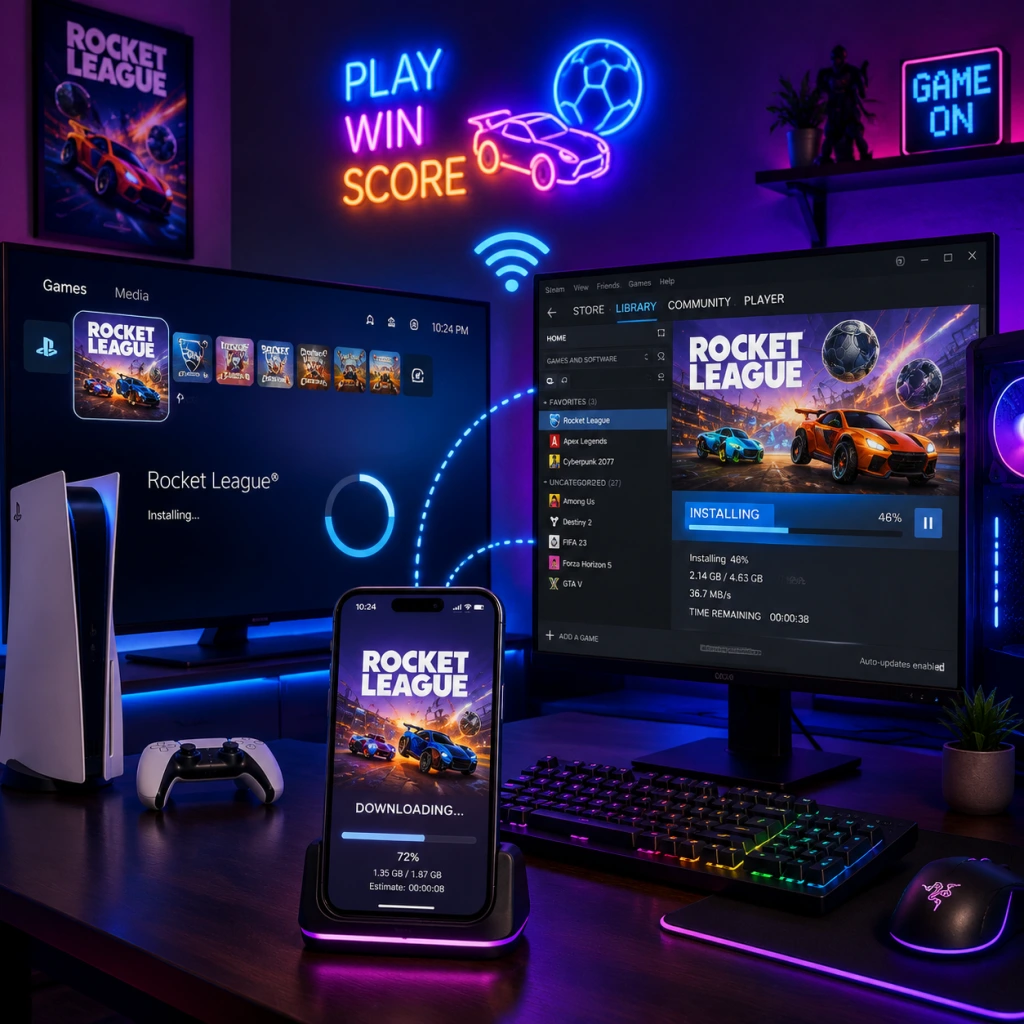
Download & Installation
Rocket League Download & Installation Guide
Rocket League is currently free-to-play on all platforms. Below is a comprehensive breakdown covering official download sources, step-by-step installation, system requirements, account linking, first-launch setup, common errors, and post-install verification.
---
1. Official Download Sources (Legitimate Only)
| Platform | Store / Source | Notes |
|---|---|---|
| PC | [Epic Games Store](https://store.epicgames.com/en-US/p/rocket-league) | Free. Epic Games account required. (Note: No longer sold on Steam for new users; existing Steam owners can still download via Steam.) |
| PlayStation | PlayStation Store (PS4 / PS5) | Free. PSN account required. |
| Xbox | Microsoft Store (Xbox One / Series X\ | S) |
| Nintendo Switch | Nintendo eShop | Free. Nintendo Account required. |
---
2. System Requirements (PC)
| Component | Minimum | Recommended |
|---|---|---|
| OS | Windows 10 (64-bit) | Windows 11 (64-bit) |
| CPU | Intel Core i5-4460 / AMD FX-6300 | Intel Core i7-6700 / AMD Ryzen 5 1600 |
| RAM | 8 GB | 16 GB |
| GPU | NVIDIA GeForce GTX 760 / AMD Radeon R9 270X | NVIDIA GeForce GTX 970 / AMD Radeon RX 480 |
| DirectX | Version 11 | Version 12 |
| Storage | 20 GB free space (SSD recommended) | 20 GB free space (SSD) |
| Network | Broadband internet connection | Broadband internet connection |
3. Step-by-Step Installation
#### PC (Epic Games Store)
1. Create an Epic Games account at [epicgames.com](https://www.epicgames.com) if you don’t already have one.
2. Install the Epic Games Launcher from the same site.
3. Log in to the launcher with your Epic account.
4. Search for “Rocket League” in the store or go directly to the [Rocket League page](https://store.epicgames.com/en-US/p/rocket-league).
5. Click “Get” (or “Download” if already owned).
6. The game will be added to your library. Click “Install” and choose installation location (default: `C:\Program Files\Epic Games\RocketLeague`).
7. Wait for download and installation to complete (~20 GB).
8. Launch the game from your Epic Games library.
#### PC (Steam – for existing owners only)
1. Open Steam and log in.
2. Go to Library and find Rocket League.
3. Click Install and follow on-screen prompts.
4. After download, launch from Steam.
> If you never purchased Rocket League on Steam before 2020, you cannot install it via Steam. Use the Epic Games Store.
#### PlayStation (PS4 / PS5)
1. Power on console and log in to your PSN account.
2. Go to the PlayStation Store.
3. Search for “Rocket League”.
4. Select the game and choose “Download” (it’s free).
5. The game will install automatically. You can monitor progress from the home screen.
6. Once installed, launch the game from your library or home screen.
#### Xbox (One / Series X|S)
1. Log in to your Xbox Live account.
2. Open Microsoft Store (or Store on Xbox dashboard).
3. Search for “Rocket League”.
4. Click “Get” or “Install”.
5. The download will start. You can check progress under My Games & Apps.
6. After installation, launch from the game tile.
#### Nintendo Switch
1. Turn on the console and open the Nintendo eShop from the home menu.
2. Select your user account and enter the eShop.
3. Search for “Rocket League”.
4. Scroll to the game and select “Free Download”.
5. Confirm the download. The game will install to your system or SD card (make sure you have enough space).
6. After installation, find the game on your home screen and launch.
---
4. Storage Space Requirements
| Platform | Approximate Download Size | Additional Space for Updates |
|---|---|---|
| PC (Epic/Steam) | ~20 GB | ~5 GB extra during patching |
| PS4 | ~22 GB | |
| PS5 | ~22 GB | |
| Xbox One / Series X\ | S | ~20 GB |
| Nintendo Switch | ~15 GB |
---
5. Account Requirements
- Epic Games Account is mandatory for all platforms to enable cross-progression, cross-play, and inventory sharing.
- You can link your platform account (PSN, Xbox Live, Nintendo Account) to an Epic account during first launch or via [Epic Games Account Linking](https://www.epicgames.com/account/connections).
During first launch on any platform:
1. The game will prompt you to sign in with an Epic Games account.
2. If you already have one, enter credentials. If not, create a new one.
3. After linking, your progress and items will sync across all linked platforms.
> Without an Epic account, you can still play offline or locally, but online features and cross-save will be disabled.
---
6. First Launch Setup
1. Language/Region selection – Choose your preferred language and region.
2. Video calibration – Adjust brightness and screen bounds (if needed).
3. Controller setup – The game will detect your controller automatically. You can rebind controls later in settings.
4. Tutorial – You can choose to play the built-in tutorial or skip it.
5. Online connection – Ensure you are online to link your Epic account (if not done during install).
6. Confirm account link – Follow on-screen steps to connect your platform account to your Epic account.
7. Accessibility settings – Optional: adjust camera, audio, and gameplay settings.
---
7. Common Installation Errors & Fixes
| Error | Platform | Cause | Solution |
|---|---|---|---|
| “Download Failed” | PC (Epic) | Network interruption, antivirus blocking | Restart launcher and router; add Epic Games Launcher & Rocket League to antivirus exceptions. |
| “Insufficient Disk Space” | All | Not enough free space | Free up space or install to a different drive. Minimum 25 GB free recommended. |
| “Unable to Start” or “Missing DLL” | PC | Corrupted game files or missing Visual C++ redistributables | Verify game files in Epic Launcher (Library > Rocket League > three dots > Verify). Reinstall [Microsoft Visual C++ Redistributables](https://aka.ms/vs/17/release/vc_redist.x64.exe). |
| “Sign-in Failed” | All | Account linking issue or server outage | Check [Epic Games Server Status](https://status.epicgames.com/); unlink and relink accounts via Epic Games website. |
| “Game Crashes on Launch” | PC | Outdated GPU drivers or overlays | Update drivers; disable Discord overlay, GeForce Experience overlay, or other overlays. |
| Controller Not Working | All | Driver issue or game setting | Ensure controller is recognized in OS; in Rocket League settings, select correct controller type (e.g., Xbox, PS4, Switch Pro). |
| “Low FPS” | PC | Settings too high for hardware | Lower graphics settings (especially shadows, anti-aliasing, and resolution). Use Performance Mode in video settings. |
| “Connection Timed Out” | All | Network firewall or NAT type | Port forward UDP ports 7000-9000 for Rocket League; disable firewall temporarily. |
- Restart your device and router.
- Update the game to the latest version.
- Reinstall the game if all else fails (back up replays/config first).
- Rocket League receives regular updates (seasonal content, patches). Keep the game updated for online play.
- On PC, you can launch Rocket League directly from the Epic Games Launcher or create a desktop shortcut.
- If you own the game on multiple platforms, you only need one Epic account to unify your progress.
---
8. Post-Installation Verification
After installation, confirm everything works by:
1. Launching the game – It should open within 30 seconds.
2. Checking the main menu – You should see the “Play Online” button and a connection indicator.
3. Playing a tutorial or exhibition match – Ensure controls and physics work smoothly.
4. Verifying account linking – Go to Settings > Account to see if your Epic account is connected.
5. Checking for updates – The game will prompt you if a patch is available.
6. Testing online matchmaking – Queue for a casual match. If it works, installation is complete.
---
Final Notes
For further help, visit the official [Rocket League Support Site](https://support.rocketleague.com).