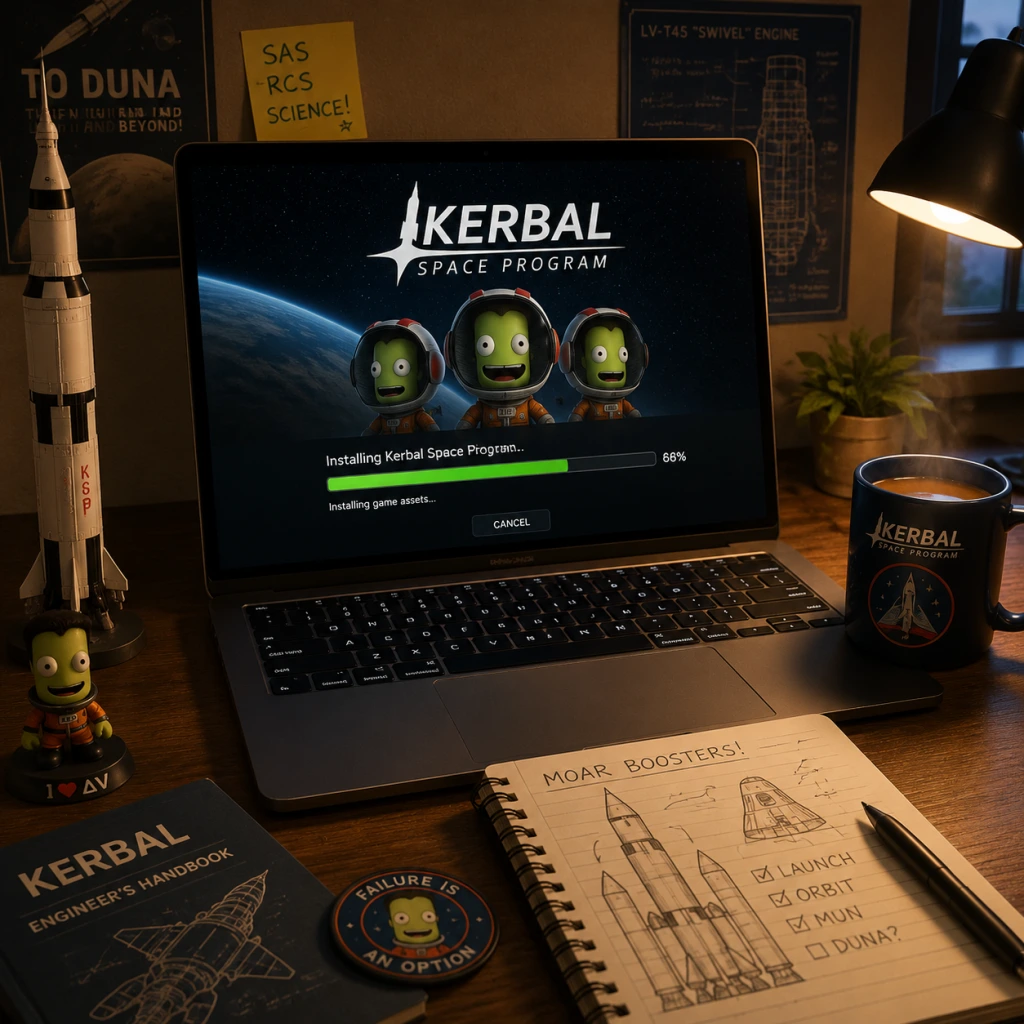
Download & Installation
Kerbal Space Program: Download & Installation Guide
This guide covers everything you need to know to download and install Kerbal Space Program (KSP) on PC, PlayStation, Xbox, and Nintendo Switch. Mobile versions are not officially supported; only the original PC KSP and its sequel (KSP2) are considered here.
---
1. Official Sources & Platforms
| Platform | Official Store | Notes |
|---|---|---|
| PC (Windows/Mac/Linux) | [Steam](https://store.steampowered.com/app/220200/Kerbal_Space_Program/), [Epic Games Store](https://store.epicgames.com/en-US/p/kerbal-space-program), or direct from [Squad’s website](https://www.kerbalspaceprogram.com/) (download code) | Steam offers the base game + all DLC bundles. Epic Games Store occasionally gives the game for free. Direct purchase from Squad provides a DRM-free copy. |
| PlayStation 4 / PS5 | PlayStation Store | PS5 runs via backward compatibility. No native PS5 version. |
| **Xbox One / Xbox Series X | S** | Microsoft Store (Xbox) |
| Nintendo Switch | Nintendo eShop | Simplified controls; performance capped at 30fps. DLC available separately. |
2. System Requirements (PC)
Minimum Requirements
- OS: Windows 7 64-bit / macOS 10.11+ / Linux (Ubuntu 16.04+)
- CPU: Intel Core i3-530 or AMD FX-4350
- RAM: 4 GB
- GPU: NVIDIA GeForce GTX 550 Ti (1GB VRAM) / AMD Radeon HD 5770
- Storage: 3 GB available space
- DirectX: Version 9.0c (Windows only)
- OS: Windows 10 64-bit / macOS 10.13+ / Linux (Ubuntu 18.04+)
- CPU: Intel Core i5-4590 or AMD Ryzen 3 1200
- RAM: 8 GB
- GPU: NVIDIA GeForce GTX 760 (2GB VRAM) / AMD Radeon R9 280X
- Storage: 4 GB (with DLC)
- DirectX: Version 11 (Windows only)
- Base game: ~2.5 GB on disk (after download).
- With all DLC (Making History, Breaking Ground): ~3.5 GB.
- Save files & mods: Additional space varies. Allow at least 1 GB for mods.
- Steam: A free Steam account. No additional subscription needed for single-player.
- Epic Games Store: A free Epic Games account.
- PlayStation / Xbox: Respective online platform accounts (free for store purchases).
- Nintendo Switch: Nintendo Account required.
- Error: “MSVCP140.dll not found” or similar.
- Fix: Install Microsoft Visual C++ Redistributables. Download from [Microsoft official site](https://support.microsoft.com/en-us/help/2977003/the-latest-supported-visual-c-downloads). Both x86 and x64 versions may be needed.
- Fix:
- Fix:
- Fix: Delete unused games or expand storage (external USB drive for PS4/Xbox One; internal SSD for PS5/Xbox Series). Switch can use microSD card (up to 2TB).
- Fix: Ensure controller is synced. For Switch, check Joy-Con connection. For PC, use Xbox/PlayStation controller with official adapters or Bluetooth.
- Fix:
- Steam: Right-click KSP in Library → Properties → Local Files → “Verify integrity of game files”. Steam will compare and redownload corrupt files.
- Epic: Library → three dots on KSP → “Verify”.
- Consoles: No file verification tool, but you can reinstall if issues occur.
- PC: DLC should appear automatically if purchased. In main menu, check “Expansions” to see if they’re enabled.
- Consoles: DLC is separate purchases or included in Enhanced Edition. Ensure they are installed via store.
- Modding: KSP has a huge modding community. Use [CurseForge](https://www.curseforge.com/kerbal) or [SpaceDock](https://spacedock.info/) for mods. Manually install mods by copying to `GameData` folder. Use [CKAN](https://github.com/KSP-CKAN/CKAN) for automatic mod management.
- Backing Up Saves: Saves are located in:
- Performance Mods: Install “KSP Community Fixes” or reduced textures mods for smoother gameplay on lower-end systems.
Recommended Requirements
Note: KSP is CPU-intensive, especially with large vessels. An SSD significantly reduces loading times.
---
3. Storage Space
---
4. Account Requirements
No internet connection is required after installation for single-player play, but updates and DLC verification need internet.
---
5. Step-by-Step Installation
5.1 PC (Windows, macOS, Linux) – Steam
1. Download and install the [Steam client](https://store.steampowered.com/about/).
2. Log in to your Steam account.
3. Go to Store → search for "Kerbal Space Program".
4. Click Add to Cart, then Purchase (or Install if already owned).
5. After purchase, go to your Library → find Kerbal Space Program.
6. Click Install. Choose a location (default: `C:\Program Files (x86)\Steam\steamapps\common`).
7. Wait for download (Steam shows progress).
8. Once installed, click Play from the Library.
5.2 PC – Epic Games Store
1. Install the [Epic Games Launcher](https://store.epicgames.com/en-US/download).
2. Log in to your Epic account.
3. Open the Store tab, search "Kerbal Space Program".
4. Click Get (or Buy if not free). Follow checkout.
5. Go to your Library → find Kerbal Space Program → click Install.
6. Choose installation path (default: `C:\Program Files\Epic Games`).
7. After installation, click Launch.
5.3 PlayStation 4 / PS5
1. On your console, go to PlayStation Store.
2. Search “Kerbal Space Program”.
3. Select the game and choose Add to Cart → Proceed to Checkout.
4. Confirm purchase (payment method needed).
5. The game will automatically download to your console.
6. Once downloaded, the icon appears on your home screen. Select it to launch.
Note: PS5 runs the PS4 version via backward compatibility. No separate PS5 version exists.
5.4 Xbox One / Xbox Series X|S
1. Press the Xbox button → Microsoft Store.
2. Search “Kerbal Space Program”.
3. Select the game → Buy (or Install if already owned via Game Pass or previous purchase).
4. Wait for download (can monitor in My games & apps).
5. Launch from My games & apps or Home.
Xbox Game Pass: KSP is not currently included in Game Pass. Purchase required.
5.5 Nintendo Switch
1. From the Home menu, open Nintendo eShop.
2. Search “Kerbal Space Program”.
3. Select the game → Proceed to Purchase (or Download if already bought).
4. Confirm payment.
5. Download begins automatically. A progress bar shows on the Home menu.
6. Once done, launch from Home.
Note: The Switch version is a port by BlitWorks. Performance is lower than other platforms.
---
6. First Launch Setup
When you first run KSP, follow these steps:
1. Language Selection – Choose your language.
2. Graphics Settings – The game automatically detects hardware. You can adjust resolution, quality, and anti-aliasing later in Settings.
3. Control Settings – Default keyboard/mouse or controller layout. Customize later.
4. Main Menu – You’ll see options: Start Game (new or load save), Training, Settings, Credits.
5. Create a Save – Click “Start Game” → type a save name → choose “Sandbox” (unlimited parts), “Science Mode” (unlock parts via experiments), or “Career Mode” (with funds, contracts).
Recommended first step: Play the in-game tutorials under “Training” to learn basic rocket design and flight.
---
7. Common Installation Errors & Fixes
7.1 “Missing redistributables” (PC)
7.2 “Steam Error: Disk Write Failure” (PC)
1. Run Steam as Administrator.
2. Clear download cache: Steam → Settings → Downloads → Clear Download Cache.
3. Free up disk space (ensure >5 GB).
4. Temporarily disable antivirus.
7.3 “Epic Games Launcher installation hangs” (PC)
1. Restart launcher.
2. Verify files: Library → click three dots on KSP → Verify.
3. Reinstall launcher if persistent.
7.4 “Not enough space” on consoles
7.5 “Controller not working” (all consoles)
7.6 “Black screen on launch” (PC)
1. Disable overlays (Steam, Discord, NVIDIA GeForce Experience).
2. Update graphics drivers.
3. Run in windowed mode: add `-popupwindow` to launch options (Steam: Right-click KSP → Properties → General → Launch Options).
---
8. Post-Installation Verification
Check Game Version & Integrity
Test Basic Functionality
1. Launch the game.
2. Start a new Sandbox save.
3. Build a simple rocket (e.g., Mk1 command pod + RT-10 booster).
4. Launch and stage until space.
5. If the game runs smoothly and you can control flight, installation is successful.
DLC Installation Check
---
9. Additional Tips
- Windows: `%USERPROFILE%\AppData\LocalLow\Squad\Kerbal Space Program\saves`
- macOS: `~/Library/Application Support/Squad/Kerbal Space Program/saves`
- Linux: `~/.config/unity3d/Squad/Kerbal Space Program/saves`
---
Kerbal Space Program is developed by Squad and published by Private Division. This guide is for educational purposes. Always purchase from official channels to support the developers.