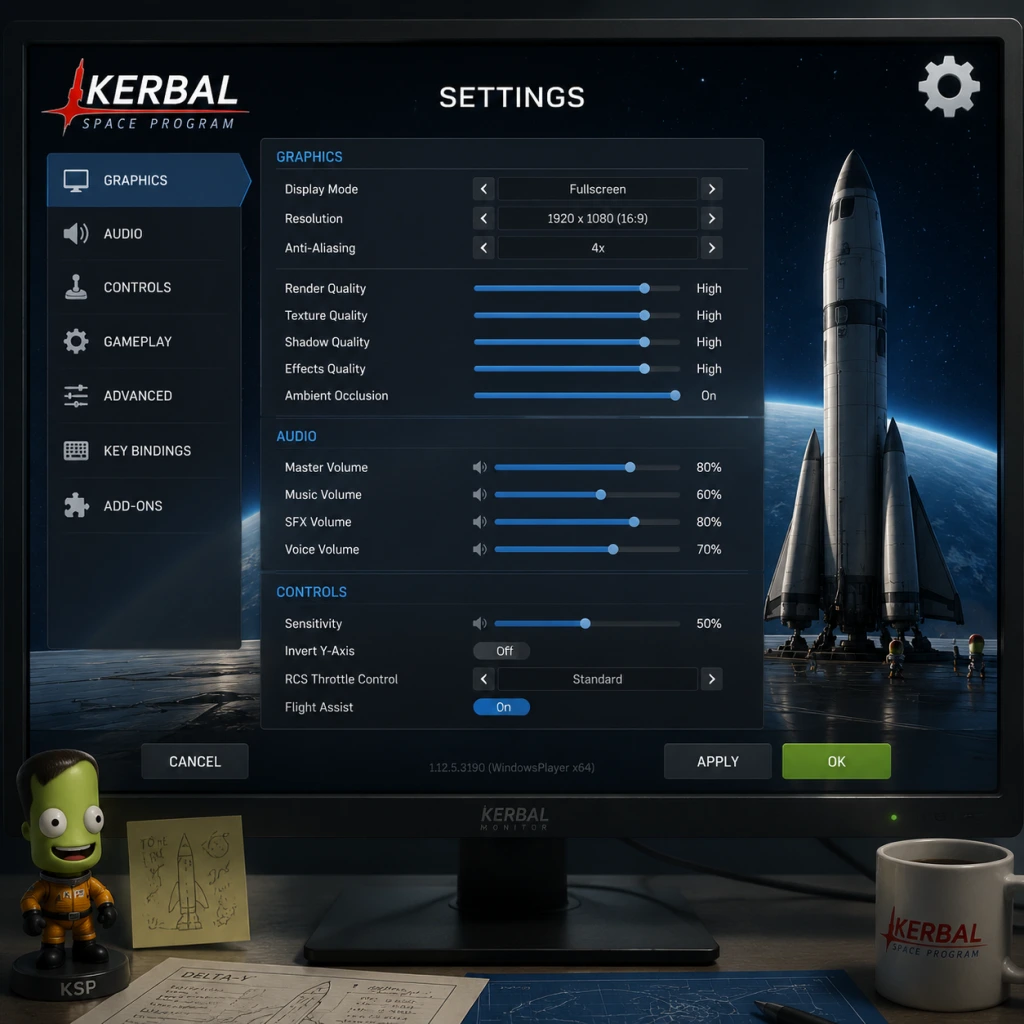
Game Settings
Game Settings Guide for Kerbal Space Program
Configuring Kerbal Space Program (KSP) correctly is crucial for a smooth experience, as the game is heavily CPU-bound due to real-time physics simulation. This guide covers all major settings categories—Graphics, Audio, Controls, Accessibility, Language, Network, and Gameplay—and provides optimal recommendations for low-end, mid-range, and high-end hardware. Special attention is given to settings that are easy to misconfigure or have a disproportionate impact on performance or gameplay.
---
Graphics Settings
KSP's graphics options affect both visual quality and performance. The most impactful settings are those related to terrain, shadows, and effects. Note that KSP uses Unity engine and is sensitive to CPU performance, especially with many parts or large vessels.
| Setting | Description | Low-End (e.g., Intel HD Graphics, 8 GB RAM) | Mid-Range (e.g., GTX 1060, 16 GB RAM) | High-End (e.g., RTX 3080, 32 GB RAM) | Notes |
|---|---|---|---|---|---|
| Render Quality | Controls anti-aliasing and overall shader quality. | Fastest (low) | Good (medium) | Fantastic (ultra) | Lower settings reduce blur and improve FPS on weak GPUs. |
| Terrain Detail | Draw distance and detail of terrain geometry. | Low (25-50%) | Medium (50-75%) | High (75-100%) | Easy to misconfigure: Setting too high on low-end causes severe stutter during flight over mountains. |
| Terrain Scatters | Amount of trees, rocks, etc. | 0-10% | 30-50% | 60-100% | Scatters have a notable CPU cost when near ground. Disable entirely for lander missions on low-end. |
| Texture Quality | Resolution of planet and part textures. | Half Resolution | Full Resolution | Full Resolution | VRAM usage: high textures may cause crashes on GPUs with <2 GB VRAM. |
| Shadow Cascades | Number of shadow layers; affects shadow sharpness. | 2 Cascades | 4 Cascades | 4 Cascades | Higher cascades improve close-up shadows but cost GPU. 4 is good middle ground. |
| Anti-Aliasing | Smooths edges. MSAA is expensive; FXAA is lighter. | FXAA or Off | MSAA 4x | MSAA 8x or SMAA | On low-end, use FXAA or none. |
| Ambient Occlusion | Adds contact shadows. | Off | SSAO (low) | HBAO (high) | High-end: use HBAO for best look. Disable on low-end. |
| Motion Blur | Blurs fast-moving objects. | Off | Off | On | Personal preference; increases motion sickness for some. |
| V-Sync | Locks FPS to monitor refresh rate. | Off | Off or On | Off or On | Disable if you experience input lag. On can reduce screen tearing. |
| Framerate Limit | Caps FPS. | 30-60 FPS | 60 FPS | 60-144 FPS | Setting 60 FPS often yields smoother physics simulation. |
- Terrain Detail and Scatters: These are the #1 performance killers for mid-range systems. If you notice stutter when approaching the ground in a lander or plane, lower both.
- Texture Quality: Setting to "Full Resolution" on a GPU with less than 2 GB VRAM can cause crashes or heavy stuttering. Choose "Half Resolution" if unsure.
- Anti-Aliasing: MSAA does not work effectively in KSP's deferred rendering path; consider using FXAA or SMAA instead.
- V-Sync and Framerate Limit: KSP's physics simulation tick rate is tied to the frame rate up to a cap. Setting a framerate limit (e.g., 60 FPS) can reduce CPU load and provide more consistent physics – especially important for large vessels.
---
Audio Settings
KSP offers standard audio controls. Proper configuration can improve immersion and help with gameplay cues (e.g., engine sound indicating throttle level).
| Setting | Description | Recommended Value | Special Notes |
|---|---|---|---|
| Master Volume | Overall volume. | 100% (adjust as needed) | – |
| Music Volume | Background music. | 50-70% | Music can be distracting during precise maneuvers; lower to 30% for concentration. |
| Effects Volume | Sounds of engines, collisions, UI, etc. | 100% | Crucial for hearing engine cutoffs and staging sounds. |
| Ambient Volume | Wind, planet atmosphere sounds. | 70-100% | Adds immersion; can be lowered if too noisy. |
| Voice Volume | Kerbal voice lines (e.g., "Go for launch"). | 100% | Helps with mission alerts. |
| Mute When Minimized | Pauses audio when alt-tabbing. | On (recommended) | Prevents sound overlapping when game is backgrounded. |
| Spatial Audio | Enables 3D positional audio for engine sounds. | On | Requires good headphones or surround setup. |
- Effects Volume: Do not reduce below 50% if you rely on engine sounds to gauge throttle – many players find it helpful for docking and landing.
- Mute When Minimized: Turn this on to avoid audio glitches when switching windows, common with some audio drivers.
---
Controls
KSP supports keyboard, mouse, gamepad, and joystick (with custom axis mapping). Proper setup is essential for fine precision during docking and landing.
| Setting | Description | Recommended | Notes |
|---|---|---|---|
| Keyboard Layout | QWERTY, AZERTY, etc. | Match your physical keyboard. | Rebind keys if needed (e.g., spacebar for staging, Shift/Ctrl for throttle). |
| Mouse Sensitivity | Controls camera rotation speed. | 50-70% | Higher sensitivity can cause overshoot; lower is better for precise orbital views. |
| Invert Y Axis | For camera and controls. | Off (unless used to flight sims) | Personal preference; many airplane sim vets prefer inverted. |
| Joystick / Gamepad | Axis assignment, dead zones. | Calibrate in OS first. | Set a small dead zone (~5-10%) to prevent drift. Use linear response for throttle, exponential for pitch/yaw. |
| SAS / RCS Toggle Keys | Usually T and R. | Keep defaults | Easy to mis-press in flight; consider rebinding to less accidentally hit keys. |
| Quick Save / Load | Default F5/F9. | Keep or rebind to side keys | F9 can be pressed accidentally – rebind to a safer key like F8. |
| Time Warp Controls | < (slower) > (faster). | Default | No need to change. |
- Staging Key (Spacebar): The default action is to activate the next stage. Many beginners accidentally stage while trying to time warp or toggle SAS. Consider rebinding staging to a less convenient key (e.g., Backspace) if you have fat-finger issues.
- Throttle Controls: Shift (increase) and Ctrl (decrease) are standard. If using a joystick with analog throttle, map the axis at 50% for neutral (KSP uses 50% as zero throttle).
- Joystick Dead Zone: Too small a dead zone may cause unwanted roll/pitch due to drift. Too large loses fine control. Experiment with 5-10%.
---
Accessibility Settings
KSP has limited built-in accessibility features, but some workarounds exist.
| Setting / Feature | Description | Recommendation |
|---|---|---|
| Color Blind Mode | _Not present in vanilla KSP._ | Use mod: KSP Accessibility Mod or TextureReplacer with high-contrast UI. |
| UI Scale | Adjusts size of interface elements. | In `settings.cfg` (open with Notepad) find `UIScale = 1.0` and increase to 1.25-1.5. |
| Font Size | Cannot change separately; follows UI scale. | Increase UI scale for larger fonts. |
| Auto-Hide Navball | Hides navball after few seconds. | Off (keeps navball always visible) – helpful for clarity. |
| Kerbal Names | Shows names of crew members. | On – aids in tracking astronauts. |
| Speech Bubble Text | Kerbal voice lines appear as text. | On – for hearing-impaired players. |
- Color Blindness: KSP's stock UI uses green/gray for delta-V maps and red/green for staging icons. Install KSP dV Colorblind mod (available on CurseForge) to adjust colors.
- UI Scaling for High-Resolution Monitors: If you play on 4K or 1440p, the default UI is tiny. Manually editing `UIScale` in the settings.cfg file (located in `<KSP install>/settings.cfg`) to 1.2-1.5 is highly recommended. This file is regenerated on launch, so change it while the game is closed.
---
Language Settings
KSP is available in multiple languages. The language affects all in-game text including tutorials, parts descriptions, and menus.
| Setting | Description | Recommendation |
|---|---|---|
| Language | Select from available options (English, French, German, Spanish, Italian, Japanese, Russian, Chinese Simplified, Chinese Traditional, Korean). | Choose your native language. |
| Force Language | If the game doesn't detect correctly, use launch options in Steam: `-language japanese` (for example). | Add launch option if auto-detection fails. |
- Mod Compatibility: Many mods (e.g., MechJeb, Kerbal Engineer Redux) display additional text that may not be translated. If you rely heavily on mods, English is safest.
- Steam Cloud Saves: Language choice is independent of saves, so you can switch mid-playthrough without losing progress.
---
Network Settings
KSP does not have built-in multiplayer or network features (aside from mods). The only network-related settings are indirect.
| Setting / Feature | Description | Recommendation |
|---|---|---|
| Steam Cloud | Syncs saves and settings across devices via Steam. | On (recommended to backup progress). |
| Mod Updates | When using CurseForge or CKAN, allow automatic updates. | Manage manually to avoid breaking save files. |
| DLC Authentication | Requires occasional online check for DLC ownership. | Ensure internet connection when launching after DLC purchase. |
| Telemetry | Sends anonymous usage data. | Can be disabled in `settings.cfg` (set `SendAnonymousUsageData = False`). |
- Steam Cloud conflicts: If you play on multiple PCs, ensure cloud sync is complete before launching, else saves may be overwritten. Disable cloud if you have many mods as synced settings may cause errors.
- No Multiplayer: As of KSP 1.12.x, there is no official multiplayer. The Luna Multiplayer mod exists but is complex to set up and not covered in this guide.
---
Gameplay Settings
These settings affect difficulty, simulation complexity, and convenience features.
| Setting | Description | Recommended | Notes |
|---|---|---|---|
| Difficulty Preset | Easy, Normal, Hard, Custom. | Normal for first-time players. | Easy gives infinite fuel – unrealistic. Hard disables quick saves and reverts. Custom allows fine-tuning. |
| Reversion | Allow revert to launch / VAB/SPH. | On (Normal) – essential for learning. | Turn off for hardcore playthrough. |
| Quick Saves / Loads | F5/F9. | On (Normal) – critical for testing. | Disabling causes high frustration. |
| Auto Save Interval | How often the game auto-saves. | 5 minutes (moderate). | Too frequent causes micro-stutter; too long risks losing progress. |
| Comm Network | Requires antenna connection for probe control. | Off for beginners; On for realism. | Easy to misconfigure: New players can get stuck with no signal. Start with Off. |
| Resource Transfer | Allow fuel crossfeed regardless of part orientation. | On (enabled). | Off forces realistic fuel flow – more challenging. |
| Kerbal Experience | Damage from g-forces, part failures. | Off (unless you want extra difficulty). | G-force effects can kill Kerbals if ignored. |
| Part Pressure Limits | Parts can only withstand certain atmospheric pressure. | Off initially; On for advanced. | Makes high-speed atmospheric flights harder. |
| Command Seat Restrictions | Only certain Kerbals can use external seats. | Off (easier). | On adds role-playing depth. |
| Tutorials | Show guidance for basic actions. | On for first playthrough. | Can be turned off in settings after learning. |
| Theta (Advanced Tweakables) | Show hidden part options like deploy limits. | On (improves design flexibility). | Turn on from Main Menu > Settings > Gameplay. |
| Show Center of Mass, Thrust, Lift | Display VAB overlays. | On (enabled) – helps balance craft. | Essential for designing stable rockets. |
- Comm Network (Difficulty Setting): _Most common trap for new players._ If enabled, probes without a clear line of sight to Kerbin (or relay satellites) will become uncontrollable. Many first-time players accidentally enable this by choosing "Hard" difficulty. Always start with Comm Network OFF.
- Quick Saves vs. Auto Saves: Quick saves (F5) are per-vessel sessions; auto saves are global. Use quick saves frequently (before staging, landing, or docking).
- Theta (Advanced Tweakables): _Hidden by default._ You must go to Main Menu > Settings > Gameplay and check "Enable Advanced Tweakables" to see options like limiter for landing struts, tweakable solar panels, and more. This is essential for optimizing craft.
- Resource Transfer: Leaving this OFF can cause confusion when fuel doesn't flow from docked ships. Turn ON for convenience.
- Target: 30 FPS stable.
- Settings Preset: Use "Fastest" graphics preset, then adjust:
- Additional Tips: Play in windowed mode at 1280x720. Avoid large part counts (keep vessel < 100 parts). Disable ambient occlusion and motion blur. Close background apps.
- Target: 60 FPS with mods.
- Settings:
- Additional Tips: Use SSD for faster loading. Install MechJeb for auto-pilot to reduce CPU load during burns. Keep vessel part count < 200 for smooth physics.
- Target: 60-144 FPS with max visuals and many mods.
- Settings:
- Additional Tips: Use mods like EVE (Environmental Visual Enhancements) and Scatterer for atmospheric effects. Monitor CPU temperature – KSP stresses single-core performance heavily. Consider overclocking your CPU's single core speed.
---
Performance Optimization by Hardware Level
#### Low-End System (e.g., Intel i3, 8 GB RAM, Intel HD Graphics 4000, HDD)
- Terrain Detail: 25%
- Terrain Scatters: 0%
- Shadow Cascades: 1 (requires editing settings.cfg: `SHADOW_CASCADES = 1`)
- Anti-Aliasing: Off
- Texture Quality: Half Res
- Framerate Limit: 30 FPS
- V-Sync: Off
#### Mid-Range System (e.g., Intel i5, 16 GB RAM, GTX 1060 6GB, SSD)
- Graphics Preset: Good
- Terrain Detail: 75%
- Terrain Scatters: 40%
- Shadow Cascades: 4
- Anti-Aliasing: FXAA or MSAA 4x
- Texture Quality: Full
- Ambient Occlusion: SSAO (low)
- Framerate Limit: 60 FPS
- V-Sync: On (if no screen tearing)
#### High-End System (e.g., Intel i7/i9, 32 GB RAM, RTX 3080, NVMe SSD)
- Graphics Preset: Fantastic
- Terrain Detail: 100%
- Terrain Scatters: 70% (can go to 100% but may cause occasional dips near surface)
- Shadow Cascades: 4
- Anti-Aliasing: SMAA (for deferred rendering) or MSAA 8x
- Texture Quality: Full
- Ambient Occlusion: HBAO
- Motion Blur: Off (can toggle on)
- Framerate Limit: 60 FPS (to ensure stable physics) or 120+ if you can maintain >60.
- V-Sync: Off (use G-Sync/Freesync instead)
---
Summary of Easy-to-Misconfigure Settings
| Setting | Why It's Tricky | Correct Action |
|---|---|---|
| Terrain Detail & Scatters | Too high on low-end = stutter. | Match to hardware; start low, increase gradually. |
| Texture Quality | Full resolution on <2 GB VRAM = crash. | Use Half Res if unsure. |
| Comm Network | New players lose control of probes. | Turn OFF in difficulty settings. |
| Advanced Tweakables | Hidden setting limits part options. | Enable in Main Menu > Settings > Gameplay. |
| Quick Save / Staging Keys | Spacebar accidentally pressed during flight. | Rebinding to a less accessible key is safer. |
| UI Scale for High Res | Default UI tiny on 4K. | Edit `UIScale` in settings.cfg. |
| Framerate Limit | Too high = physics inconsistency. | Cap at 60 FPS for reliable simulation. |
By carefully adjusting these settings, you can tailor KSP to your hardware and playstyle. Remember that KSP is CPU-bound; prioritize lower physics load (fewer parts, lower time-warp settings) over graphical flare for a smoother experience. Happy launching!